.png?width=140&height=37&name=BLAZE-Logo-Blue%20(2).png)
Are you ready to get your POS devices set up for your storefront? This article will provide you with all the necessary information to help you get started.
POS device IDs and passwords
Once you are ready to activate your live account or want to add POS tills to your location, you will receive your login details. We will send you enclosed POS device IDs and passwords as shown in Example 1. Let us know how many POS devices you will be using at your location.
Example 1: POS Tills
Device #1: companyname1
Password: 4-digit code
Device #2: companyname2
Password: 4-digit code
Assign Your Devices
When you have the login details, download the "BLAZE POS" application from the Apple or Google Play Store on your device.
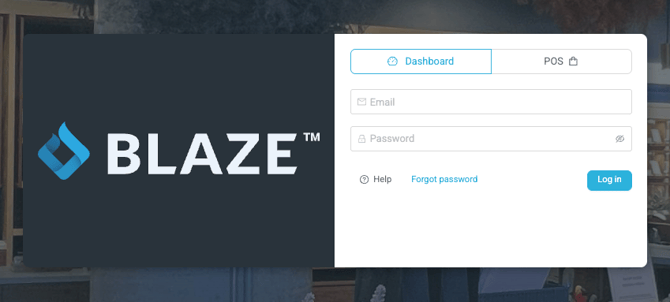
You can also go to https://app.blazepos.com/loginV2
ere you can enter the provided Device ID and associated passcode to assign each device.
BLAZE Application