.png?width=140&height=37&name=BLAZE-Logo-Blue%20(2).png)
Customers earning points through BLAZE's Loyalty Program may redeem their points for discounts on BLAZE ECOM. This guide will explain how to enable rewards on your BLAZE ECOM menu and how to redeem points for loyalty-specific discounts at checkout!
Utilizing loyalty points as a flat dollar discount, while available in-store, is not available online at this time.
How to Enable Rewards on BLAZE ECOM
Log in to your BLAZE ECOM Mission Control:
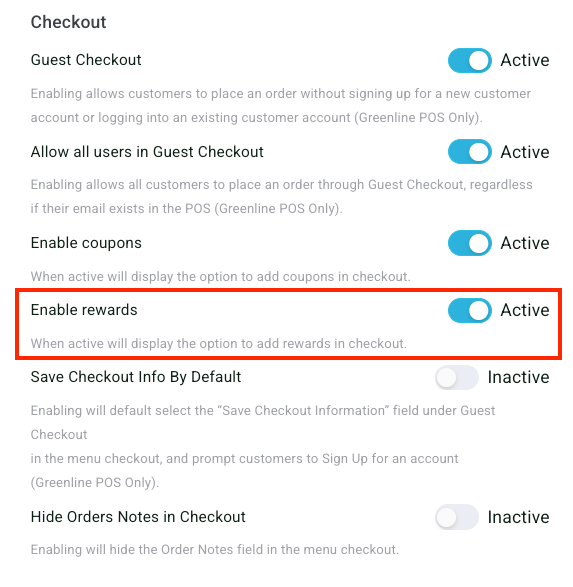
- Go to Settings
- Click on Store Configuration
- Scroll down to the Checkout section
- Turn the Enable Rewards toggle ON
Viewing Rewards Discounts on Mission Control
Loyalty-specific discounts on Greenline will automatically sync into BLAZE ECOM Mission Control. To view and enable those discounts on Mission Control:
- Go to Discounts
- Click on the Rewards tab
- Loyalty-specific discounts will be listed here. Setting them to "featured" will allow the reward to be usable online if the customer has the required number of points.
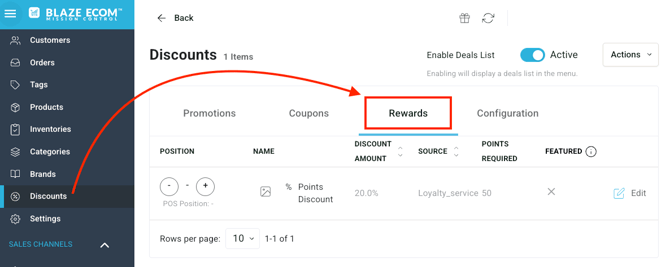
The Rewards tab will display details such as the discount amount and the points required to redeem the discount
How Customers Can View Points Balances on BLAZE ECOM
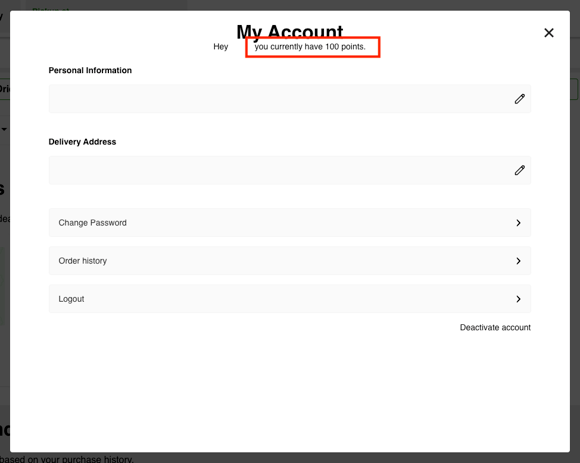
To view their points balances on the BLAZE ECOM menu, customers must be signed into their active customer profile.
They can click on their name in the top right corner of the ECOM menu to pull up their account details; their points balance is displayed at the top of the My Account window:
How to Redeem Points on BLAZE ECOM
Greenline Loyalty customers will be able to view available rewards on the Checkout screen when placing an order online.
The following steps will outline the expected flow for points redemption on ECOM:
- On the Checkout screen, the customer will see the Select Reward drop-down
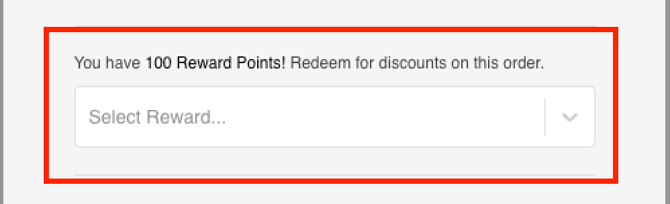
- Clicking the drop-down will display a list of available rewards
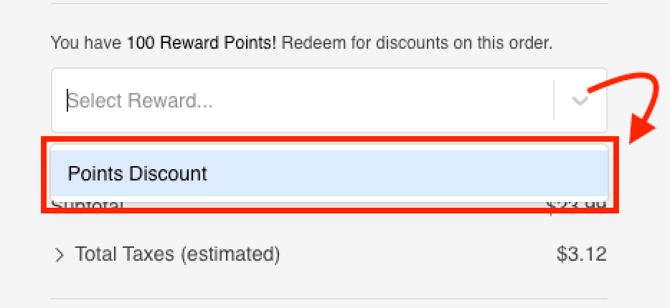
- Selecting the eligible reward will apply the discount to the product and/or cart
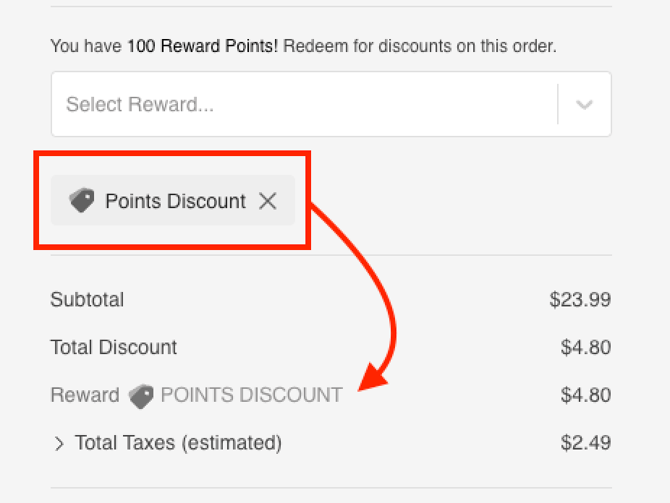
- The customer will then complete the order, and it is sent to the store.
The customer order will land in the Order Hub on BLAZE POS. The applied reward discount will appear in the product cart for orders to be paid at the store. Orders paid online will show the discount on the sales receipt.
Once you’ve completed these steps, we recommend placing a test order on your BLAZE ECOM store to ensure points and rewards trigger correctly at checkout.