.png?width=140&height=37&name=BLAZE-Logo-Blue%20(2).png)
This tool allows for rapid age verification via hardware scanners or device cameras, ensuring restricted products stay in the right hands.
Note: This feature is currently only compatible for use with U.S. driver's Licenses. Support for other scannable documents is planned for future updates.
How to set up ID Scanning
Configuring Your Location:
Before using the scanner at the POS, you must define the verification requirements.
-
Navigate to Settings > Locations.
-
Locate Age Verification Settings and choose one of the following:
-
None: No prompts; sales proceed as usual.
-
Manual: Staff will see a "Yes/No" age prompt (best for damaged IDs).
-
ID Scan: Forces a 2D barcode scan via camera or hardware. This is recommended for high-compliance environments as it generates an audit log.
-
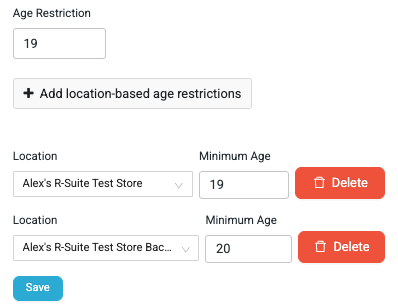
Note: Don't forget to set age limits. Go to Products > Categories to add specific age restrictions (e.g., 21+) to your product groups. For more information on setting age restrictions by category, click here. [CHECK LINK]
How ID scanning works
When a staff member adds an age-restricted item to the cart and hits Charge, R-Suite will automatically trigger the verification window. The staff member will be presented with three options:
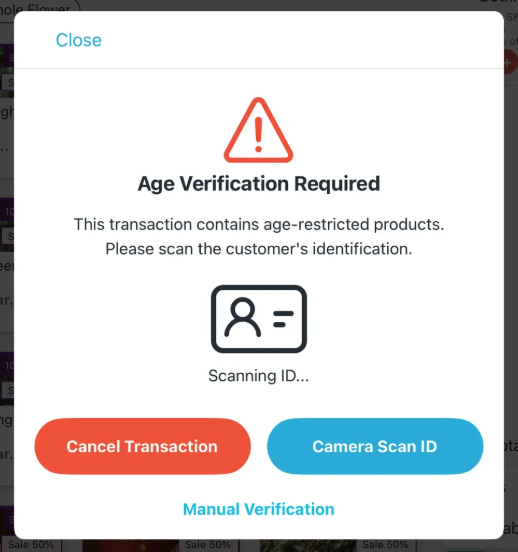
Option 1: Hardware Scanner (Recommended)
For the fastest experience, use a 2D barcode scanner.
-
Once the window appears, the system is automatically waiting for a scan.
-
Scan the PDF417 barcode (the large 2D block) on the back of the US Driver’s License.
Option 2: Camera Scan (WebPOS & iOS)
-
Select Camera Scan ID to enable your device’s camera.
-
Note: This requires a camera with auto-focus. Back-facing cameras on tablets typically work best.
-
Note: Camera scanning is not currently supported on Android devices.
Option 3: Manual Verification
-
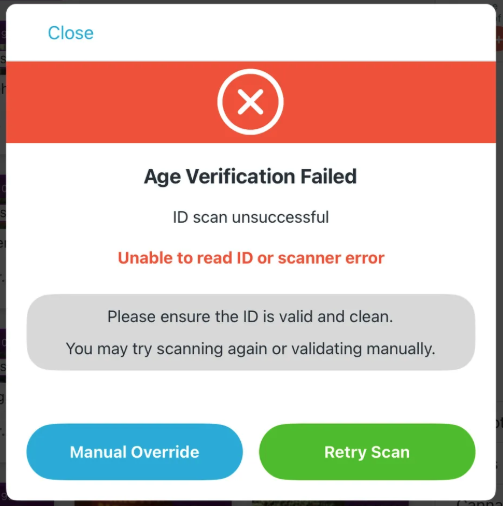
If an ID is damaged or unreadable, select Manual Verification to use the standard "Yes/No" prompt. Note that this is flagged differently in your audit logs.
Understanding the Results
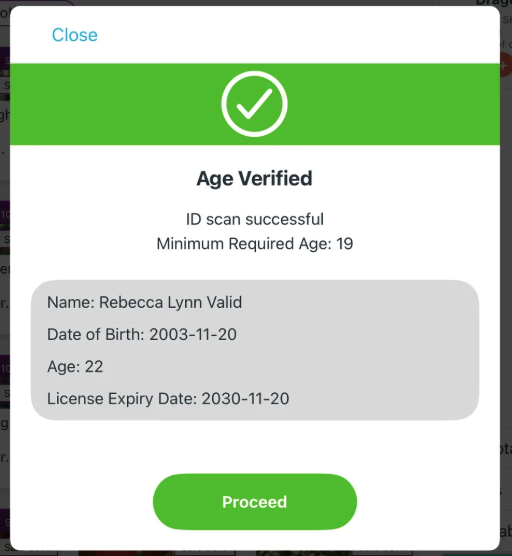
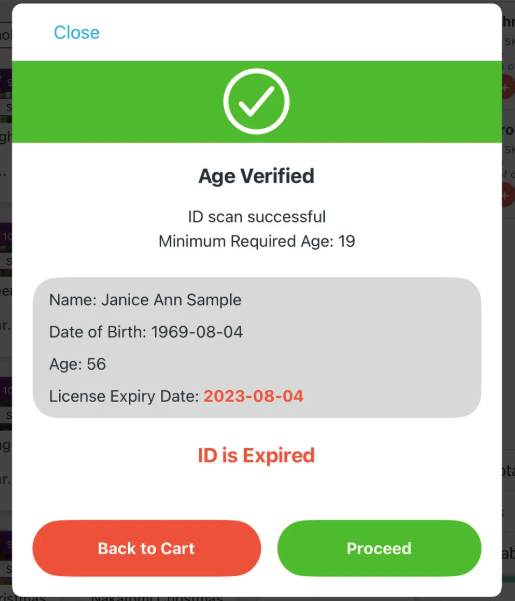
After scanning, the system evaluates the ID and provides one of three outcomes:
| Result | Status | Action |
| Verified | ✅ Green Success | Staff proceeds directly to the payment screen.
|
| Expired | ⚠️ Success with Warning |
The system alerts you if the ID is expired. Staff may proceed at their discretion based on store policy.
|
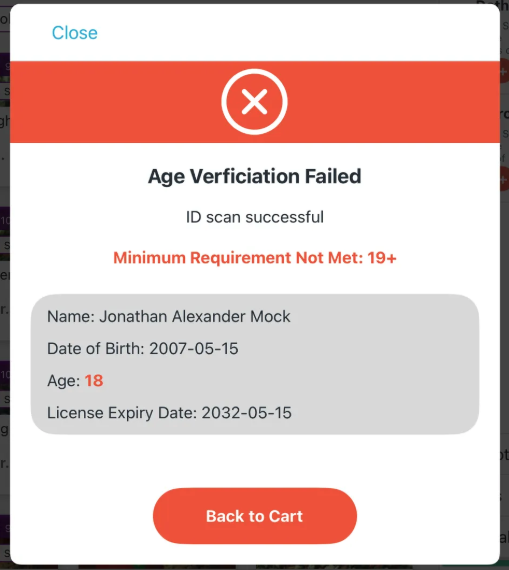
| Declined | ❌ Failure |
Customer is underage. The system blocks the payment. Staff must return to the cart to remove restricted items. Or |
Privacy & Compliance
To protect customer privacy and reduce your store's liability, BLAZE does not store PII (Personally Identifiable Information) like names or addresses from the scan.
The Audit Log only captures:
-
Verification Method: (Scanned vs. Manual)
-
Expiry Status: (Was the card expired at the time of scan?)
-
Timestamp: The exact date and time of the check.
Frequently Asked Questions
Q: Which IDs are supported?
Currently, this feature is specific to US Driver’s Licenses. Passports and Military IDs do not typically use the required 2D barcode format and are not supported in this iteration.
Q: The hardware scanner is connected, but nothing is happening.
Ensure your scanner is a 2D barcode scanner. Older 1D scanners (which only read traditional "lines") cannot read the data on the back of an ID. If using WebPOS, make sure your cursor is active within the scan modal.
Q: Will this scan automatically create a customer profile?
No. This is a compliance check for the current transaction only. Automatic profile creation is planned for a future update.
Ensure the browser has "Camera Permissions" allowed for the POS URL.