.png?width=140&height=37&name=BLAZE-Logo-Blue%20(2).png)
When a retailer receives products that do not come with barcodes on them, it is advised that your store generates and prints your own labels. When a product is created BLAZE always recommends that the user scans the existing barcode into the barcode field using either a Bluetooth-paired Socket Mobile scanner or a USB scanner.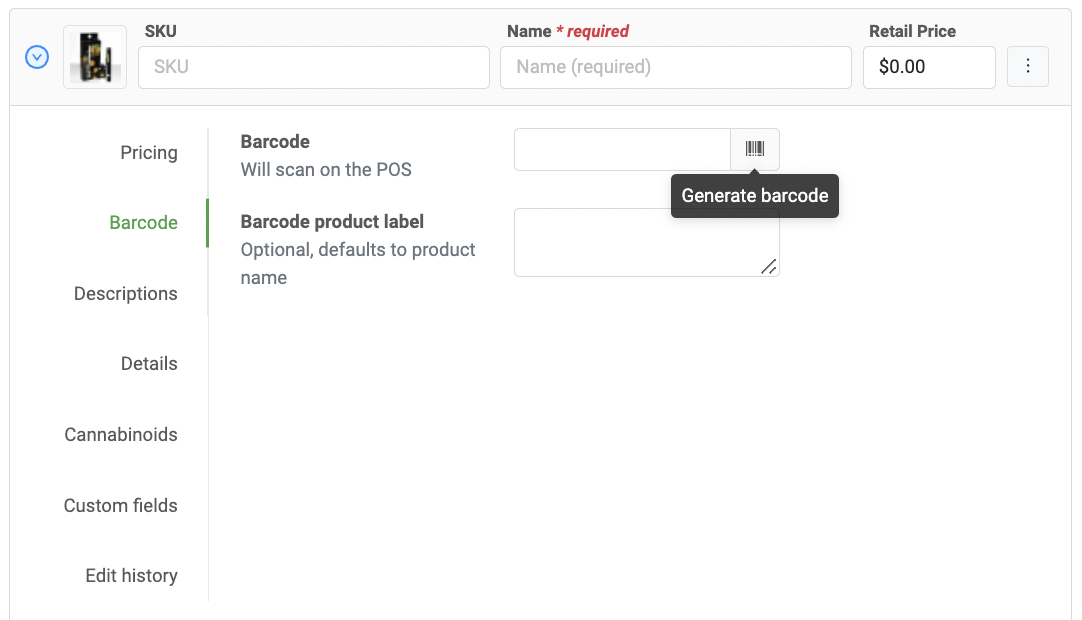
In the case that the products don’t have a barcode, click on the barcode symbol next to the "barcode input" to create one. You can then press “print” underneath to go to the label printing page.
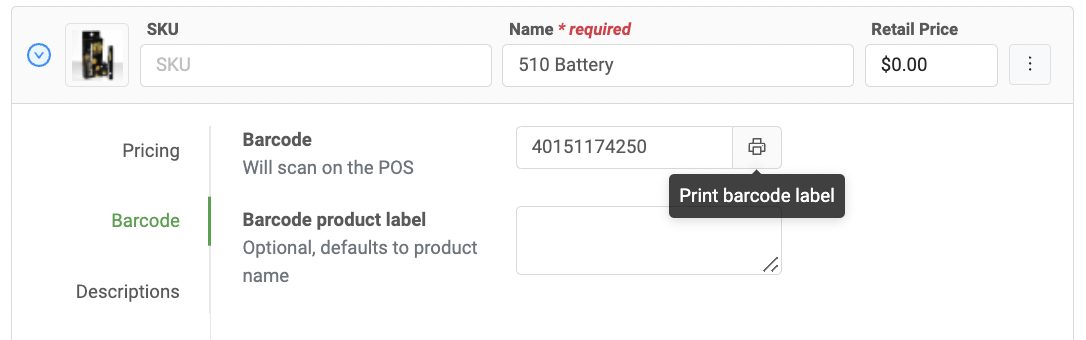
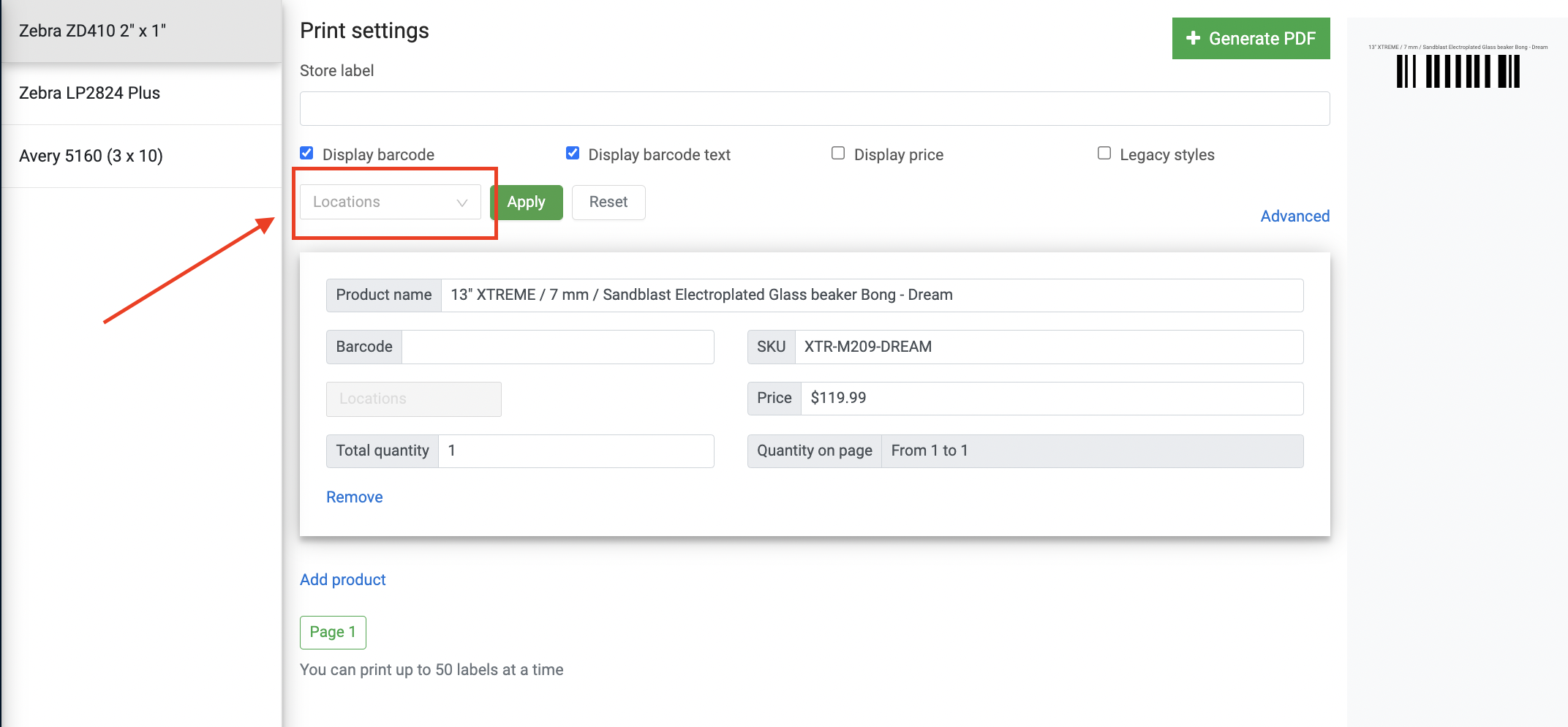
BLAZE supports printing to the Zebra ZD410 label printers. Please see the chapter on configuring the labelbel printer for PC use
The settings should be set to the ZD410 by default. Enter in any additional fields (such as location name, or modify the product name if it’s too long), enter in the quantity, then click “Print” to generate the PDF. Once downloaded, simply print that pdf to the configured label printer.
Note: SKUs are separate from barcodes. SKUs are for internal store use, whereas barcodes are generally manufacturer-providedd UPCs. For more information, please visitsit https://www.barcoding.com/blog/upc-vs-sku/