.png?width=140&height=37&name=BLAZE-Logo-Blue%20(2).png)
Setting up your Tax Configurations
1. Go to Settings > Tax Configuration in the BLAZE dashboard. 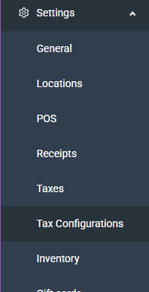
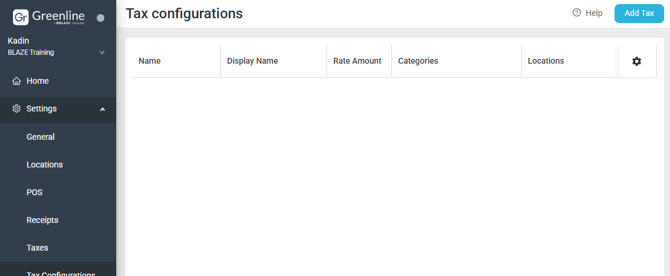
2. Click Add Tax at the top right side of the page.
3. Fill out the appropriate fields in the Create New Tax Configuration page.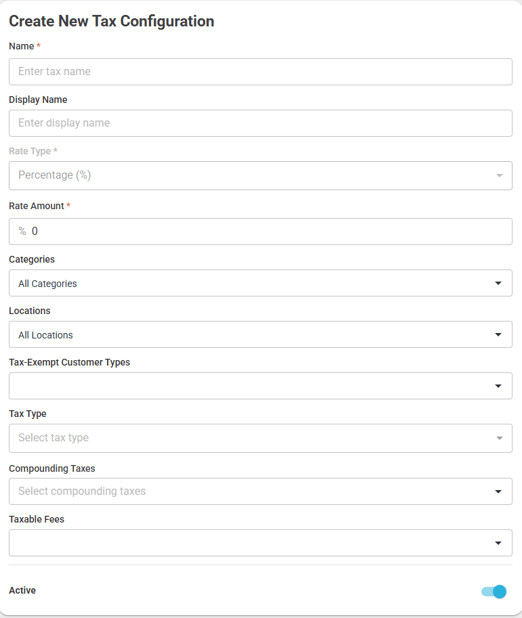
4. Click Save in the top right corner of the page. 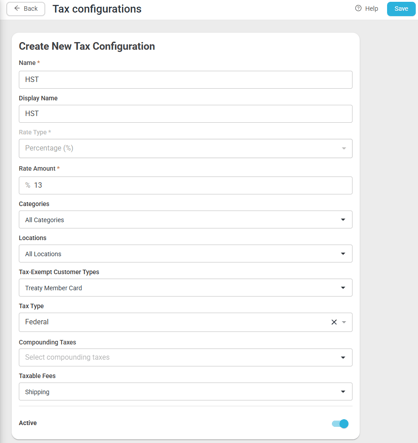
New Tax Configuration Fields
When setting up a tax configuration, you'll see several new fields.
Let's go over what they all mean.
- Name: for internal use and must be unique - this will appear on reports.
- Display Name: this will appear on the POS cart and customer receipts and should accurately represent and clearly communicate the specific tax that is charged.
- e.g. PST (Tobacco 7%), PST (Vapour Products 20%), GST (5%), etc.
- Rate Type: how the tax amount is calculated, currently locked to percentage (%)
- Rate Amount: the tax value that is calculated and charged for a specific configuration.
- Categories: set taxes to all categories or a subset of categories and/or subcategories. Any products that exist within the selected category or subcategory will have taxes applied. If a parent category is selected, all subcategories within that parent category will have this tax configuration applied.
- Locations: specify the location(s) where the tax configuration applies. If no location is selected, the tax configuration will apply to all locations.
- Tax-Exempt Customer Types: specify the "Identity Type" set to customer profiles that enables automatic tax exemption for eligible customers. Only customers with these identity type selections will be exempted from the configured tax.
- Tax Type: specifies the type of tax, such as City, County, State, Federal, Excise, or Municipal. This may be left blank.
- Compounding Taxes: in the drop-down, select the existing tax configuration that will apply first at checkout. The tax being configured will then calculate on top of (after) that first tax.
- Taxable Fees: Retailers can now specify whether taxes apply to specific system fees like Shipping, Surcharge, Tips, and Bottle Deposits.
- Active: enables or disables the given tax configuration. If disabled, taxes will default to V1 tax settings (Settings > Taxes).
Tax Exempt Customer Profiles must also have the "Tax Exempt" checkbox checked to ensure the correct taxes and/or exemptions are applied, depending on location-specific configurations.
Flat, Stackable, Compounding Taxes Explained
Flat Tax
A flat tax is a single, fixed percentage applied to the total price. It's straightforward because the tax rate never changes. Example: A provincial sales tax (PST) of 7% is a flat tax. If a customer buys an item for $100, they pay a $7 tax. If they buy an item for $500, they pay a $35 tax. The rate is always 7%.
Stackable Tax
Stackable taxes are multiple taxes added to a single item. Each tax is calculated independently on the original price, then all the tax amounts are added together. Example: An item priced at $100 is taxed at 5% and then a separate 10%.
Tax 1: 5% of $100 = $5.00
Tax 2: 10% of $100 = $10.00
Total tax: $5.00 + $10.00 = $15.00
Final cost: $100 + $15.00 = $115.00
Compounding Tax
Compounding tax is a 'tax on a tax'. One tax is applied and then another tax is calculated against the new, higher total. The tax for Vape Products is composed of two components:
- GST at a rate of 5%
- PST at a rate of 20%
Based on regulatory requirements in some regions, GST (5%) must be compounded, meaning it is calculated on the retail sale price plus PST (20%).
Example of an item priced at $10:
$10 + 20%(PST) = $12
$12 + 5%(GST) = $12.60
This ensures that the appropriate amount of tax is applied to the final purchase price of the vape product.
*Please note: As taxes differ between regions, it is important that you are diligent about the tax requirements and settings in your area.
An Example of Vape Tax Setup:
- Create a tax configuration called Vape Tax (20%)
- Apply it to vape categories
- Compounding = NO
- Create a tax configuration called GST (5%)
- Apply it to vape categories
- Compounding = YES, select the Vape Tax (20%) tax
Once tax configurations are set and active on the dashboard, they will automatically apply to the products in the appropriate categories.
Under the Product Details > Taxes, you will see the tax configurations associated with the product:
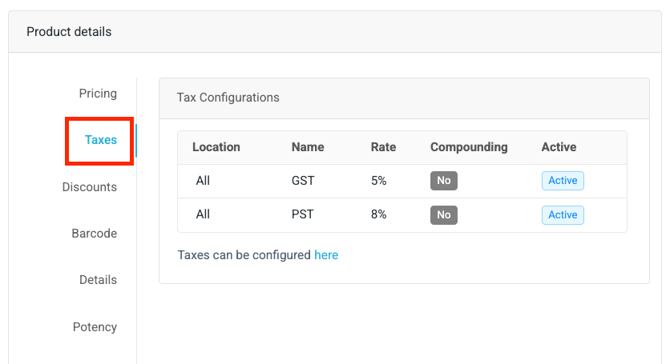
Once your tax rates and categories are locked in, BLAZE automatically applies the correct calculations to every register transaction. Revisit your settings periodically to ensure full compliance with updated local tax laws.