.png?width=140&height=37&name=BLAZE-Logo-Blue%20(2).png)
Each product (inventory items and non-inventory items) within your system must be associated with a product category. For inventory items, these categories are directly related to regulators' compliance categories. Therefore, it is crucial to ensure that your product categories are set up correctly, as it will impact your end-of-the-month compliance reports.
Note: When setting up your product categories, be sure to check in with your local compliance bodies to confirm if unfamiliar products are being added into the appropriate compliance categories.
When setting up your product categories, the ultimate goal is to effectively organize products into appropriate compliance categories (if applicable) and assist sales staff in easily finding products for the customers.
How to Add Categories:
-
Go to Products > Categories
-
Click on “Add Category” at the top right corner to be directed to the category setup page.

-
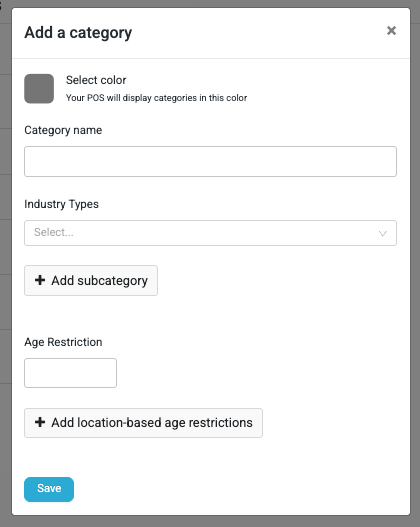
Select a colour for the category (your POS will display category icons in the selected colour) or you can choose your own. See below.
-
Name your category.
-
Click the Add subcategory button to create a subcategory. There is no limit to the number of subcategories you can create. Both categories and subcategories can be attached to products. Once set up, you will be able to view items on the POS based on categories and subcategories.
-
Click the Save button to store this category.
Note: Categories can be organized in order of appearance by using the up and down arrows in the "Order" column and clicking on the up and down arrows.
For example, you could name a product category “Inventory Items”, select “Track”, and choose the correct compliance category called “Inventory Items”. Then add subcategories for all the different varieties of this product.
Changing Category Colours:
In addition to the pre-determined colours, you can also choose your own by clicking on the colour square.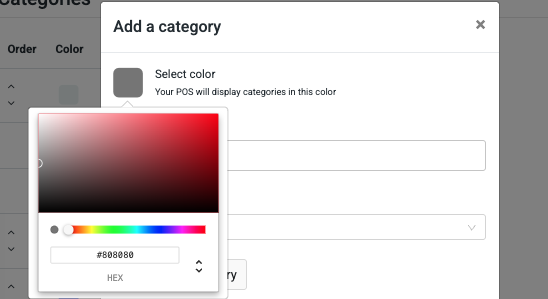
How to Delete Categories:
It's possible to delete categories in BLAZE; however, it is recommended to do so with extreme caution.
To delete a category:
-
Click on the Vertical Dots Menu and select Delete.
-
A new pop-up will appear, asking you to "select a category to migrate all existing products to."
-
Select a category and click the delete button to complete the deletion and migration.