.png?width=140&height=37&name=BLAZE-Logo-Blue%20(2).png)
The Purchase Orders tab is used to record and track external purchase orders/invoices. The benefits of tracking purchase orders include:
-
Tracking all product purchase history
-
Tracking ordered and received product quantities
-
Importing inventory quantities
-
Importing wholesale costs
-
Identifying missing products from the product list
How to create a purchase order
1. Prepare purchase order details
Please make sure that you've provided all the necessary information in your purchase order. This will allow you to find and reference specific purchase orders later on. You can also pre-create your purchase order to save time once products arrive on site.
-
Click on the Purchase Orders sidebar tab.
-
Click on the Add purchase order button at the top right corner.

-
Fill in the top portion of the purchase order with basic information. If you have multiple locations, be mindful of which location you are sending the inventory to. "Vendor" should be set as your supplier for the purchase.
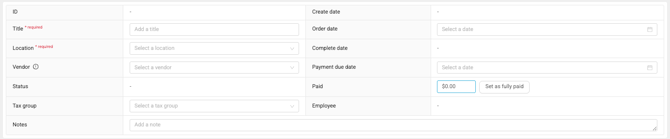
2. Add product information
Once a product is created and added to your product list, you will be able to add it to purchase orders. You can start adding products using one of the following methods:
Add product: Type the product you want to add to the purchase order list. You can search by SKU, product name, or barcode. After identifying the product, click to add it to the product list.
Scan barcode: Scan the barcode of an individual product. Please make sure your USB barcode scanner is connected.
Import from template: Select this option to upload a csv matching the BLAZE template.BLAZE will find all matching products by SKU, then add them to your purchase order.
Note: The price column should reflect the total paid for all units (or per pack) on the invoice, not the per-unit cost.
3. Input inventory quantities and costs
Once a product has been added to the purchase order, you will need to enter the following information:
-
Quantity ordered (individual units, not master units)
-
Quantity received (individual units, not master units)
-
Lot number (if lot tracking is enabled for the product)
-
Lot quantity (if lot tracking is enabled for the product)
-
Cost per unit. Learn more about how wholesale costs are calculated here [CHECK LINK].
-
Total cost
If products are lot-tracked-enabled, you will be unable to edit the quantity ordered, quantity received, and the lot information.
4. Purchase order payment
Fill in the bottom portion of the purchase order.
-
Click on the “Add fee or discount” button to enter shipping and/or discount fees. And check off the tax box if the fee is taxable. Note: For discounts, enter the quantity followed by a minus or hyphen symbol.
.png?width=200&height=46&name=image%20(52).png)
-
Ensure your subtotals, taxes, totals, and amount owing are accurately input into the system.
.png?width=189&height=162&name=image%20(53).png)
5. Update the purchase order status
There are 4 statuses that purchase orders can fall within:
-
Pending (default, still editing)
.png?width=285&height=75&name=image%20(54).png)
-
In progress (products are on the way)
.png?width=610&height=70&name=image%20(55).png)
-
Completed ("quantity received" checked into inventory)
.png?width=670&height=62&name=image%20(56).png)
-
Cancelled (cannot edit). If you leave the purchase order in "pending" or "in progress", you’ll be able to come back to the purchase order and edit it prior to submitting "completed".
.png?width=363&height=73&name=image%20(57).png)

Important: Only when the purchase order is set to "Completed" will all the product inventory quantities be input into your dashboard.
Viewing purchase order reports
For an in-depth purchase order report, navigate to Reports >Analytics> Inventory > Purchase orders. There are multiple reports that can be downloaded by clicking the Export buttons.
Troubleshooting
-
Incorrect product cost - If you entered an incorrect cost for a product, it can be edited anytime, even after completion. BLAZE will update your wholesale cost accordingly.
-
Incorrect product quantity - If you entered the wrong quantity, you can edit the completed purchase order as long as the product is not lot-tracked. If the product is lot-tracked, you must add a new partial purchase order with the correction.
-
Forgot to add product - If you forgot to add a product to a completed purchase order, you can edit a completed purchase order with the new product. BLAZE will update your wholesale cost accordingly.
-
Editing purchase orders - Purchase orders can only be edited in the current month. Customers cannot edit purchase orders from the previous month due to compliance issues. To edit please perform an audit to update these values.
-
The wholesale cost is not populating from Purchase Order to product edit page
Check the following:
Is your "Inventory Cost Calculation" setting (Settings>Inventory) set to "weighted average"?
A the time of creating the purchase order, were the costs entered as $0 for these products?
-
When your settings are set to “weighted average”, BLAZE will only update the products' costs on the initial purchase order completion. If the products' costs were entered as $0 on the completed purchase order, this will cause the wholesale costs to populate as $0 or "-" on the products' edit page.
However, if the cost is edited after the purchase order has been completed, the user will see a pop-up warning prompting them to update the wholesale cost directly on the products page. By using the warning pop-up, you can be redirected to the product edit page to update the wholesale costs. -
The Cost per unit box is outlined in red
This is a reminder to check your retail price, as the cost per unit is currently higher than the retail price, which will result in negative margins.
.png?width=624&height=241&name=image%20(59).png)
With your inventory received, you're ready to sell! Next, check out our guide on Performing Inventory Audits to keep your stock counts tight.