.png?width=140&height=37&name=BLAZE-Logo-Blue%20(2).png)
Creating Discounts on BLAZE
BLAZE makes it easy to create custom product, cart and bundle discounts to be applied at the POS or apply automatically on E-commerce services, such as BLAZE ECOM . To create a discount, log in to the BLAZE dashboard:
-
Navigate to Products > Discounts
-
Click Add Discount in the top right corner

Each BLAZE discount contains six (6) sections that can be configured, depending on your needs.
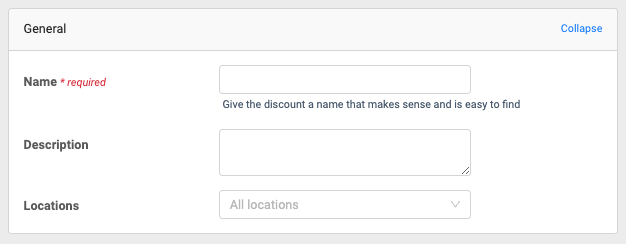
General
-
Name - this is a required field; the name appears on the POS and E-commerce
-
Description - If desired, you may input a description or the rules of the discount. This is only visible to staff.
-
Locations - for single store operators, this defaults to "All Locations". For multi-store operators, you may specify at which location the discount will appear.
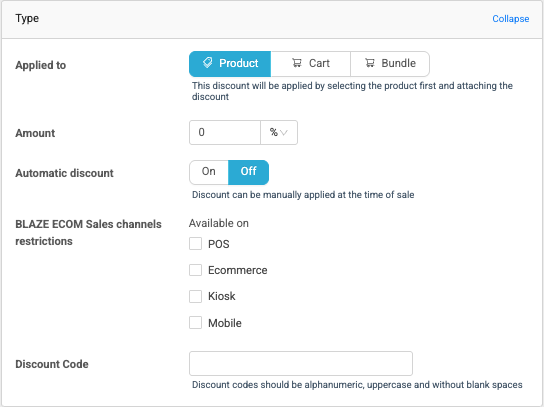
Type
Applied to - choose the type of discount: Product, Cart or Bundle
Types of Discounts
Product - discount is applied to individual products, also known as a line-item discount
Cart - discount is applied to the subtotal of all products in the cart on POS and E-commerce
Bundle - discount is applied to two or more specified products and is only triggered when all required products are in the cart.
Amount - input the desired discount amount. Click the drop-down to select between percentage (%) or dollar amount ($)
Automatic Discount - if ON, the discount is automatically applied to the product or bundle. Cart discounts cannot be automatic.
Discount Code - for BLAZE ECOM only, create custom coupon codes for customers to redeem on your store menu. Coupon codes must be alphanumeric, uppercase and without spaces or special characters.
Products
Specific Products - select the product(s) that the discount applies to by searching by name or SKU. Clicking on a product that appears in the search will add it to the included list.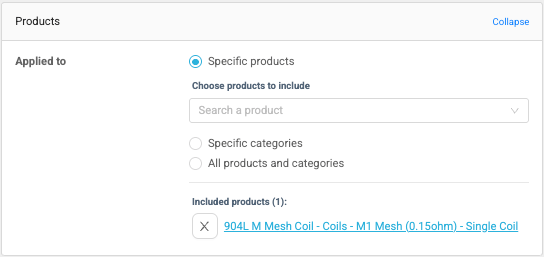
Specific Categories - select the category or sub-category which the discount is applied to. It is possible to select multiple categories. Selecting Specific Categories will also enable the ability to exclude products and/or sub-categories, if any are associated with the master category.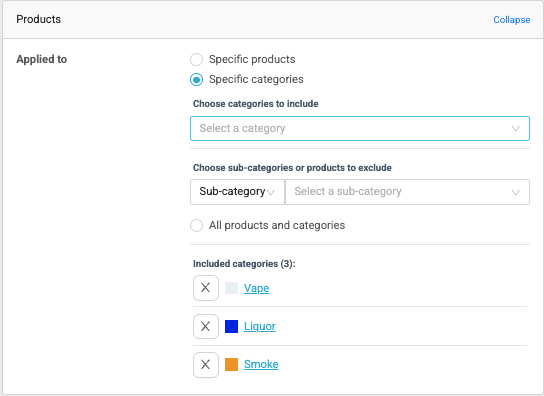
All Products and Categories - this selection will apply the discount to every product and category in your inventory. Selecting All Products and Categories will also enable the ability to exclude products and/or sub-categories, if any are associated with the master category.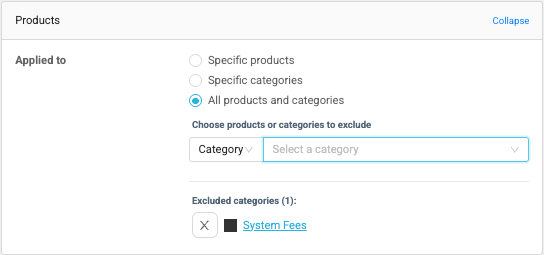
Time Restriction
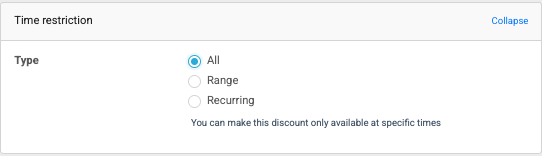
Type - there are three (3) options relating to time restrictions: All - this is the default and should be used when no time restrictions are in place. The discount will be available at all times.
Range - Enables the user to specify a start and end date for the discount. You may also set specific times when the discount turns ON and OFF.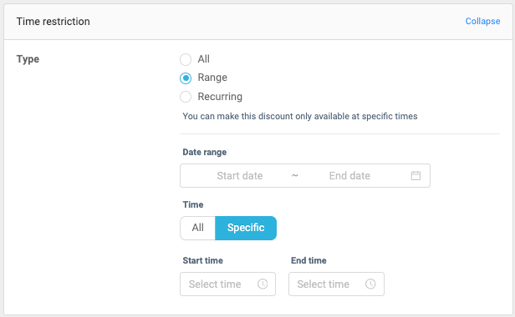
Recurring - specify which day(s) of the week the discount is available. Also, specify a start and end time. 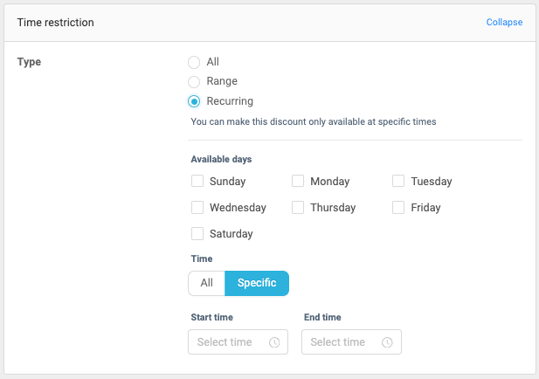
Loyalty
Loyalty Tier - When using BLAZE Loyalty, you can select single or multiple customer loyalty tiers to be eligible for the discount. The discount only appears when a customer attached to the specified loyalty tier is added to the sale on the POS.
Loyalty Points - if desired, input a points amount required to redeem the loyalty tier discount. Customer points balances will reduce when the discount is applied.
How Does Discount Stacking Work?
How Does Discount Stacking Work?
- Cart discounts are stackable
- Product discounts can be stacked with cart discounts
- Bundle Discounts are not stackable
- Product discounts are not stackable
- If an automatic product discount is added, only a cart discount can be added.
- If a non-automatic product discount is added, only a cart discount can be added.
- Cart discounts do not work on bundled discounts
- Product discounts can not be added to bundled products
- Different ways to build grouped product/category discounts