.png?width=140&height=37&name=BLAZE-Logo-Blue%20(2).png)
Before enabling and configuring Package Location Tracking, please review the following critical requirements and workflow changes:
-
App: BLAZE Web Dashboard
-
Permissions: Global Settings Access
⚠️ WARNING: PARTIAL TRANSFER RESTRICTION Major Workflow Change: Once Package Location Tracking is enabled, you will not be able to transfer partial quantities from your inventory rooms. You are required to move the entire batch quantity at once between inventory rooms to ensure BLAZE and Metrc location mapping remains perfectly in sync.
NOTE: STATE AVAILABILITY This feature is currently only available for Oregon, Massachusetts, and California microbusiness licenses.
-
Step 1: Create a Default Location
You must create a Default Location before you can successfully map your individual BLAZE inventories. This default location serves as the baseline where every Metrc package is associated until your specific rooms are mapped.
-
Log into your BLAZE shop.
-
Navigate to Global Settings > Integration Settings > Compliance > Metrc Facilities.
-
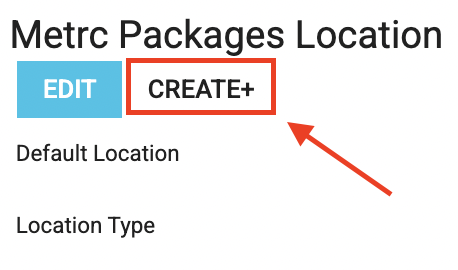
Scroll to the bottom of the page to the Metrc Packages Location section.
-
Click the Create + button.
-
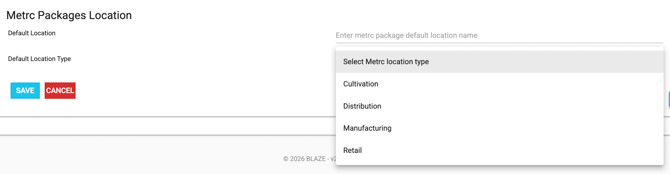
Enter a name for the Default Location (e.g., "Default" or "Main Room").
-
Using the Default Location Type dropdown, select Default Location Type.
-
Click Save.
-
Step 2: Map Inventories to Compliance Rooms
Once your Default Location is established, you must map your existing BLAZE inventory rooms to your Metrc Compliance Rooms.
-
Navigate to Current Shop Settings > Inventories.
-
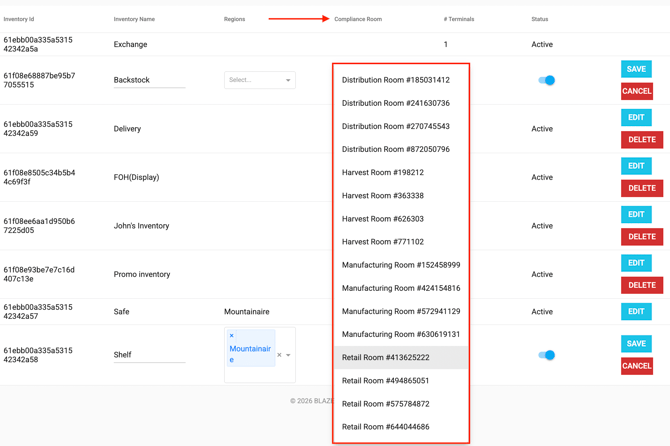
Locate the newly added Compliance Room column on this page.
-
Click the Edit button associated with a specific BLAZE inventory.
-
Use the dropdown menu to associate it with the correct Compliance Room.
-
Click Save.
-
Repeat this process for each inventory room listed.
-
How Transfers Work
Once setup is complete, your Metrc inventory will automatically transfer locations at the exact same time you transfer items internally within BLAZE.
Batch-Level Transfer Requirement: Because Metrc tracks the physical location of a specific package tag, BLAZE enforces a strict batch-level transfer rule. You must select the entire batch quantity when performing an internal transfer so that the single package tag is cleanly moved to the new Metrc compliance room.
-
Troubleshooting
What if the Compliance Room column doesn't appear?
-
-
If you have completed Step 1 but do not see the Compliance Room column in your Inventories list, your browser may be caching an older version of the page. Perform a hard refresh of the web page, or log out of BLAZE and log back in to force the column to appear.
-
Can I transfer partial batches?
-
-
No. When Package Location Tracking is enabled, the system restricts partial transfers. Because a Metrc package tag can only exist in one physical location at a time in the state system, you cannot leave a portion of the batch in "Room A" while moving the rest to "Room B". If you need to separate inventory, you must first split the batch into two separate Metrc tags (See our guide on How to Split a Metrc Batch).
-