.png?width=140&height=37&name=BLAZE-Logo-Blue%20(2).png)
Get going quickly with CFD!
-
If you are already using iPads for your POS and considering an upgrade, now is the time. Upgrade your POS iPads and repurpose the old ones as CFDs, no wasted hardware.
-
If you are using web-based POS, you can consider lower-cost refurbished models like the widely available Gen-8 iPads.
Placement
Many companies offer great aesthetic options for CFD display*:
-
BossTab has great lockable stands. https://www.bosstab.com/tablet-stands
-
BoxaPos also has an option for a dual display stand that also houses newer printers like the MCP3 and Epson.
-
Universal clamp (need x2): https://www.boxapos.com/product/eclamp/
-
CFD Extension: https://www.boxapos.com/product/second-support/
-
*These will need power, so make sure you plan for power and a power cord to the CFD.
Prerequisites
Before you begin, ensure you have the following apps and hardware ready.
iOS Apps
-
BLAZE Retail POS app
OR Web Browser
Hardware
-
CFD: iPad (5th generation or higher / OS 17 or higher)
Download the CFD App
Scan the QR code below with your iPad camera to quickly locate and install the BLAZE Retail CFD app from the App Store.
-2.png?width=300&height=300&name=image%20(55)-2.png)
How to Connect the CFD iPad
Follow these steps to pair your Customer Facing Display with your POS.
-
Download the BLAZE Retail CFD app from the App Store on your CFD iPad.
-
On your primary POS iPad, open the BLAZE POS app.
-
Navigate to Settings > CFD.
-
Locate the 4 digit code displayed on the BLAZE Retail CFD app screen.
-
Type that 4 digit code into the CFD settings on your POS.
-
Tap Connect.
How to Customize the Banners
You can customize the banners displayed on your CFD's idle screen to match your branding. To do this, navigate to:
Loyalty/Marketing > CFD Manager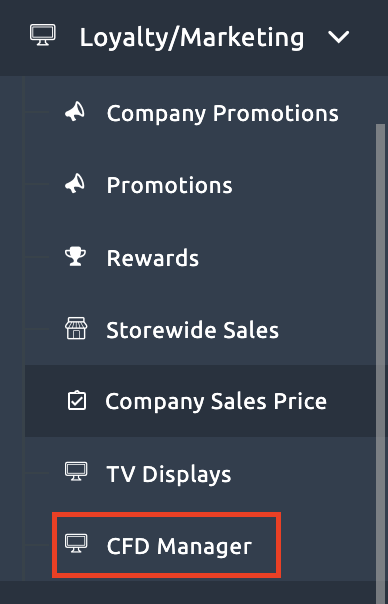
How to use
- Customize your display to promote your brand, products, and or deals of the day
- Limited to 10 banners
- Recommended: 2400 x 1715 px (1.40:1 ratio)
- Intervals last 10 seconds
- Limited to 10 banners
- Manage all of your shops on one convenient page
- To remove any images, click the delete button
FAQs
Q: How do I check how these banners look?
A: If you haven’t done so already, download the BLAZE | CFD app from the App Store (iOS only). If you already have the app, open it. Images should appear in 60 seconds or less.
Q: I’m having trouble with these banners, help!
A: If you’re having trouble with the images loading on the BLAZE | CFD app either: try force closing and reopening the app, or delete the app and redownload it.
A: If the images aren’t in their best resolution, please verify that you are following the recommended resolution: 2400 x 1715 px (1.40:1 ratio).
A: For any additional issues, please reach out to us at support@blaze.me.
Q: I want to be able to manage more details about this customer facing display. Where do I share my perspective?
A: For any feature requests and enhancements, please use our Customer Feedback board (BLAZE Retail Dashboard > Support > Feature Request Board).
Q: How can I reconnect after being disconnected?
A: Tap the shop logo at the top of the screen 5 times, it will bring up a screen where you can “disconnect” and then populate a new code once more to reconnect.
Please refer to the table below for the recommended dimensions based on your iPad model.
|
iPad Model: |
Recommended Banner Size (px): |
Notes: |
|
iPad 6th Gen (9.7”) |
2048 × 1496 px |
(1024×748 @2×) |
|
iPad 7th / 8th / 9th Gen (10.2”) |
2160 × 1580 px |
(1080×790 @2×) |
|
iPad 10th Gen (10.9”) |
2360 × 1600 px |
(1180×800 @2×) |
Troubleshooting Steps
Important data points to obtain when receiving / creating a report:
- How are printers being used (network, usb)? If network was any particular network setup done to them ?
- What network system is being used?
- The usual best practices: App versions for both POS and CFD, iOS version.
- Same WIFI network is being used on both devices (exact same)
- Local Network Permissions on Privacy and Security are granted
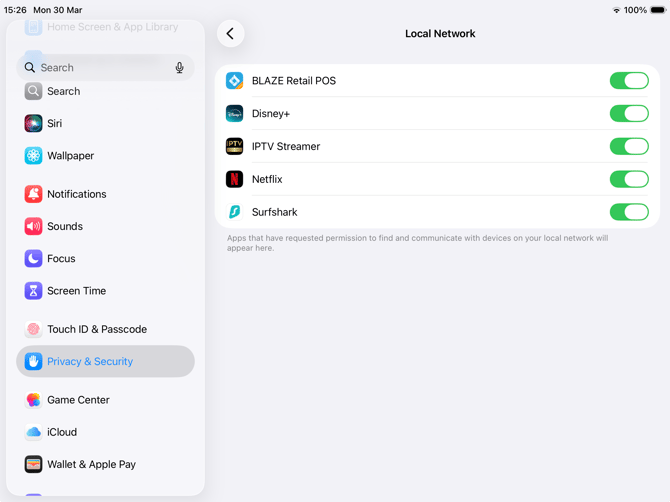
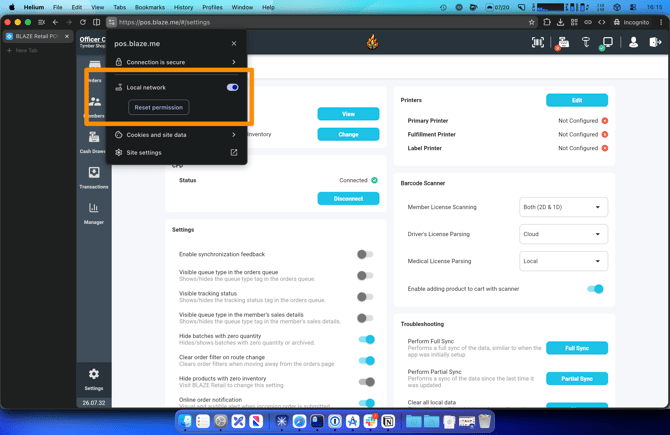
- Override the DNS server on the iPads with 1.1.1.1 and 1.0.0.1 (cloudflare dns servers) or override at the network level for an easier solution that applies to all iPads.
.png?width=670&height=503&name=Screenshot%202026-07-20%20at%2018.55.45%20(1).png)