.png?width=140&height=37&name=BLAZE-Logo-Blue%20(2).png)
Prerequisites
- An active BLAZE account with MCP access enabled.
- A Claude account (Claude Web or Desktop).
- The MCP Staging (or Production) Server URL provided by your BLAZE administrator.
How to Add a Custom MCP Connector to Claude
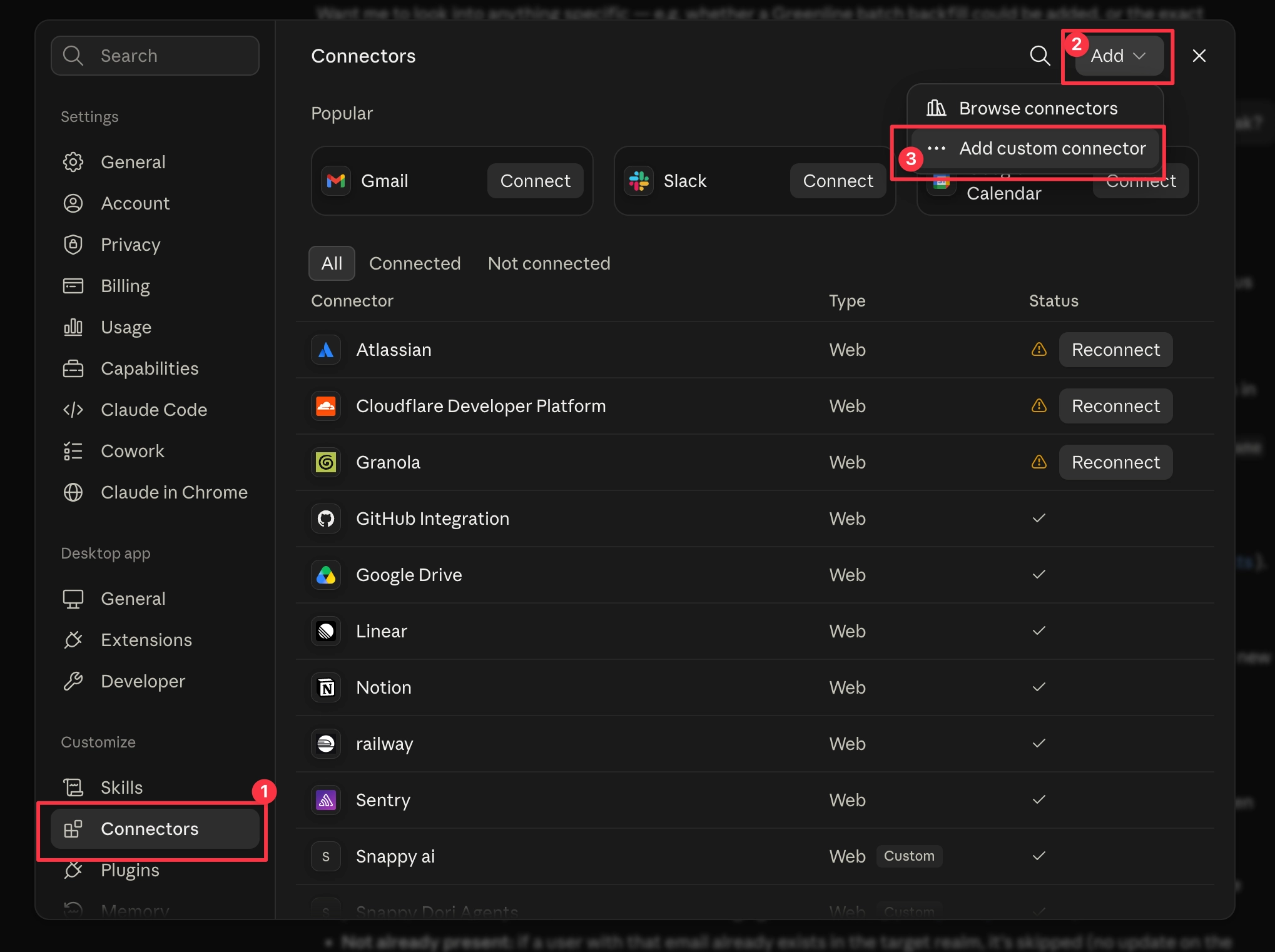
- In the Claude sidebar, click Customize.
- In the modal that appears, navigate to Connectors > Add > Add custom connector.
- In the Add custom connector pop-up, enter the required connector details and server URL for the specific MCP environment you are adding (e.g., MCP Staging).
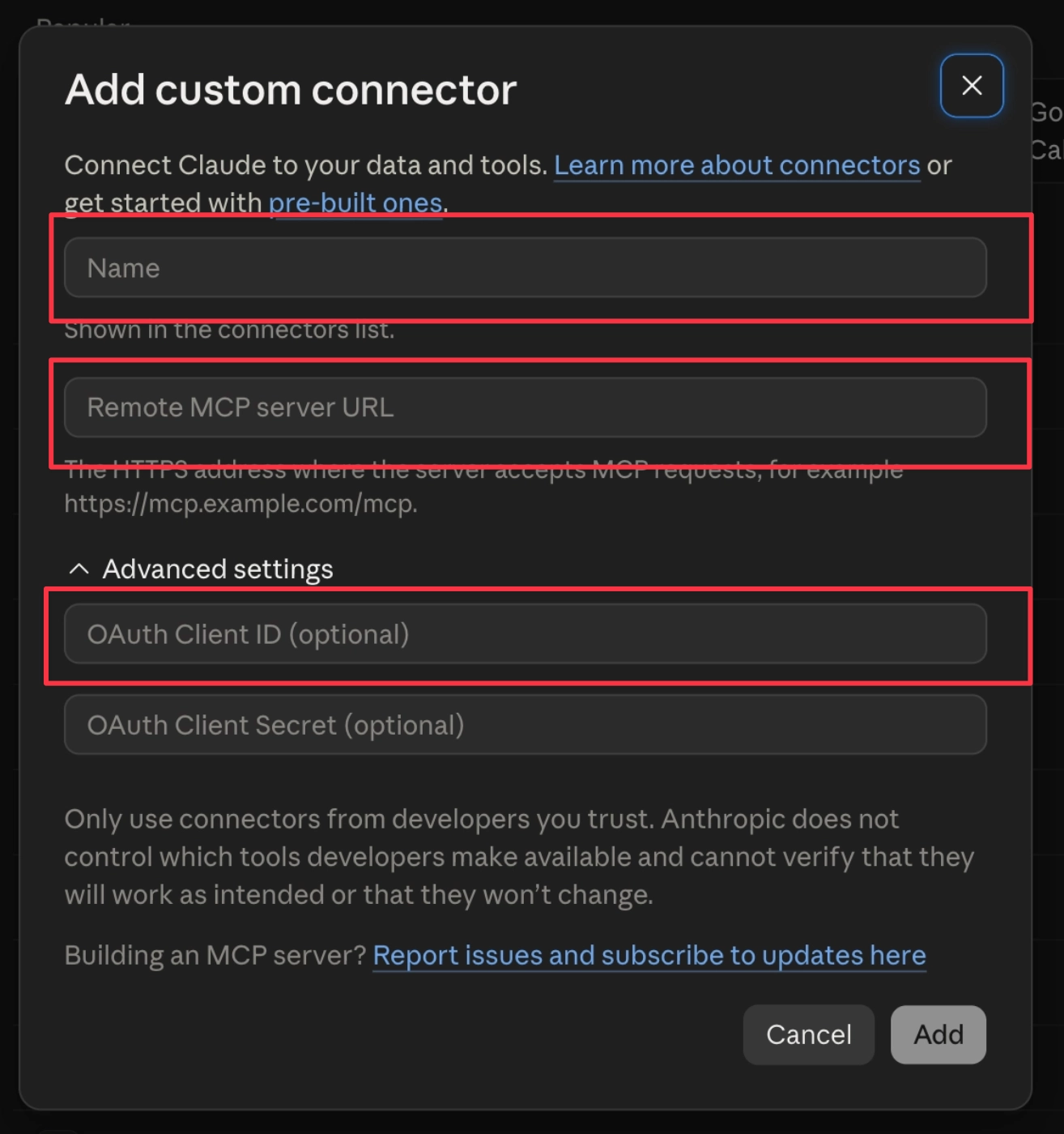
- Save the connector configuration.
[Insert Image: Add custom connector pop-up in Claude]
Connecting & Authenticating
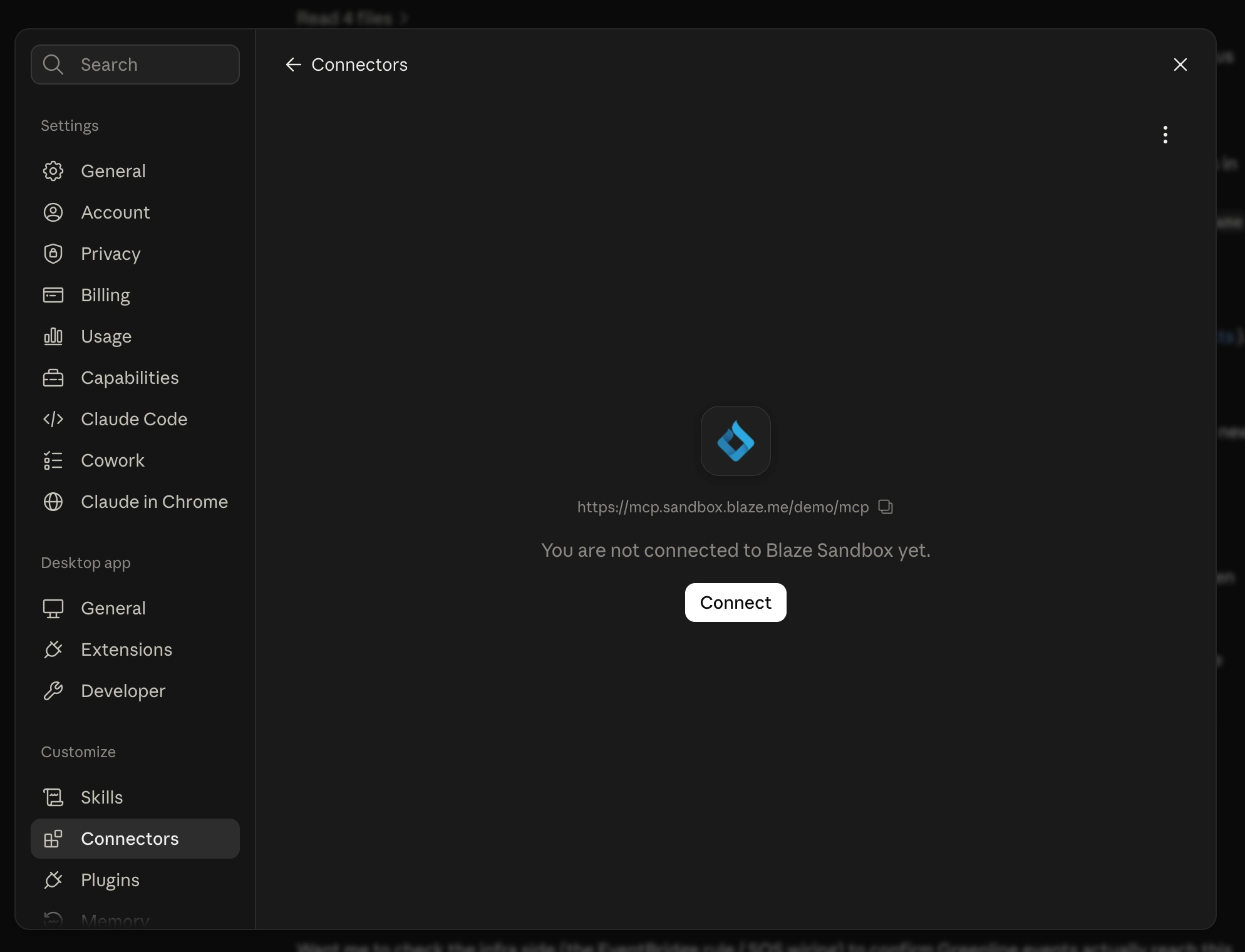
- Once the custom connector is added, locate it in your connectors list and select Connect.
- You will be redirected to the BLAZE single sign-on (SSO) login screen.
- Sign in using your standard BLAZE credentials to complete the setup.
NOTE: User permissions strictly apply. Your AI assistant in Claude can only access the store locations and operational data allowed by your BLAZE user login.