.png?width=140&height=37&name=BLAZE-Logo-Blue%20(2).png)
Prerequisites
Before you begin, ensure you have the following:
- An active BLAZE account with MCP access enabled by an account admin.
- A web-based ChatGPT account with access to Plugins in the sidebar.
- The specific MCP URL and OAuth Client ID for the connector you are integrating.
NOTE: BLAZE Retail, BLAZE Ecom, and BLAZE Growth are separate MCPs. If you use multiple connectors, perform the configuration steps once for each connector. Contact your BLAZE representative or BLAZE support if you need your MCP URLs or OAuth Client IDs.
How to Add BLAZE MCP to ChatGPT
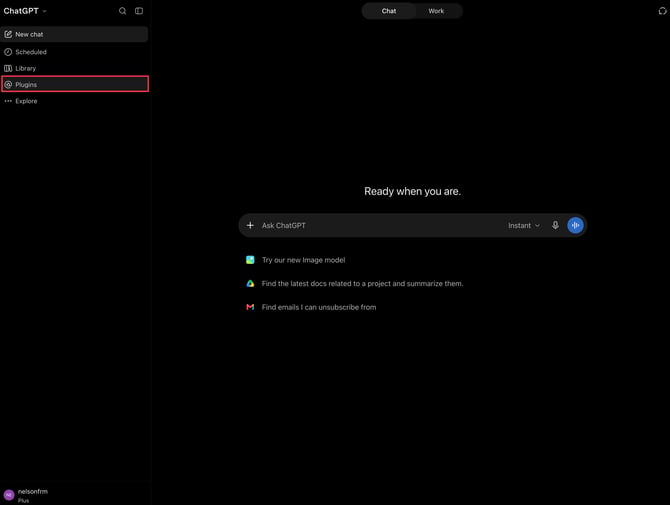
- In the ChatGPT web sidebar, click Plugins.
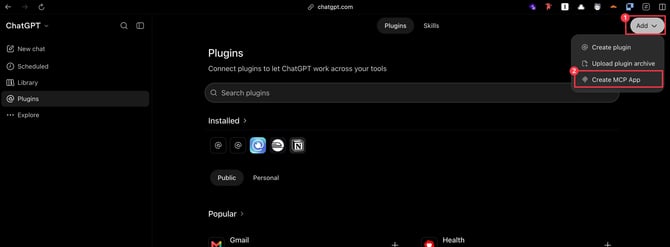
- On the Plugins page, click Add, then select Create MCP App.
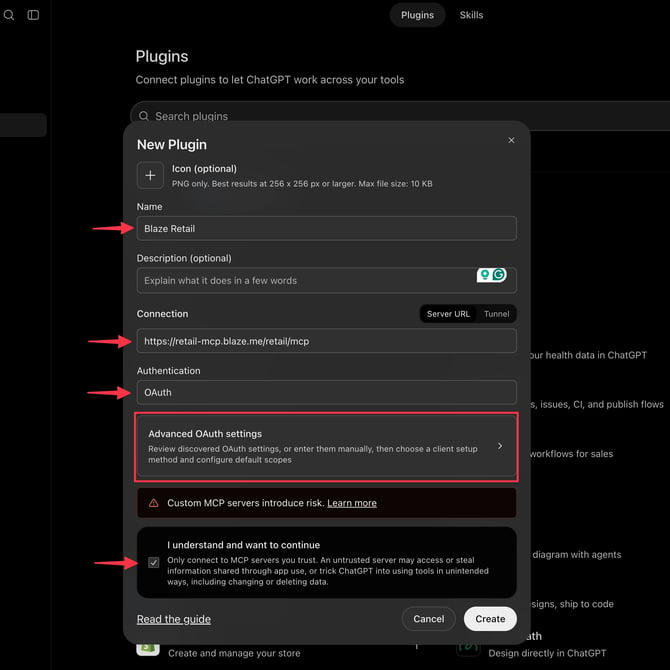
- In the Create MCP App window, complete the following fields:
| Field | What to Enter |
| Name | Blaze Retail, Blaze Ecom, or Blaze Growth (matching the connector being added) |
| Connection | The specific MCP URL for that connector |
| Authentication | Select OAuth |
- Check the I understand and want to continue checkbox.
- Click Advanced OAuth settings to expand additional configuration fields:
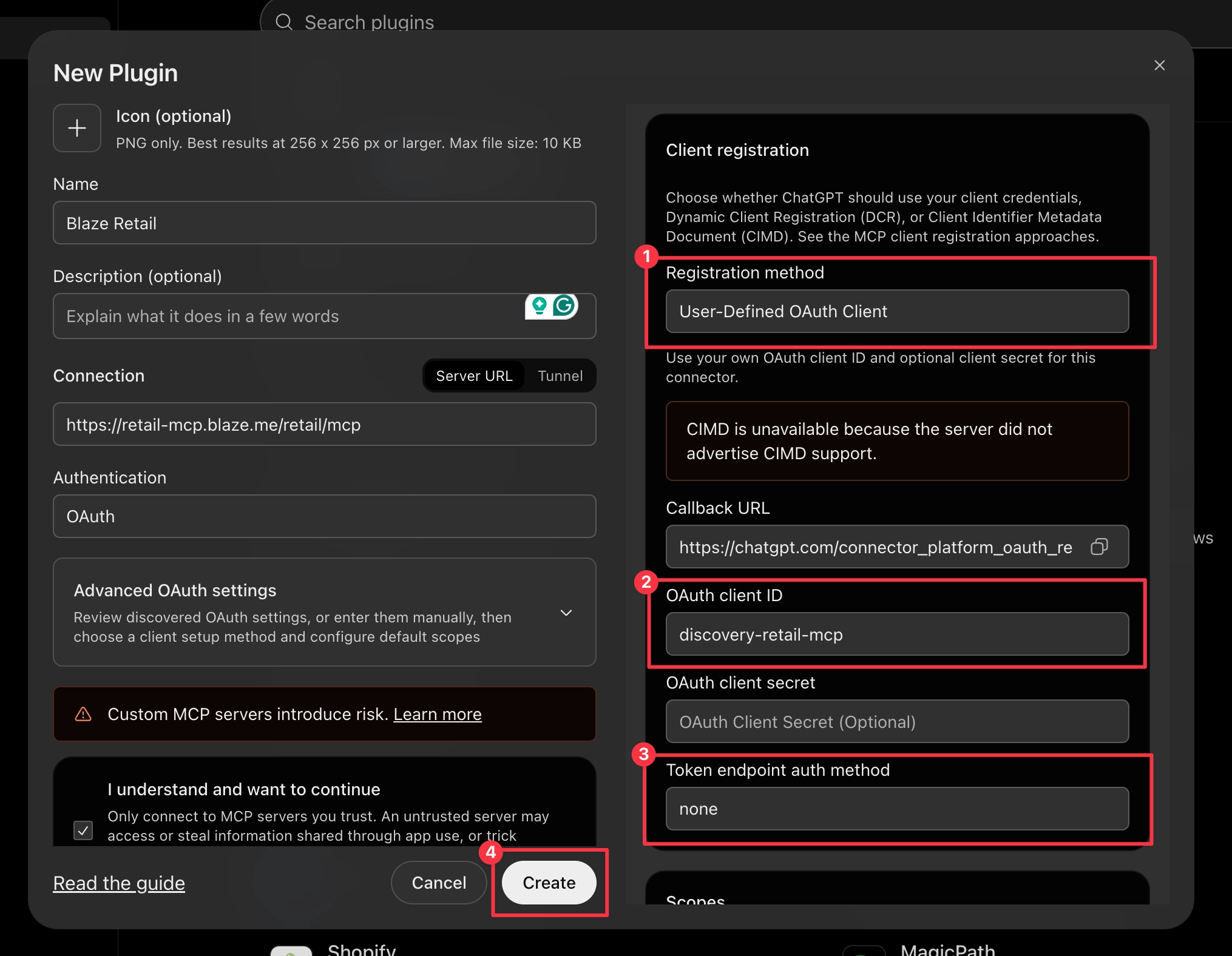
- Under Advanced OAuth settings, fill in these fields:
| Field | What to Enter |
| Registration method | Select User-Defined OAuth Client |
| OAuth client ID | Enter the client ID for that connector (Note: BLAZE Retail and BLAZE Ecom use distinct IDs) |
| Token endpoint auth method | Select none |
- Click Create.
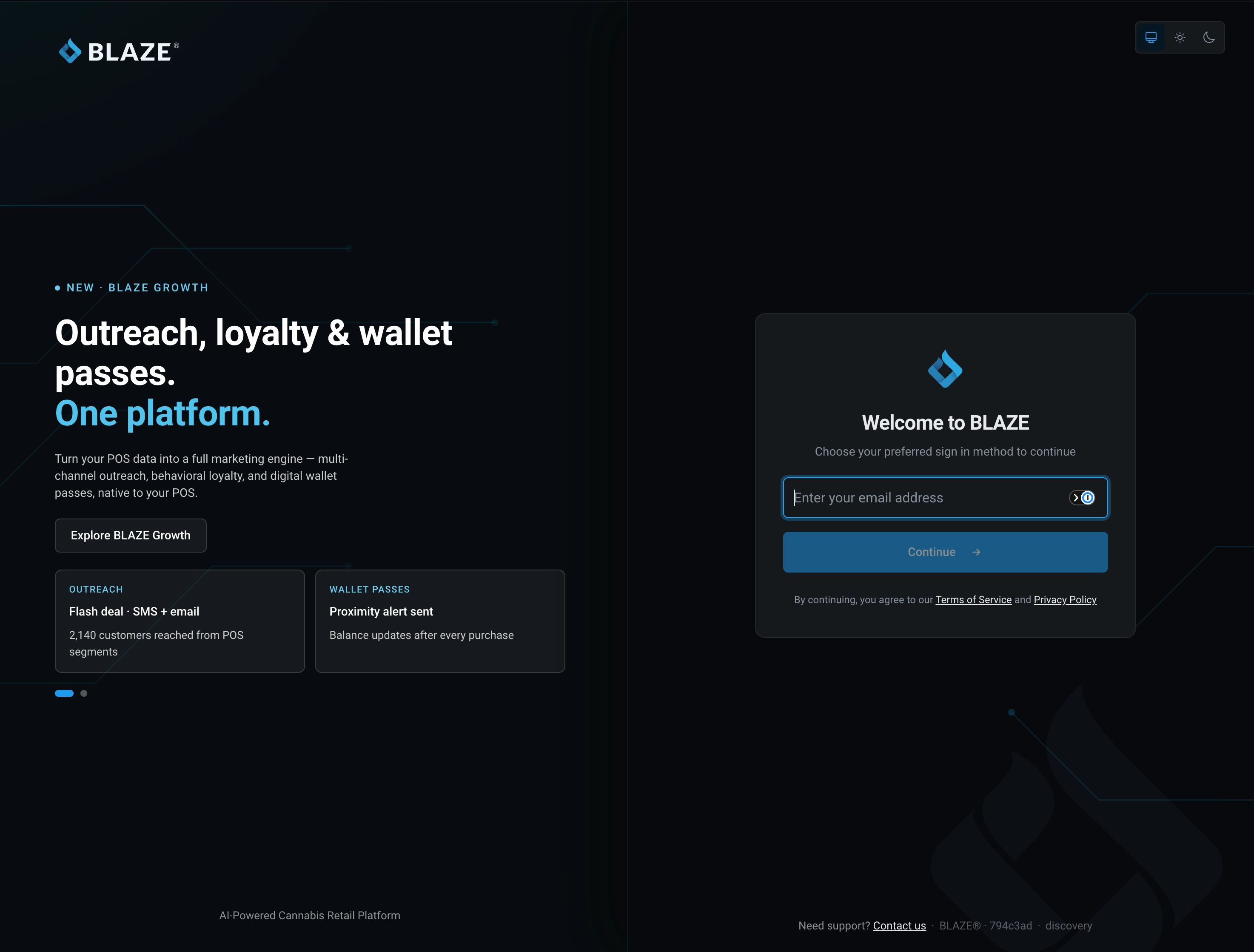
- When prompted to continue with BLAZE, proceed to the sign-in screen and enter your BLAZE login credentials.
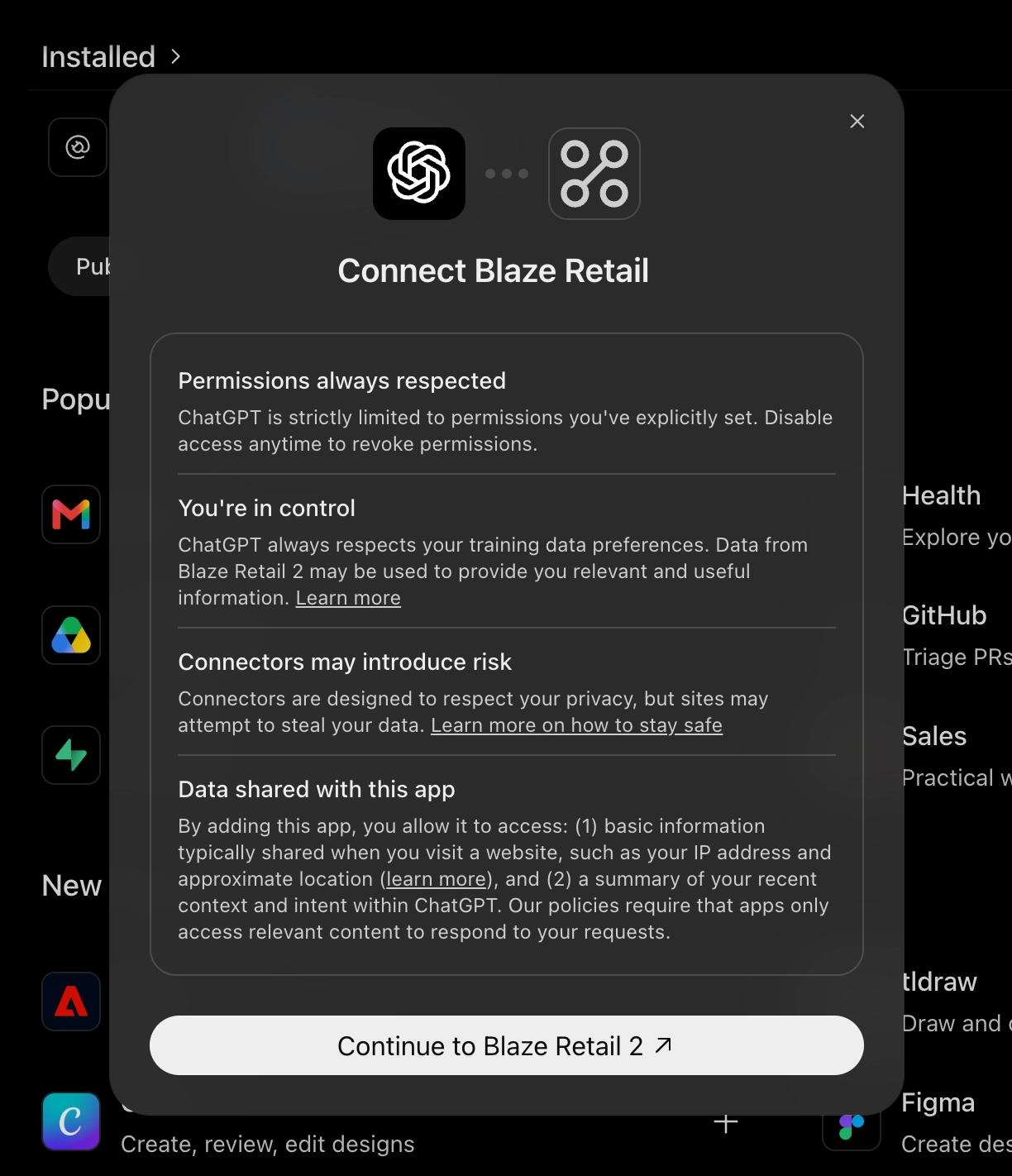
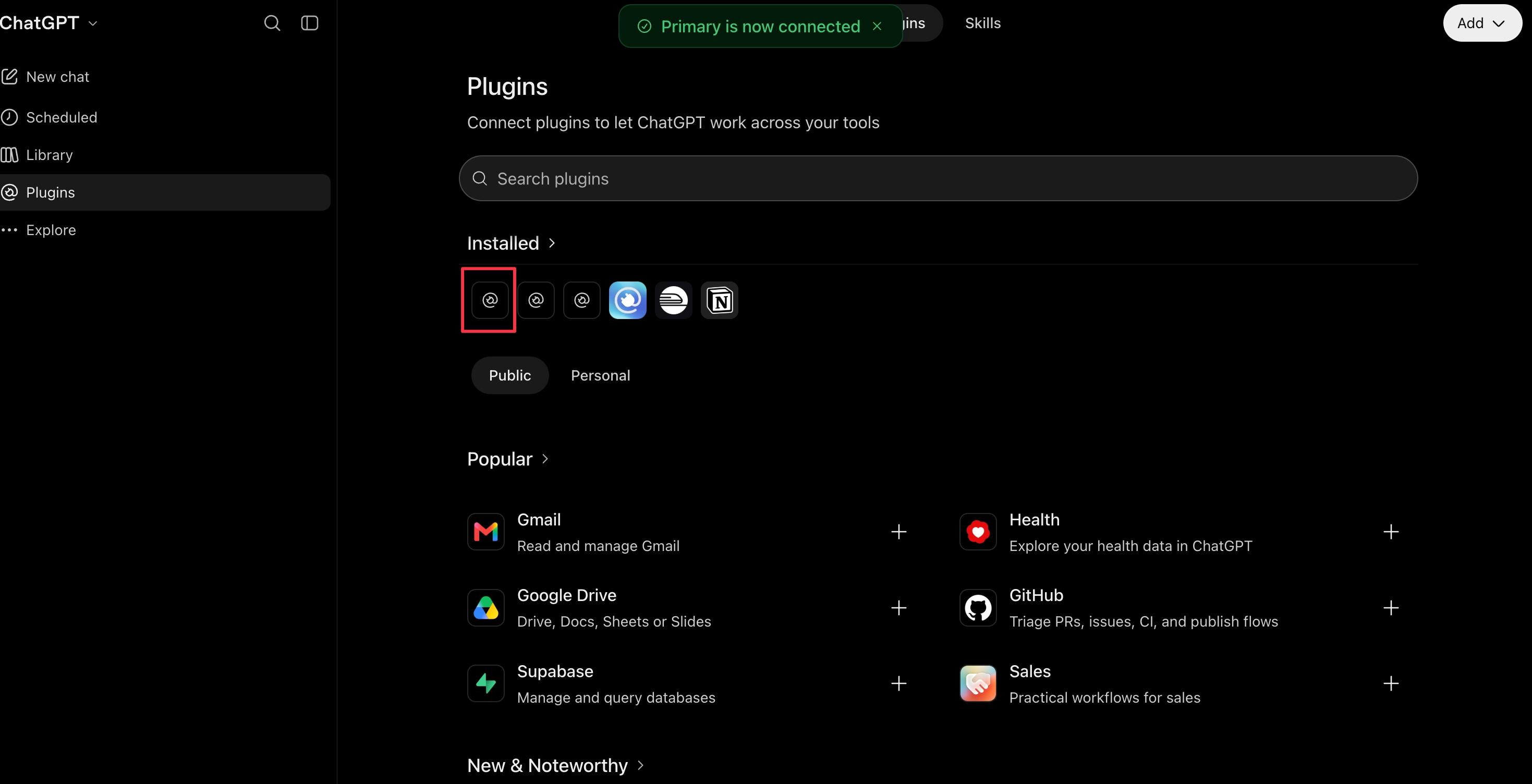
- After authenticating, navigate back to the ChatGPT Plugins page and verify that the connector appears under Install MCP.
- Look for the new MCP in the Install MCP section of the Plugins page. If it's listed, the setup is complete.
Using BLAZE MCP in ChatGPT
To interact with BLAZE in any ChatGPT conversation, type @ followed by the connector name (e.g., @Blaze Retail) and enter your request or question in natural language.
WARNING: Any action that creates, updates, or deletes data will prompt you for confirmation first before applying changes directly to your live BLAZE account (unless custom permissions have been modified within your ChatGPT settings).
NOTE: ChatGPT enforces user-level BLAZE permissions. The AI assistant can only access the store locations and data permitted by your BLAZE user login.