.png?width=140&height=37&name=BLAZE-Logo-Blue%20(2).png)
Prerequisites
- Hardware: Ingenico Move 5000 or Ingenico Desk 3500 terminal
- Terminal Mode: Terminal must be switched to Standalone (S/A) mode
- Batch Status: Active batches must be fully closed before starting the download process
How to Close a Batch
- Return to the main idle screen displaying the background picture.
- If the terminal displays SEMI mode, select SEMI to switch the terminal into Standalone (S/A) mode.
- Press the Green button on the keypad to open the main menu.
- Select Option 2 - Host Totals.
- Select Option 1 - Reset Host Totals.
- Wait for the host totals receipt to print out.
NOTE: Leave the terminal in Standalone (S/A) mode while performing the application update. Do not switch back to SEMI mode until the update is complete.
How to Download Application Updates
- Press the Silver key (marked with a black circle) on the keypad.
- Select Admin mode and enter the password 123456A.
- Select Tetra Admin.
- Select Download Application.
- Select Configure Download.
- Verify that Network type reflects your active connection type (e.g., Wi-Fi or Ethernet).
NOTE: Network type may default to Ethernet. If using a wireless connection, update this setting to Wi-Fi to avoid receiving an "Ethernet not docked" error.
7. Press the Yellow button on the keypad to return to the previous screen.
8. Select Start Download.
WARNING: If you see an "Upgrade Prohibited" or "Upgrade Forbidden" error during this step, an open batch is still active on the terminal. Return to the How to Close a Batch section to clear active host totals before retrying.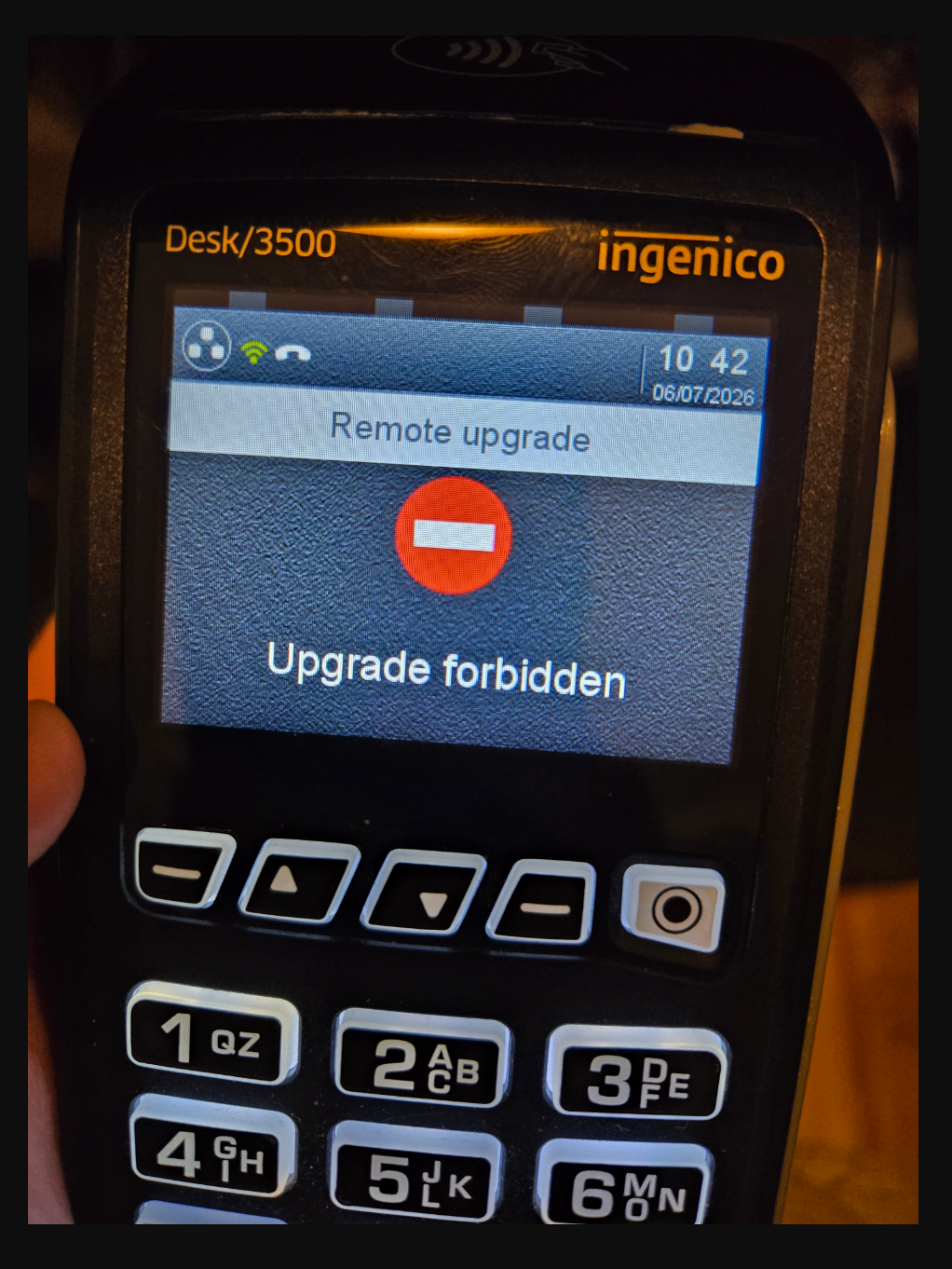
9. Once the update completes, return to the main screen and toggle the terminal back to SEMI mode for standard operation.