.png?width=140&height=37&name=BLAZE-Logo-Blue%20(2).png)
NOTE: Inventory adjustments are a manual process. Reconciliations must be performed separately in BLAZE and in NMS2S to ensure both systems accurately reflect your physical inventory.
Prerequisites
- Always complete your inventory adjustments inside BLAZE first before adjusting quantities in NMS2S.
- Ensure you have the physical count and the official reason for the discrepancy ready.
How to Adjust Inventory in BLAZE
To reconcile discrepancies in BLAZE prior to updating the state system, perform an inventory adjustment using one of the following methods:
- Cycle Counts: To complete a routine count, refer to the Retail - Cycle Counts Support Guide
- Inventory Reconciliation: For full inventory audits, refer to the Retail - Inventory Reconciliation Support Guide
How to Adjust Inventory in NMS2S
Once the inventory has been updated in BLAZE, record the corresponding adjustment in NMS2S to maintain state compliance.
- Click on the Inventory Item.
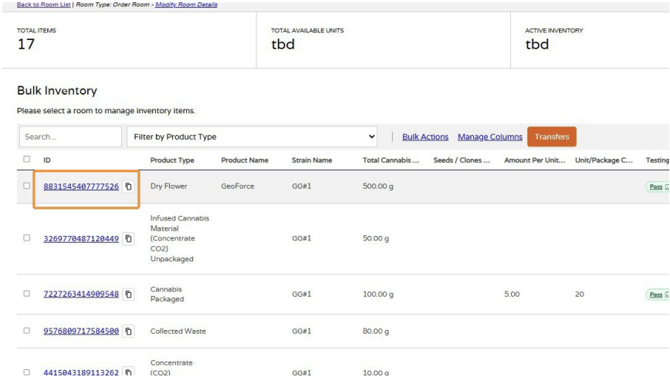
- Select the Adjust Inventory action.
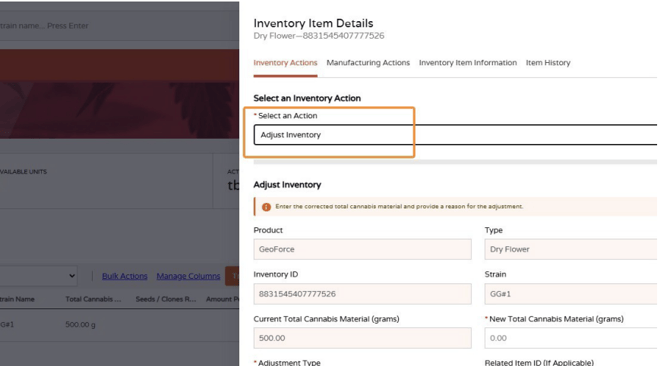
- Enter the New Total Cannabis Material (grams).
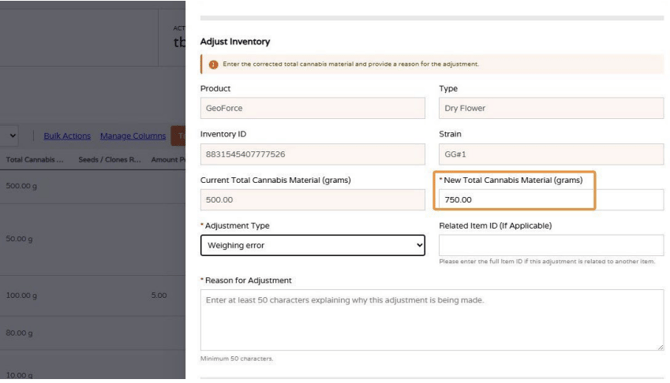
- Select the appropriate Adjustment Type.
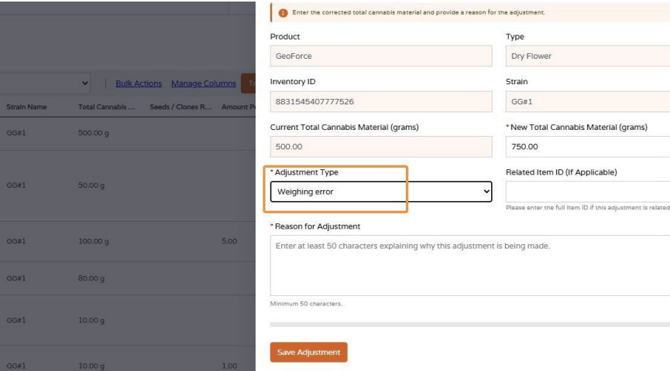
- Enter the Related Item ID (if applicable).
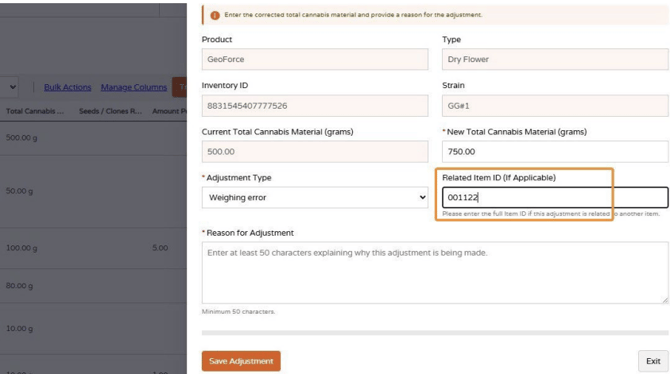
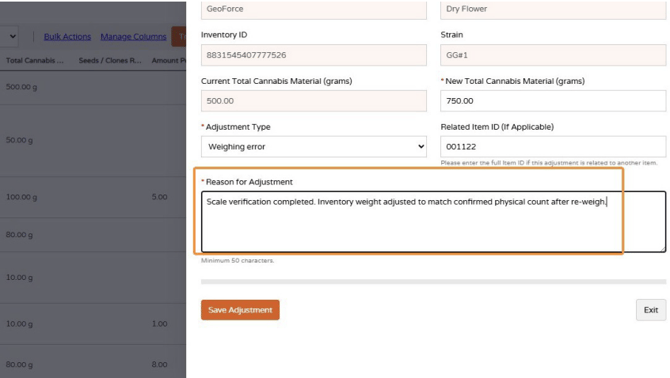
- Enter the Reason for Adjustment.
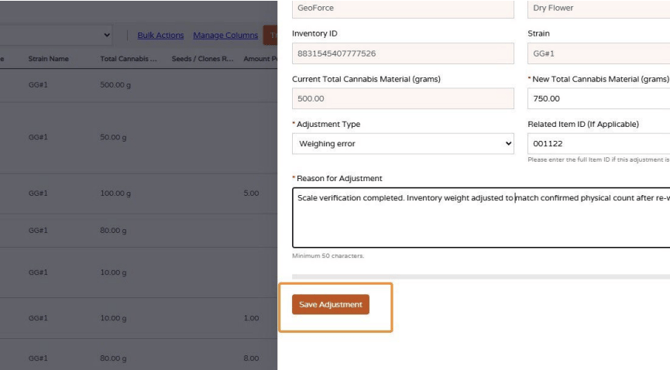
- Click Save Adjustment.
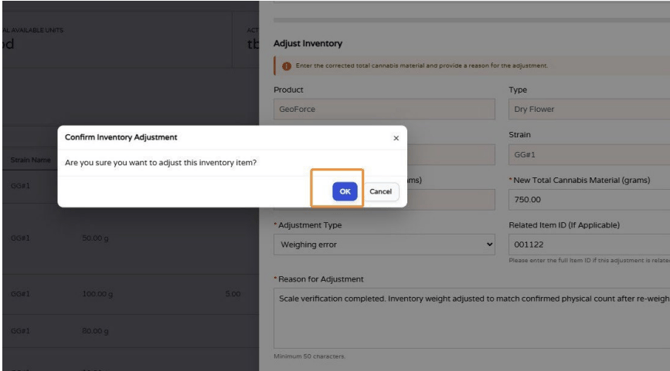
- Click OK to confirm the inventory adjustment.
NOTE: For additional state guidance on managing inventory and rooms, refer to the official New Mexico Cannabis Control Division Inventory & Rooms Training Manual.
Related Articles
Compliance | New Mexico Track-and-Trace Transition: BioTrack to NMS2S
CCD | Track and Trace Transition