.png?width=140&height=37&name=BLAZE-Logo-Blue%20(2).png)
Before you start
Custom Audiences are based on ECOM (online) order history only. In-store purchases aren’t counted, so customers who only buy in-store won’t show up in an audience that uses conditions.
Creating a custom audience
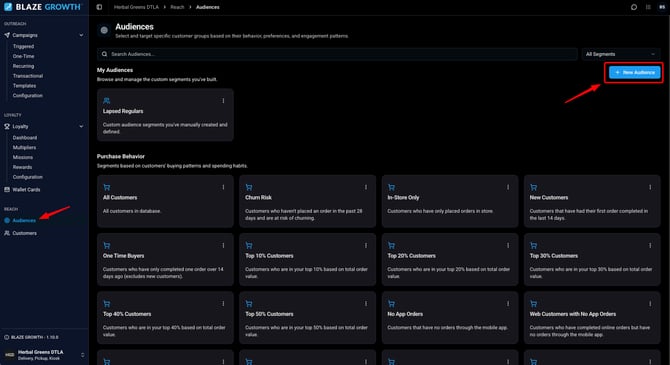
- In Growth, go to Reach > Audiences.
- Click + New Audience.
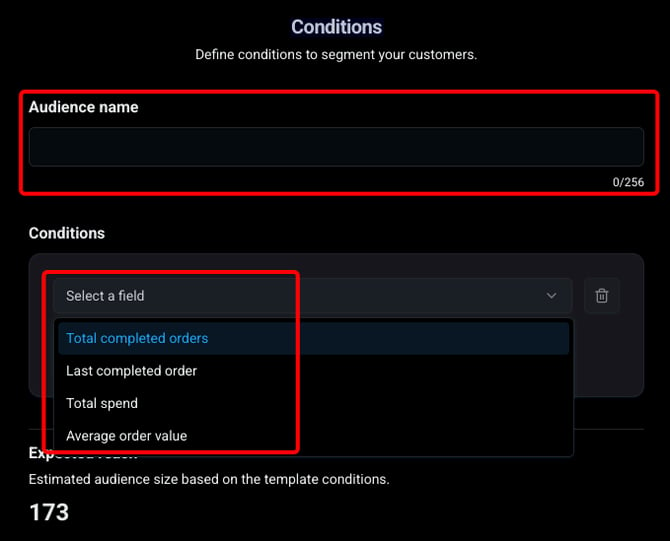
- Enter an Audience name.
- Under Conditions, click Select a field and pick a condition.
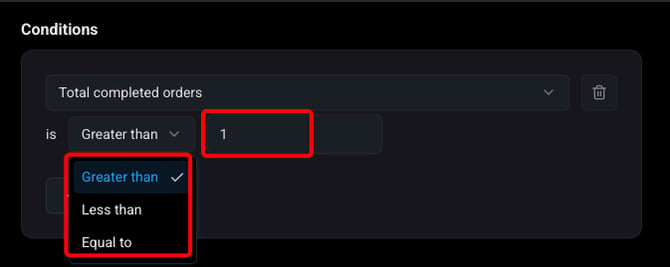
- Choose an operator and enter a value.
- To add another condition, click + And. You can add up to 4.
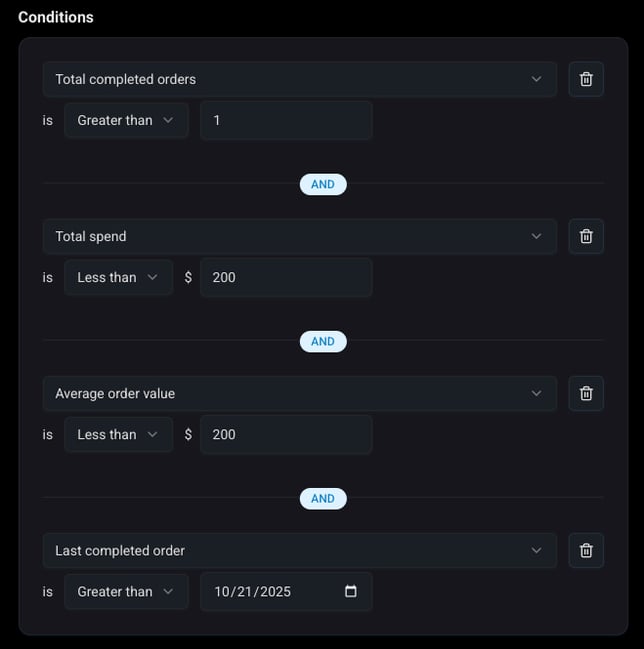
- Check Expected reach to see how many customers currently match. It updates as you change conditions.
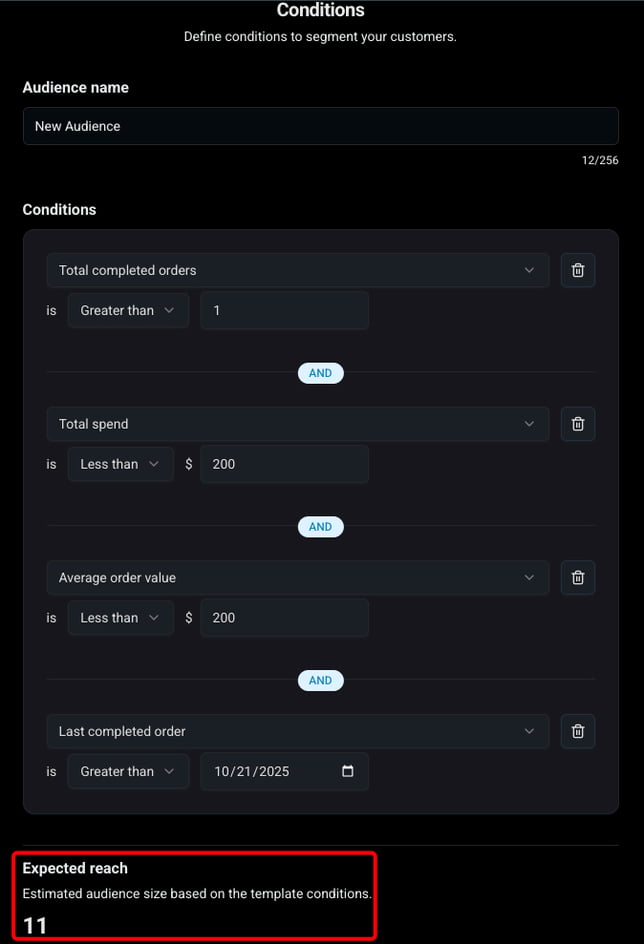
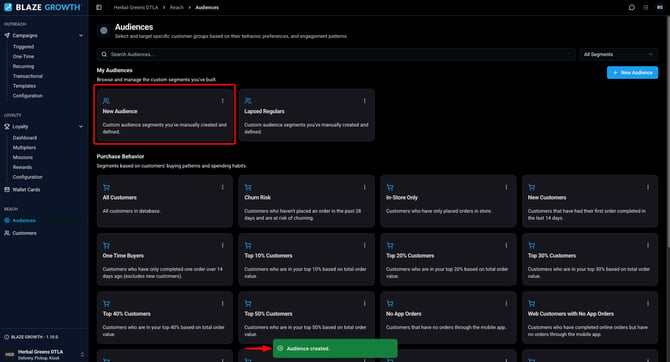
- Click Save.
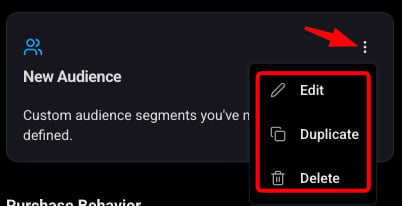
Your audience will show under My Audiences. Use the ⋮ menu on the card to Edit, Duplicate or Delete it.
Available conditions
| Condition | What it looks at | Operators |
|---|---|---|
| Total completed orders | Number of completed ECOM orders | Greater than, Less than, Equal to |
| Last completed order | Date of the most recent completed ECOM order | After, Before, On |
| Total spend | Total value of completed ECOM orders | Greater than, Less than, Equal to |
| Average order value | Total ECOM spend divided by number of completed ECOM orders | Greater than, Less than, Equal to |
A few rules:
- Each condition can only be used once per audience.
- Customers have to match all conditions to be included.
- Only completed orders count. Refunded and cancelled orders don’t.
- Values can’t be negative. Amounts are in your store’s currency.
- An audience with no conditions is the same as All Customers.
Examples
- Big Spenders: Total spend greater than 500
- Lapsed Regulars: Total completed orders greater than 3 AND Last completed order before 06/01/2026
- High-Value One-Timers: Total completed orders equal to 1 AND Average order value greater than 150
Using a custom audience in a campaign
- Create or edit a campaign (One-Time or Recurring).
- On the Campaign Setup step, pick your audience from Select Audience.
- Check Estimated reach before you continue.
Campaigns using a custom audience will show Custom as the audience type.
How audiences work with campaigns
- Checked at send time: The audience is checked when the campaign sends, so it reaches whoever matches at that moment. Recurring campaigns re-check it every send, so new customers who match are picked up automatically.
- Edits apply everywhere: Editing an audience updates every campaign that uses it, including scheduled and recurring ones, starting from their next send. Campaigns that already sent aren’t affected.
- Shared across your group: Audiences are shared with all stores in your group, and any manager in the group can edit them. The campaign’s Select Stores setting still decides which stores’ customers receive it.
- Deleting: An audience can’t be deleted while a campaign is using it. Switch those campaigns to a different audience, or delete them, first.
FAQs
Why is my audience smaller than I expected?
Conditions only look at ECOM orders, so customers who only shop in-store won’t match. Removing a condition will widen the audience.
Can I combine conditions with OR?
No, all conditions apply together. To reach either group, create two audiences and send a campaign to each. Duplicate can save you some time here.
Can I use a range, like total spend between $100 and $500?
No. Each condition can only be used once per audience.
Can I target “last order more than 30 days ago”?
Not as a rolling window. Last completed order uses a fixed calendar date, so pick the date that matches the window you want and update it when needed.
Does “Equal to” work for Total spend and Average order value?
Yes, but it only matches that exact amount, so it rarely returns anyone. Greater than and Less than are more useful for amounts.
Can I use a custom audience in a recurring campaign?
Yes. The audience is re-checked at every send.
Learn more about Growth
If you have any questions please reach out to ECOM Support at
ecomsupport@blaze.me