.png?width=140&height=37&name=BLAZE-Logo-Blue%20(2).png)
Creating a Campaign with the Wallet Card
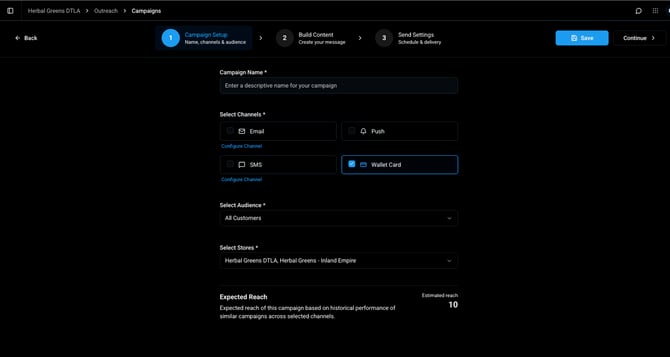
- Log in to the Growth Platform
- Navigate to Outreach in the left-hand menu.
- Select One-Time Campaigns > New Campaign.
- Name your campaign.
- In the Channels section, select **Wallet Card** as your channel. (You can deselect other channels if you want this to be a wallet-card only campaign.)
-
Select your audience.
- Select your store from the store selector.
- Click Save > Continue

Composing Your Notification
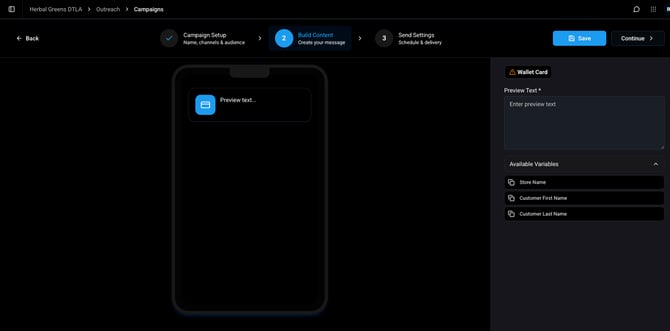
The wallet card channel is intentionally simple. The only content you need to provide is the notification message — the text your customers will see when the notification arrives on their phone.
You can use the same dynamic variables available in other Outreach channels (for example, a customer's first name or their current points balance). This lets you personalise the message without writing individual notifications for each customer.
There is currently no send test option for wallet card notifications. Plan and review your message carefully before sending.
Sending the Campaign
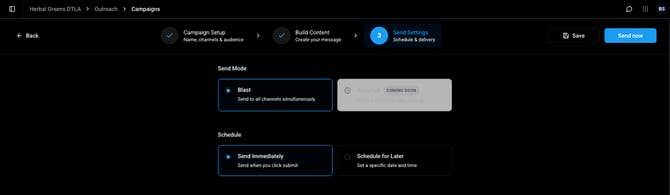
Once your message is ready, proceed through the standard campaign flow to schedule or send immediately.
Understanding Wallet Card Metrics
After a campaign is sent, you may notice that the metrics column for wallet card campaigns shows zeros. This is a known limitation — wallet card delivery confirmation data is limited by nature of how Apple Wallet and Google Wallet handle notifications. The team is aware of this and is working on a better way to surface this information.
In the meantime, use the Customer Profile to verify that a specific customer received a notification. See Understanding the Customer Profile & Debugging Points for details.
Learn more about Growth
Related Articles