.png?width=140&height=37&name=BLAZE-Logo-Blue%20(2).png)
Navigation
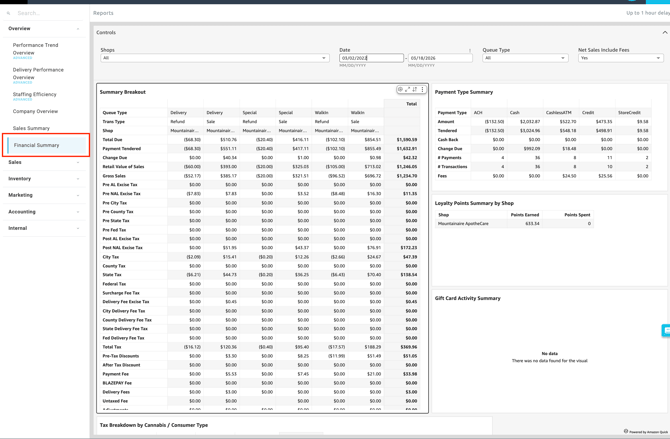
To access this report, follow this path in your dashboard:
Insights > Dashboard > Overview > Financial Summary
Filtering Report Data
You can customize the data displayed on your dashboard by selecting the following filter options.
Controls:
-
Shop(s): Select the specific location(s) you want to view.
-
Date: Define the specific timeframe for the report.
- Queue Type: Segment your report data based on the specific checkout method where the transaction was processed (e.g., Walk-In, Pickup, Special, or Delivery).
-
Net Sales include fees: Toggle between Yes or No to include or exclude fees from the net sales calculation.

Available Reports
The Financial Summary includes the following data sets:
-
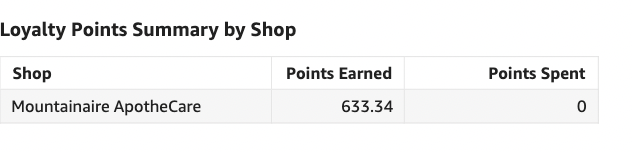
Loyalty Points Summary by Shop: Displays the amount of points earned and spent for the allotted duration.
-
Gift Card Activity Summary: Offers insight to the amount of gift cards spent.
-
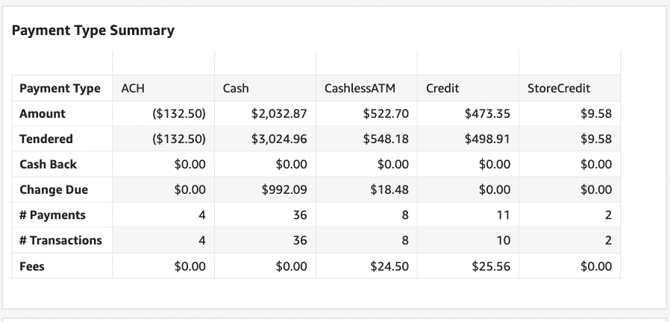
Payment Type Summary: Provides a breakdown per payment type used for any period.
-
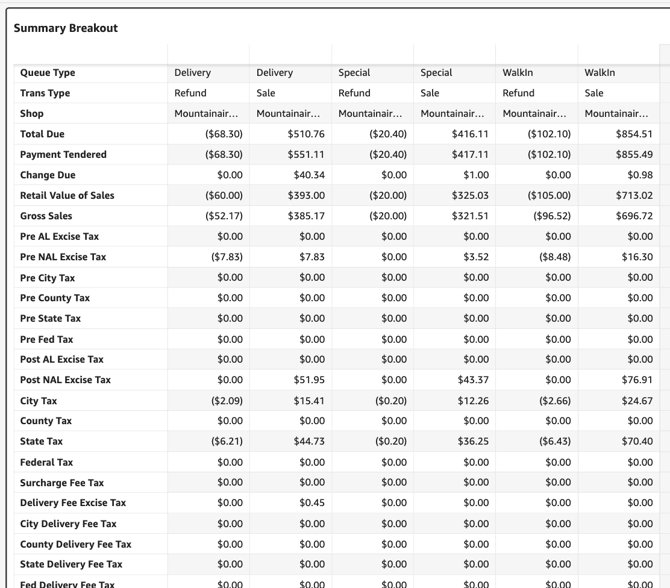
Summary Breakout: Provides a breakdown for accounting records per queue type.
-
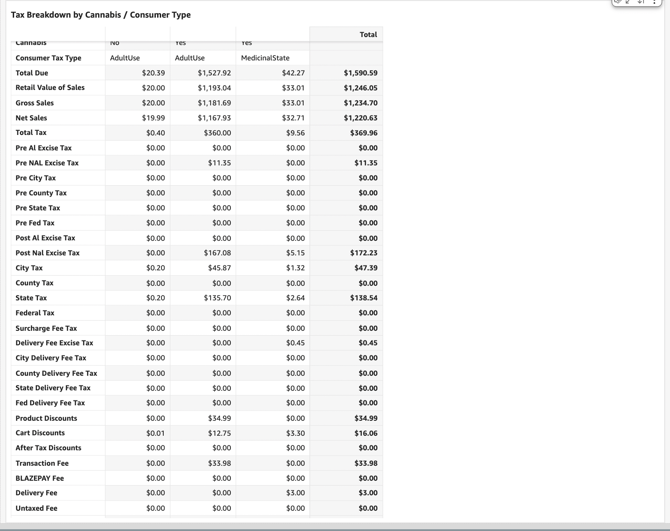
Tax Breakdown by Cannabis / Consumer Type:
Provides a breakdown for accounting records by consumer type of cannabis and non-cannabis products sold.
-
Yes (Includes Cannabis)
-
No (Includes Non-Cannabis)
-
Please review the terminology found in our Insights Accounting Glossary with your accounting professional and reach out if there are any questions!
💡 Pro Tip: You can export this or any KPI held in Insights to a CSV or Excel file. Simply click the More Options (three-dot icon) in the upper right-hand corner of the metric.