.png?width=140&height=37&name=BLAZE-Logo-Blue%20(2).png)
Navigation
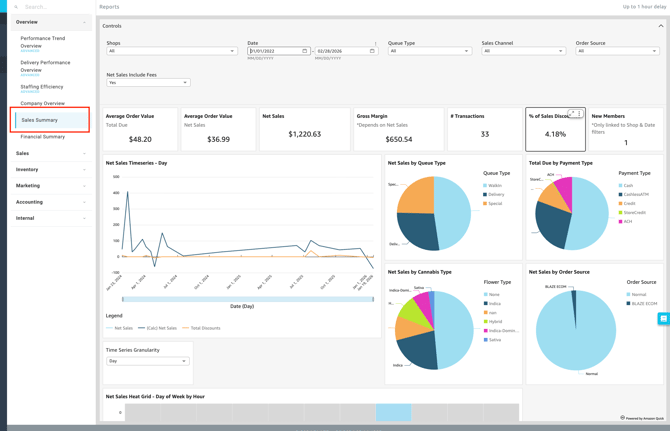
To access this report, follow this path in your dashboard:
Insights > Dashboard > Overview > Sales Summary
Filtering Report Data
-
You can customize the data displayed on your dashboard by selecting the following filter options.
-
Controls:

-
Shop(s): Select the specific location(s) you want to view.
-
Date: Define the specific timeframe for the report.
- Queue Type: Segment your report data by the specific checkout method used (e.g., Walk-In, Pickup, Special, or Delivery).
- Sales Channel: Segment your data by the primary business avenue where the purchase occurred (e.g., Retail, BLAZE ECOM, or Third Party, etc.).
- Order Source: Pinpoint the specific platform, application, or system that generated the transaction (e.g., In-Store POS, BLAZE ECOM, Self-Serve Kiosk, or Third-Party App).
-
Net Sales include fees: Toggle between Yes or No to include or exclude fees from the net sales calculation.
-
- Note: Sales Summary Redshift Migration - This dashboards has been successfully migrated to our new Redshift data platform with near-perfect data parity. While the user experience remains unchanged, four metric definitions have been updated for enhanced accuracy:
- COGS: Now reflects the cost recorded exactly at the time of sale, rather than the current product cost.
- New Members: Now counts all profile sign-ups within the period, rather than just first-time buyers.
- Cannabis Type: Case-normalized to combine identical categories (e.g., Hybrid, HYBRID, and hybrid now appear as one slice).
- Refund Status: Consolidated previous refund buckets into a single "Refunded" status.
Dashboard Metrics & Reports
-
The dashboard provides a comprehensive view of your sales through various Key Performance Indicators (KPIs), detailed breakdowns, and visual charts.
Key Metrics
-
Average Order Value - Total Due: The average amount spent per transaction based on the final total due from the customer.
-
Average Order Value - Net Sales: The average amount spent per transaction based on the net sales amount.
-
Net Sales: Total revenue after refunds (and optionally fees, based on your filter).
-
Gross Margin: The total sales revenue minus the cost of goods sold (COGS), representing the profit retained from each transaction before operating expenses.
-
# Transactions: The total number of individual transactions processed by the employee or shop.
-
% Of Sales Discounted: The percentage of the total sales volume that was reduced through applied discounts or promotions.
-
New Members: The total number of customers who newly enrolled as members.

Detailed Breakdowns
-
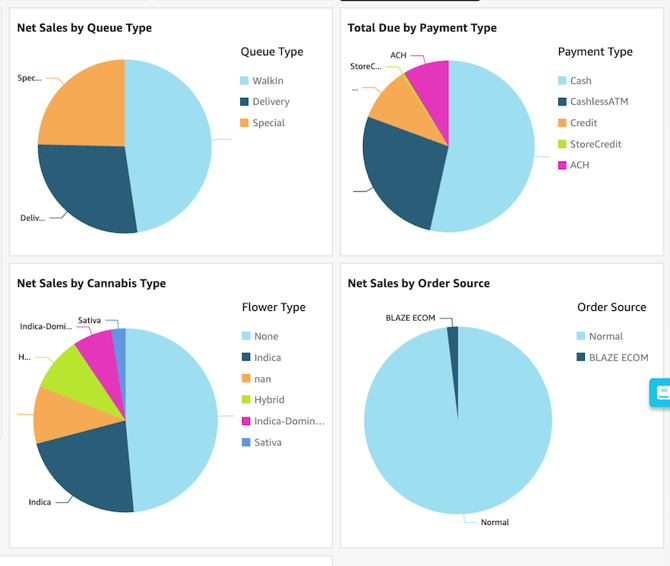
Net Sales By Queue Type:
- The total net sales are segmented by queue type the customer used to complete their purchase (e.g., Walk-In, Pickup, Special, or Delivery).
- The total net sales are segmented by queue type the customer used to complete their purchase (e.g., Walk-In, Pickup, Special, or Delivery).
- Net Sales By Cannabis Type:
-
The total net sales are categorized by the specific strain classification or product category (e.g., Indica, Sativa, Hybrid, CBD, etc).
-
-
Net Sales By Order Source:
- The total net sales are separated by exactly where the order originated (e.g., In-Store POS, BLAZE ECOM, Self-Serve Kiosk, or Third-Party App).
- The total net sales are separated by exactly where the order originated (e.g., In-Store POS, BLAZE ECOM, Self-Serve Kiosk, or Third-Party App).
-
Total Due By Payment Type
- The final total amounts collected, segmented by the specific payment method the customer used for the transaction (e.g., Cash, ACH, Credit, etc.).
Charts & Visualizations
-
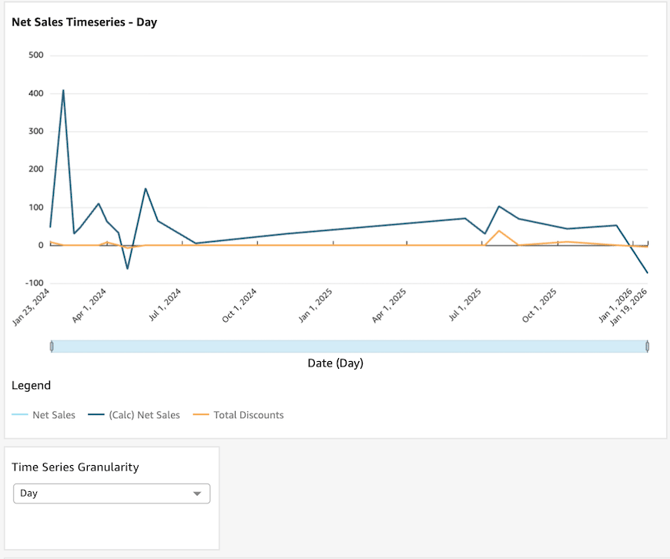
Net Sales Timeseries: This chart offers insight into net sales data and total discounts based on your selected time groupings.
-
-
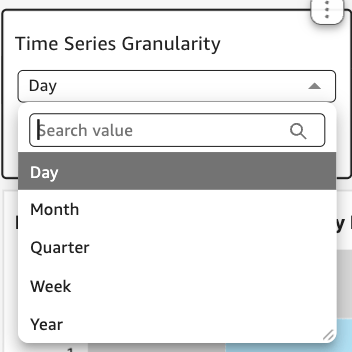
Time Series Granularity: Filter this chart by day, month, quarter, week, or year.
-
-
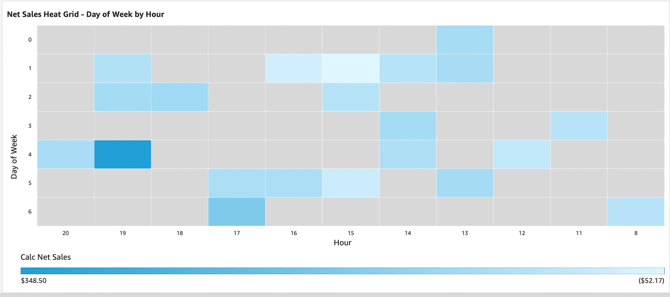
Net Sales Heat Grid: Displays sales trends based on the Day of Week by Hour, helping you identify peak store hours.
Please review the terminology found in our Insights Accounting Glossary with your accounting professional and reach out if there are any questions!
💡 Pro Tip: You can export this or any KPI held in Insights to a CSV or Excel file. Simply click the More Options (three-dot icon) in the upper right-hand corner of the metric.