Retail | BLAZEPAY (BPay) Cashless ATM In-Store Workflow
The following article highlights the recommended budtender workflow, customer journey, refunds, and Cash Drawer summary for BLAZEPAY (BPay) CATM.
Cashless ATM Functionality
BLAZEPAY(BPay) CATM payment terminals round the POS total to the nearest $5, similar to an actual ATM machine. Due to the rounding functionality, it is standard practice to give cashback to the customer at the end of the transaction.
With the integrated service, the POS and payment terminal will calculate the necessary cashback at the end of the sale cycle. Please see the workflow below for examples.
In-Store Budtender Workflow
Once the customer's cart has been prepared, navigate to the Payment Options screen to initiate the CATM payment.
- Select the BLAZEPAY Cashless ATM (CATM) payment option.
- After, choose Apply.
- Then, choose Send Request to initiate the payment on the card reader.
- The following statuses will be in progress while the customer prepares for payment:
- Payment Selected
- Sending Payment
- Payment Successful

- The following statuses will be in progress while the customer prepares for payment:
- The customer will be prompted to insert their debit card to authorize and complete the payment.
- After the payment is finalized on the card reader, the BLAZE POS will receive an API call from the integration to close the sale on the app side. All statuses will have a green check mark as to indicate a successful payment.
- Finally, the budtender will see a payment summary screen which prompts the cashback for the customer.
- The transaction is now completed. Choose between Return to PIN Screen or Return to Orders.
Customer Workflow
- After the budtender has sent the payment request, the customer will be prompted to insert or swipe their card for payment.
- If applicable to your locations terminal settings, the customer will enter in a tip amount.
- Then, the next page will show the customer a sale summary. This includes:
- Sale Amount (from POS)
- Cashback
- Surcharge (processing fee)
- Total

- The customer will select Accept, then will be prompted to choose payment from their Checking account, Savings account, or Credit. Checking must be selected. Then, they can enter their PIN.
- The payment terminal will begin to process the authorized payment.
-
- After the payment is Approved, the terminal will print a merchant receipt and ask if the customer requires a copy as well.
- Finally, the sale is complete.
Refunds
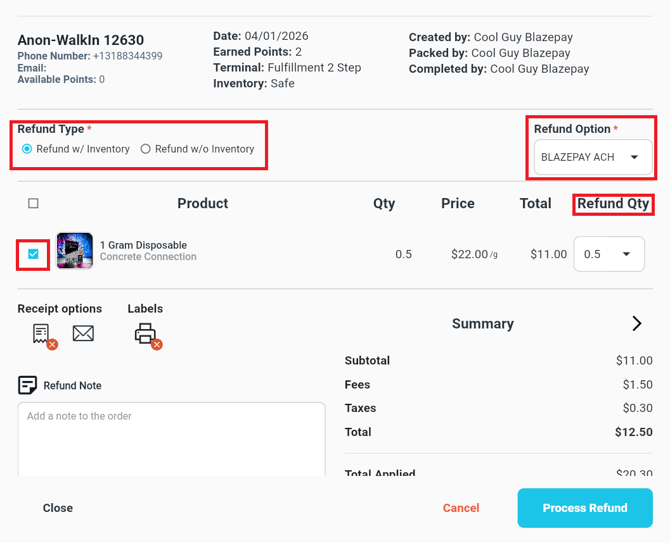
All CATM transactions must be refunded as CASH. The integration does not allow card payments to be issued back to the customer's debit card.
-
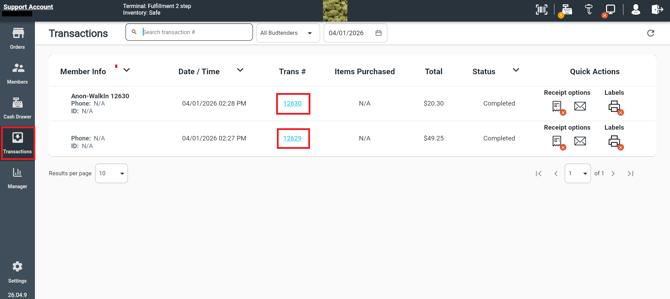
Navigate to the Transactions tab and click on the highlighted transaction. Then, select REFUND.
-
If the product can be resold, select "With Inventory". If the product is damaged and cannot be resold, select "Without Inventory"
-
Select the product that will be refunded.
-
From the REFUND TYPE drop-down, select CASH.
-
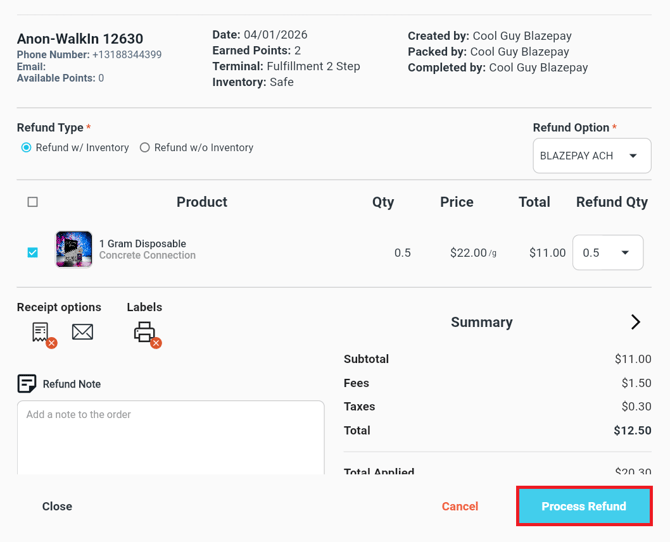
Enter a refund note, then select PROCESS REUND.
-
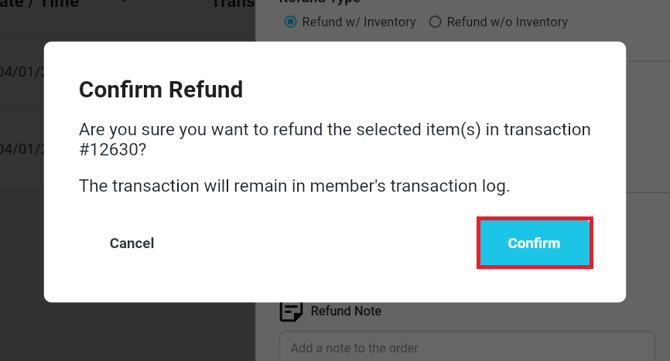
Confirm the refund by clicking CONFIRM.
-
You will then see a notification confirming that the transactions have been refunded, and the cash funds can be provided to the customer.
For a visual walk-through for both the POS app and Web Dashboard, please review the BLAZEPAY Cashless ATM Refunds guide.
CATM Reporting
Cash Drawer
-
For daily sales reconciliation in the BLAZE POS app, navigate to the Cash Drawer tab.
- Within the Cash Drawer, the following BLAZEPAY (BPay) CATM sale information can be found:
- BLAZEPAY Cashless ATM sales
- BLAZEPAY Cashless ATM sales = BLAZE Total + Processing Fee
- Cashback and Tips are excluded from this dollar amount. They are separated under the Misc.

- Refunds
- Cashback
- Tips
- BLAZEPAY Cashless ATM sales
Closing Report
- For a Closing Report overview, select the Manager tab, then Closing Report.
- Closing Report includes a dedicated BLAZEPAY CATM sales tile:
- Terminal detail separates Received, Payment Fees, and Tips.
- The BLAZEPAY CATM calculation tooltip shows Total Charged, Cashback Dispensed, and Store Kept.
- All of the above data per cash drawer.
For deposit reconciliation, please refer to the BLAZEPAY (BPay) Cashless ATM Deposit Reconciliation guide.