.png?width=140&height=37&name=BLAZE-Logo-Blue%20(2).png)
The payment processor's reporting platform will include the required reports for viewing settled transactions and expected deposits.
URL | Dynamic Portal
To add users or request credentials, please contact support@blaze.me
Settlement Schedule
BLAZEPAY (BPAY) CATM operates on a next-day funding schedule. For example:
Monday transactions ➡️ deposited Tuesday
Tuesday transactions ➡️ deposited Wednesday
etc.
However, next-day funding excludes weekend transactions (Friday-Sunday).
Terminal Batch Cut-off Time
Processing networks determine their own cut-off times regardless of terminal batch times. To request a specific batch cut-off time, please contact support@blaze.me for further assistance.
Settlement Summary Report
The Settlement Summary report will match up to your bank deposits. What you see within this report is what will actually settle into your bank account.-
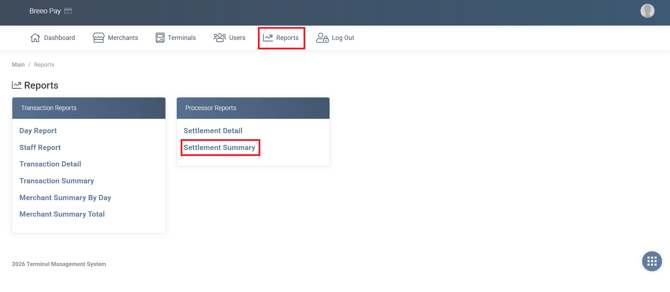
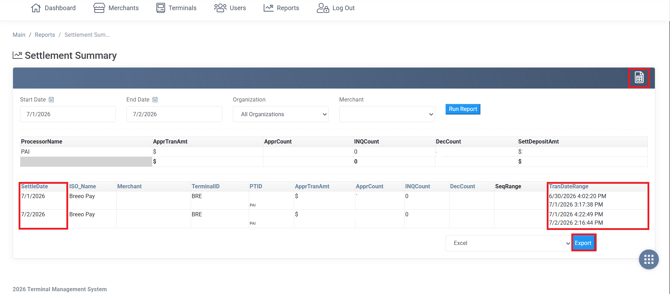
From the Reports tab, select the Settlement Summary report.
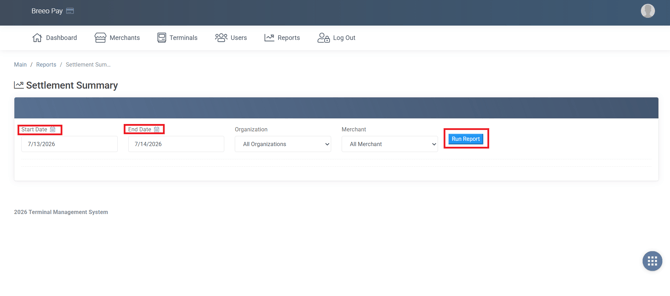
- Use the Start Date and End Date options to filter to the needed dates. Click the calendar icon or manually enter dates to change the report timeline. Then, select Run Report.
- After, the transaction information will be available to view.
- The Settlement Summary will include:
- Terminal ID's
- Deposited amount per terminal
- Approved transaction count
- Declined transaction count
- Total settlement deposit amount
- Settlement date range
- Transaction date range
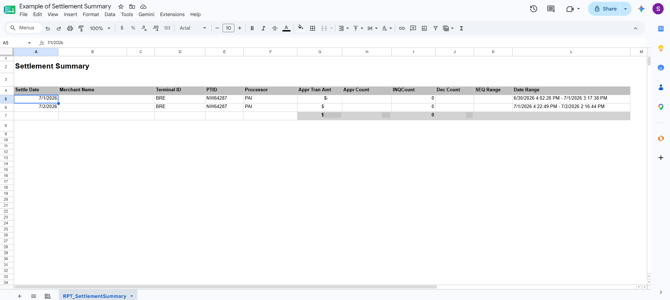
- To export the data, choose the Excel option or the page icon on the top right corner of the report summary.
Settlement Detail
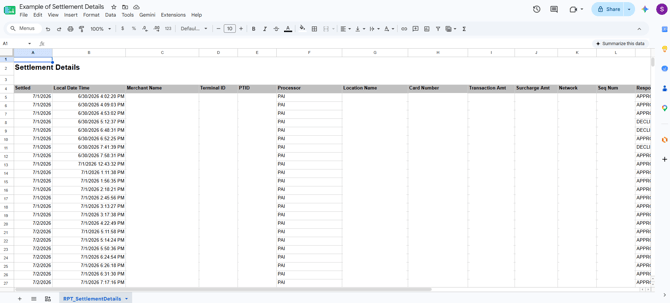
The Settlement Detail report is used to see which transactions are included in your total
daily settlement.
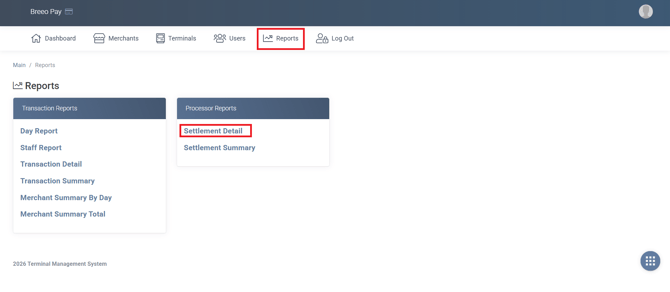
- Similar to the steps above, from the Reports tab, select the Settlement Detail report.
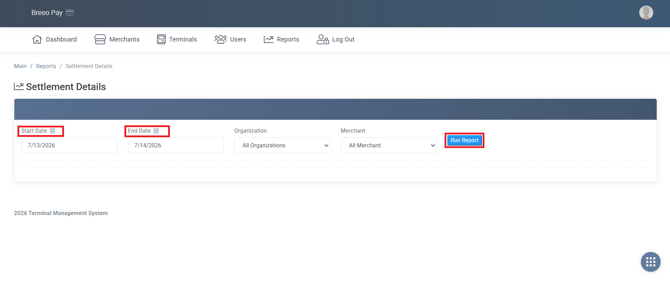
- Use the Start Date and End Date options to filter to the needed dates. Click the calendar icon or manually enter dates to change the report timeline. Then, select Run Report.
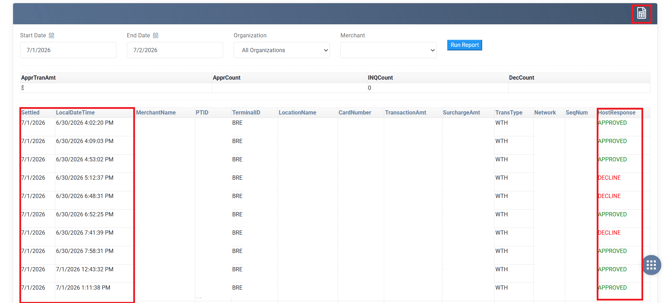
- After, the transaction information will be available to view.
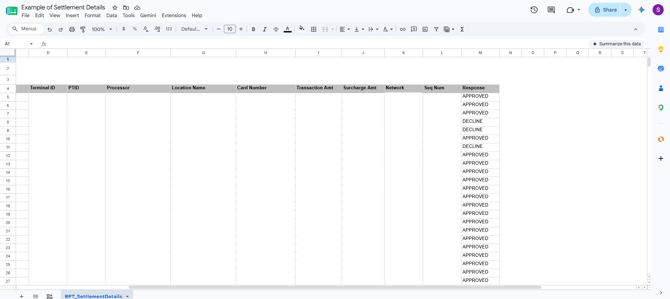
- The Settlement Details will include:
- The time a transaction took place
- The date the transaction was settled on
- Terminal number
- The last 4 digits of the card used
- Transaction amount
- Payment status
- Approved
- Declined
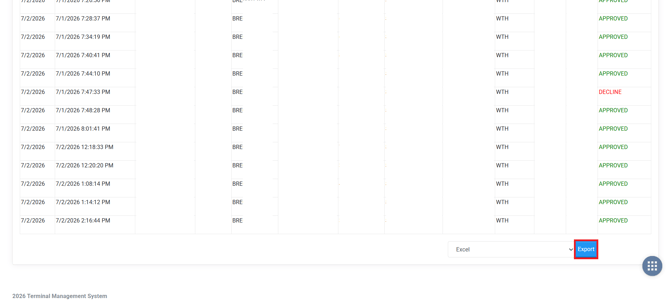
- To export the data, choose the Excel option or the page icon on the top right corner of the report summary.