.png?width=140&height=37&name=BLAZE-Logo-Blue%20(2).png)
Prerequisites
-
Company Products must be enabled for your organization.
-
Users must have the following security role permissions enabled:
-
Can bulk edit products
-
Can bulk edit detail overrides
-
Can bulk edit price overrides
-
-
Access to a spreadsheet editor (e.g., Microsoft Excel or Google Sheets).
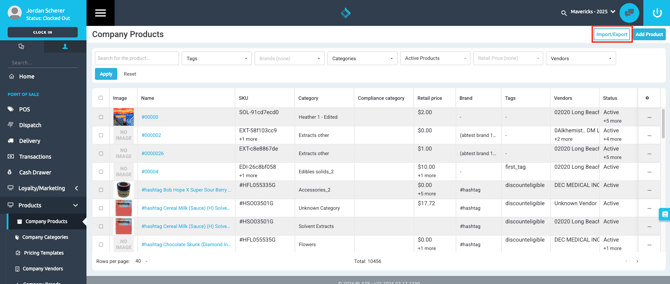
The Multi-Tab Modal
Located within the Company Products dashboard, the Import/Export button is found at the top right of the screen. Clicking this opens a modal with three distinct tabs:
| Tab | Purpose |
| Product Details | Update global information (Name, Category, Vendor, etc.). |
| Details Overrides | Set location-specific SKUs, Status, Potency, and Descriptions. |
| Price Overrides | Set location-specific Retail Prices and Wholesale Costs. |
The Workflow: Export > Edit > Import
To ensure data integrity and prevent errors, always follow this specific sequence:
-
Filter First: Apply filters (Category, Vendor, etc.) on the product list page before exporting to ensure you only download the items you intend to change.
-
Export: Download the CSV from the relevant tab in the modal.
-
Edit: Open the file in your spreadsheet editor.
WARNING: Do NOT edit the ID column. This unique identifier is required for the system to map your changes back to the correct products.
-
Import: Save your file as a CSV and drag and drop it back into the corresponding tab's dropzone.
Rules for Importing
The system performs strict validation checks during the upload process. If these rules are violated, the import will fail:
-
Vendors & Categories: These must already exist in the BLAZE system. You cannot create a new category or vendor by typing a new name into the CSV.
-
SKUs: Every SKU must be unique. The system will throw an error if a duplicate is detected within the file or the database.
-
Required Fields: Every product must have at least one Vendor assigned.
-
Character Limits: All fields except for Description are capped at 255 characters.
-
Images: You may include up to 5 comma-separated image URLs per product.
-
Case Sensitivity: Most fields are case-insensitive (e.g., "Sativa" vs "sativa"), but matching existing formatting is recommended.
PRO-TIP: To "remove" an override and return to the company default, set the value in the Override CSV to match the "Default" shop value. The system will recognize the match and automatically clear the redundant override.