.png?width=140&height=37&name=BLAZE-Logo-Blue%20(2).png)
Prerequisites
-
Company Products must be enabled for your account.
-
All Shops permissions are required to create, edit, or delete templates.
-
Access to the BLAZE Dashboard.
WARNING: When Company Products is enabled, all Pricing Template management should be handled in Dashboard > Products > Pricing Templates.
Accessing and Managing Templates
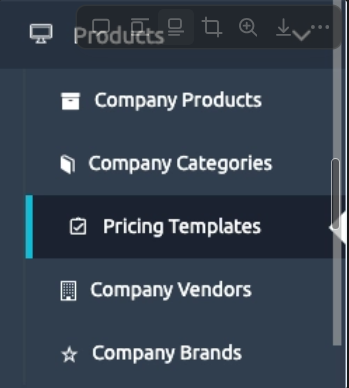
All templates are managed from the Pricing Templates tab within the Company Products sidebar.
-
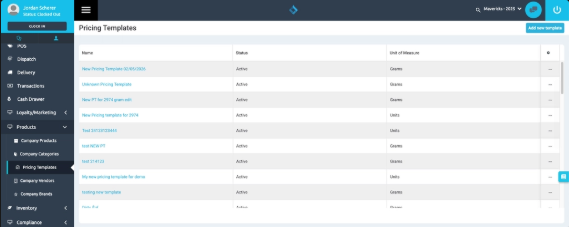
List View: Displays the template name, status (active/inactive), and unit of measure.
-
Unit of Measure: Currently supports Grams (weight-based) and Each (unit-based).
-
Permissions: Users without "All Shops" permissions have read-only access. They can view existing templates but cannot make any changes.
Creating & Editing Pricing Templates
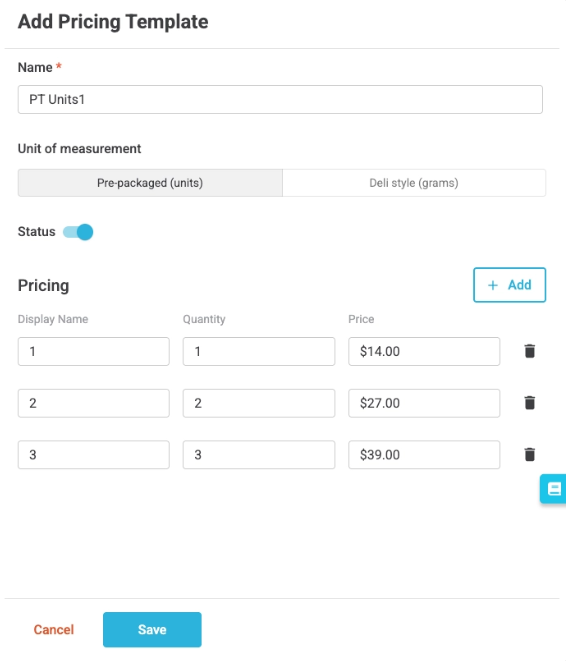
To create a new structure, click the Add new template button to open the configuration drawer.
NOTE: Unlike previous versions, you are no longer limited to a set number of tiers. You can add "infinite" pricing rows to meet your business needs.
Available Fields:
-
Name: (e.g., "Premium Flower" or "Pre-Roll Tier 1").
-
Unit of Measurement: * Pre-packaged (units): Uses quantity values.
-
Deli style (grams): Uses weight values.
-
-
Status: Toggle between Active or Inactive.
-
Add Button: Use this to create additional pricing tiers. Each tier requires a Display Name, Quantity/Weight, and Price.
Once all tiers are added, click Save.
Assigning to Products & Overrides
Within the Pricing tab of a specific Company Product, you can manage how templates are applied:
-
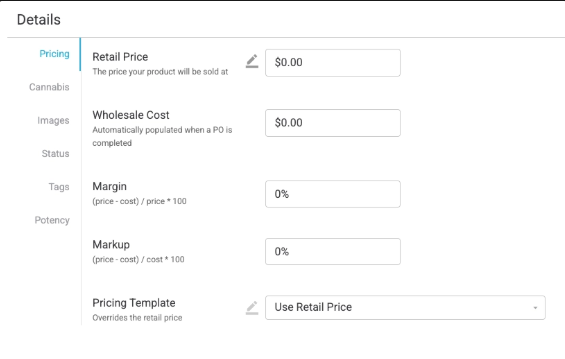
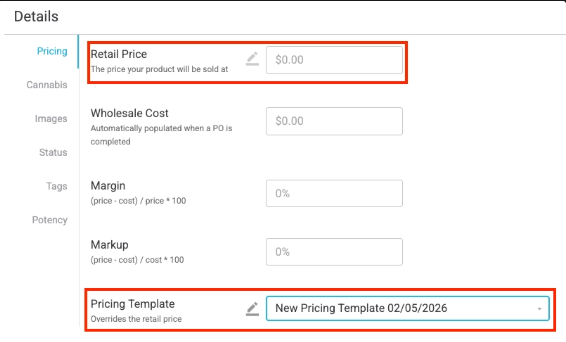
Default Selection: Products default to Use retail price.
-
Template Activation: Once a template is selected from the dropdown, the manual Retail Price field is automatically disabled.
-
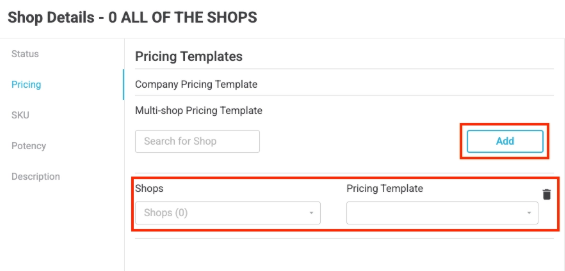
Location Overrides: To assign different templates to specific shops, open the Overrides Drawer by clicking the Pencil Icon.
-
Click Add > Choose the Shop(s) > Select the associated Pricing Template.
-
Click Add again to include more shops with different templates.
-
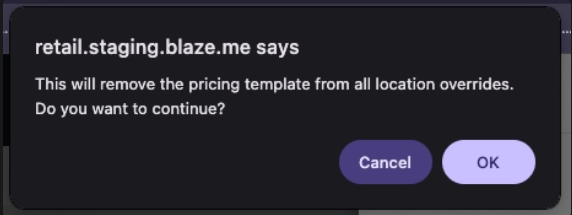
WARNING: If you switch a product from a "Pricing Template" back to "Retail Price," the system will notify you that all location-specific template overrides will be removed.
Bi-Directional Sync Logic
The pricing module features a robust sync engine to keep your data aligned:
-
Global-to-Local: Changes made to a Company Template automatically update all linked shop products.
-
Local-to-Global: If a pricing template is updated directly on a shop product at the local level, the system automatically creates a corresponding Location Override in the Company Product dashboard.
Bulk Update Actions
Pricing templates can be managed at scale via the bulk import/export tools using the following files:
-
Product Details Import: Used for company-wide updates (not shop-level).
-
Details Override Import: Used for both default (company-wide) and shop-level updates.
-
Prices Override Import: Used for both default (company-wide) and shop-level updates.
NOTE: The importer is "smart" and will ignore accidental leading or trailing whitespaces in template names. However, if you import a CSV with a non-existent or deleted template name, the system will trigger a validation error.
Point of Sale (POS)
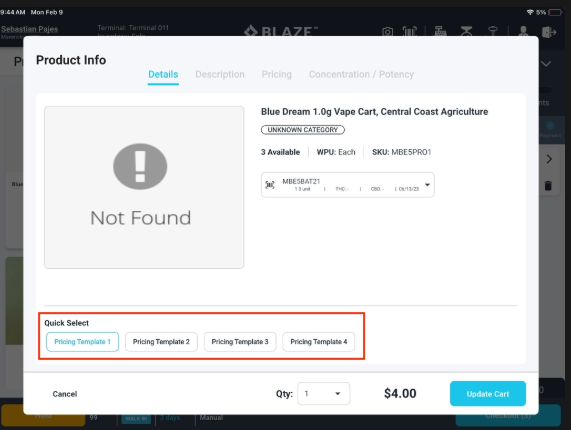
The Point of Sale will display the specific pricing templates assigned to that location. Selecting a template at the POS will automatically determine the quantity of the product added to the cart based on the predefined tiers.
Troubleshooting
-
Retail Price Field Disabled: If you cannot edit a price manually, ensure the pricing dropdown is set to Use retail price and not a template.
-
Read-Only Access: If the "Add new template" button is missing, verify that your user profile has All Shops permissions.
-
Deleted Templates: When a template is deleted, it is hidden from active dropdowns but the record remains in the database for historical audit purposes.