.png?width=140&height=37&name=BLAZE-Logo-Blue%20(2).png)
Prerequisites
- BLAZE Retail Account with administrative permissions to access Global Settings.
- KML File (if using custom geographical boundaries instead of zip codes).
Creating a Region
- In BLAZE Retail, navigate to Global Settings > Company Settings > Regions.
- Click the Add Region button.
- Enter a Name for the region.
- Select a location for the Hub that will service the region (Optional).
- Select the Zone Type: Zipcode or KML.
- If Zipcode is selected, enter the applicable zip codes (Optional).
- If KML is selected, upload your KML file.
- Set the Status to Enabled.
- Click the Save button.
NOTE: To generate custom KML files, utilize Google Maps to draw and export your geographical boundaries - HERE
Specifying Member Consumer Types per Region
When creating or editing a region, you can restrict delivery service based on customer classification:
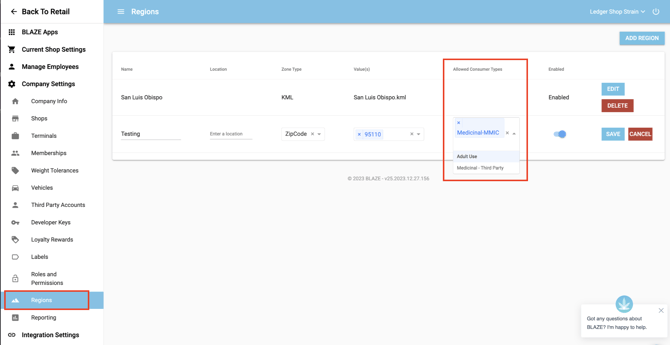
- Enter the allowed Consumer Types per region to restrict deliveries exclusively to those member types.
- If left empty, the region defaults to accepting all consumer types without restriction.
Where and How to Use Regions
| Feature | Location in BLAZE | Description & Usage Rules |
| Delivery Tax Rates | Global Settings > Current Shop Settings > Delivery Tax Rates | Distinguishes distinct geographical tax zones using zip codes. When an order is placed from a zip code within a designated region, the system applies the specific tax rate associated with that region. |
| Inventories | Global Settings > Current Shop Settings > Inventories |
Associates specific inventories with defined regions for third-party integrations (e.g., Weedmaps). • Multiple inventories CAN be assigned to the same region. • Multiple regions CAN be assigned to the same inventory. |
| Weedmaps Integration | Global Settings > Integration Settings > Weedmaps |
Filters and displays inventory items that are strictly available in the region associated with a specific Weedmaps pin. • Optional configuration. • Only one region may be assigned per pin. • Does not need to match the region listed natively in Weedmaps. |