
Over time, a customer can accumulate multiple profiles across your company—such as one created at the register, another through online sign-up, and a third at a different dispensary location. Member Merge identifies duplicate profiles across all shops in your organization and consolidates them into a single primary record.
Nothing is permanently deleted. Each duplicate remains in BLAZE as a secondary record linked directly to the main profile, keeping its complete order history intact. You maintain full control over which record is preserved, and the review screen clearly displays which information will be merged. Member Merge identifies potential matches when a scan is initiated, but never merges records automatically without explicit user confirmation. This tool can be found under TOOLS>MEMBER MERGE.
NOTE: Member Merge is rolling out in phases. If you do not see this tool in your dashboard, contact your Customer Success Manager (CSM) to request access.
Accessing Member Merge
To open the tool, navigate to TOOLS > Member Merge in the left sidebar navigation.
NOTE: The browser URL remains constant while navigating within Member Merge. Individual merge runs cannot be bookmarked. To return to an active or past run, navigate to the Runs tab.
Finding Your Way Around
| Control | Description |
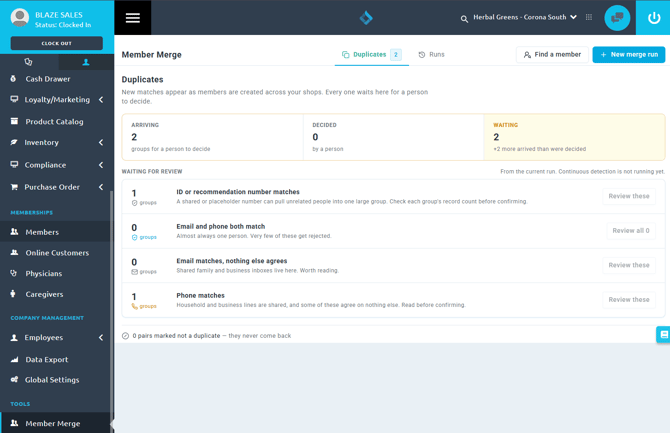
| Duplicates Tab | Displays potential duplicate profiles detected during the current merge run, grouped by matching criteria. The badge number indicates how many groups require a decision. |
| Runs Tab | Lists all historical and in-progress merge runs. Open any run to view its scan status and merge history. |
| Find a member | Allows you to search for specific member profiles and manually merge them on demand. |
| New merge run | Scans all member profiles across your company to detect duplicate accounts in bulk. |
Two Ways to Merge
Choose between two distinct workflows depending on whether you are resolving known duplicates or scanning across your entire operation:
- Merge Specific Members (Known Duplicates): Click Find a member to manually search for profiles, group them, review data conflicts, and confirm the merge. The merge takes place immediately.
- Company-Wide Scan: Click New merge run to scan all member profiles across the company. Review the generated match groups, decide whether to confirm or dismiss each match, and merge all confirmed groups in one step.
IMPORTANT: Only one merge operation can be processed at a time. While a company-wide run is active (scanning, in review, merging, or paused), the Find a member tool cannot merge records, and existing merges cannot be undone. You must finish or cancel the active run from the Runs tab first. Additionally, the Duplicates tab only displays results from your current run; start a new run to identify recently created duplicates.
Key Concepts
- Main Record: The primary customer profile that is kept. Standard member searches and customer lists display only the main record.
- Secondary Record: A duplicate profile merged into the main record. It remains stored in BLAZE with its historical sales data linked to the main profile, but is hidden from the active Members list and checkout searches.
- Group: Two or more member profiles flagged by the system as potentially belonging to the same person.
- Merge Run: A company-wide scan across all shops that collects potential duplicate groups for review. Each run is archived on the Runs tab.
- Decided: A group that has been reviewed and either confirmed for merging or marked as Not a duplicate.
NOTE: Merges are reversible. During the beta period, contact your Customer Success Manager or BLAZE Support to unmerge records.
Recommended First Steps
- Test with Known Duplicates: Select Find a member to merge a few known duplicate profiles first. This allows you to verify how merged records and historical data appear on individual profiles.
- Launch a Company-Wide Scan: Click New merge run to scan your entire database. Begin your review with Email + phone groups, as these provide the highest match confidence. Always open and inspect groups containing three or more profiles before confirming.
- Review Data Consolidation Rules: Consult What Happens When Members Are Merged before conducting a large merge run to understand how loyalty points, IDs, contact information, and order histories are handled.