.png?width=140&height=37&name=BLAZE-Logo-Blue%20(2).png)
Prerequisites
- Your vendors must support Metrc Retail ID. Ask non-enrolled vendors to enroll at retail-id.metrc.com (there is no added cost to obtain Retail IDs from Metrc).
- Confirm with vendors that Retail IDs will be present on physical packages before accepting transfers in Metrc.
What is Individual Unit Tracking?
Individual Unit Tracking (also known as Metrc Retail ID or Batch Serialization) allows retailers to receive products from producers or distributors that are already pre-labeled with unique, unit-level QR codes. Once ingested into BLAZE, these QR codes link directly to the received batch and serve as the primary identifier scanned during fulfillment and checkout.
Benefits of Individual Unit Tracking
- Save Time & Labor: Pre-labeled products eliminate the need for staff to print and manually apply batch labels upon delivery, significantly reducing intake time and operational overhead.
- Dual-Purpose Scanning: The unique QR code on Metrc Retail ID packaging serves two functions:
- For Retailers: Acts as the primary scannable identifier for all inventory tracking and POS transactions in BLAZE.
- For Customers: Allows consumers to scan the code with a smartphone camera, redirecting them to a brand-managed product information page that can display product details and lab results.
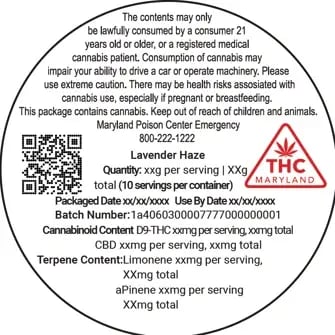
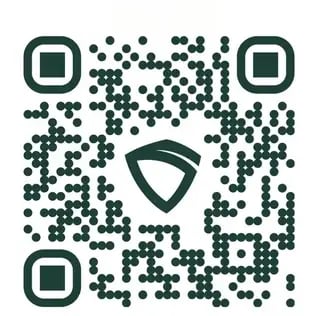
This unique URL is actually the serial number of your unit. It also serves as a redirect to a page for more product information (click the link to see), allowing the customers to find out more by simply scanning with their phone camera.
How Individual Unit Tracking Works
- Ordering & Labeling: Wholesalers apply a unique QR code label to every individual unit prior to shipment.
- Batch Ingestion: When products arrive, BLAZE ingests the unit QR codes—either automatically via Metrc Retail ID or manually through a vendor CSV upload—and links them directly to the received batch.
- Checkout & Fulfillment: At the POS, budtenders scan the pre-labeled QR code on the physical unit. BLAZE automatically identifies the correct batch and tracks the specific unit through the sale.
How Metrc Retail ID Works in BLAZE
BLAZE automatically imports Metrc Retail IDs when you complete a Purchase Order or External Transfer. No CSV upload is required for Metrc-tagged products, though manual CSV uploads remain available as a backup.
- Accept Transfer in Metrc: Log into Metrc and accept the incoming transfer. Scan or confirm that Retail IDs are present on the physical package.
- Complete Intake in BLAZE: Receive the Purchase Order in BLAZE as normal. When you complete the intake, BLAZE automatically pulls any associated Retail IDs from Metrc and links them directly to the batch.
- View IUIDs (Optional): Open the batch in BLAZE and click to view the Batch Details side panel. Retail IDs / IUIDs (Individual Unit Identifiers) are stored here, indicating they are ready for checkout.
- Sell at Checkout: At the POS, scan the Retail ID QR code on the product package. BLAZE automatically adds and fulfills the correct batch/compliance package into the cart, tracking the unit individually through the sale.
Troubleshooting
| Issue | Root Cause | Solution |
| Retail IDs didn't import automatically | Package was incomplete in Metrc or imported before updates |
1. Confirm Retail IDs are present on the package in Metrc. 2. Look for the Retail ID icon on the Completed Purchase Order in BLAZE to verify import status. 3. Initiate a sync for all packages on the PO using the Sync button. 4. Alternatively, navigate to Batch Details > Unit IDs to initiate a sync per package/batch. 5. If still missing, export the CSV from the Metrc Retail ID interface and manually upload it post-intake. |
| IDs don't scan at checkout | Batch lacks IUIDs, or QR code is damaged |
1. Open the Batch Details side panel in BLAZE to confirm the batch has IUIDs assigned. 2. Inspect the physical QR code to ensure it is scannable and undamaged. 3. Verify in Metrc that Retail IDs are active and available for that specific batch. |
| Duplicate or incorrect IDs | Metrc provided all manufacturing batch IDs | BLAZE allows the same ID to be stored across multiple batches. Always confirm you are accepting the correct IDs in Metrc when accepting transfers. |
| Vendor doesn't support Retail ID | Vendor has not enrolled or uses a third-party system |
1. Direct the vendor to retail-id.metrc.com to enroll. 2. Request a CSV file using the vendor's own serialization system. 3. Manually create IUIDs directly within BLAZE if needed. |
Alternate Method: Manual CSV Ingest
If your vendor does NOT use Metrc Retail ID, BLAZE supports manual CSV uploads for other serialization standards (such as the Universal Cannabis QR Code or proprietary vendor systems).
NOTE: Use this method when your vendor uses a non-Metrc serialization system or when you need to manually create and track custom IUIDs internally.
- Request a CSV file from your vendor listing all unit IDs.
- Upload the CSV when receiving the Purchase Order in BLAZE.
- BLAZE will associate the IDs with the batch.
- Access and verify the stored IUIDs inside the Batch Details side panel.