.png?width=140&height=37&name=BLAZE-Logo-Blue%20(2).png)
If a debit card payment is processed on the card reader but does not call back to the POS to complete the transaction, closing out the sale under manual Cashless ATM TFI will log the payment under the correct payment option. This will avoid having to use other payment types in BLAZE to remove the sale from the queue, making reconciliation easier.
NOTE: The manual BLAZEPAY Cashless ATM option is only available in the BLAZE POS app. This functionality is not available on the BLAZE web or delivery app.
The BLAZEPAY CATM fee will apply to the manual transaction only if this is entered in your BLAZE settings. Navigate to the Global settings > Current Shop Settings > PAYMENTS > select the settings icon > Fee Setup > ADD FEE if not yet in place.
1. Once the member's product is added to the cart, select CHECKOUT.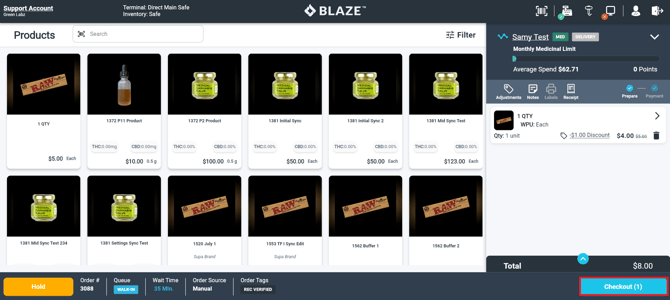
2. At the payment options screen, the BLAZEPAY Cashless ATM TFI payment type can be found. Select BLAZEPAY Cashless ATM to begin processing a manual sale.
3. After the card reader has already processed payment and provided a sales receipt, observe the AUTH CODE on the slip and add it to the available field. This field is optional as well.
4. Toggle ON the manual option, then select APPLY to process the manual payment. The BLAZEPAY CATM fee will be automatically applied to the sale, and the POS will round the payment prompted in the CHARGE field.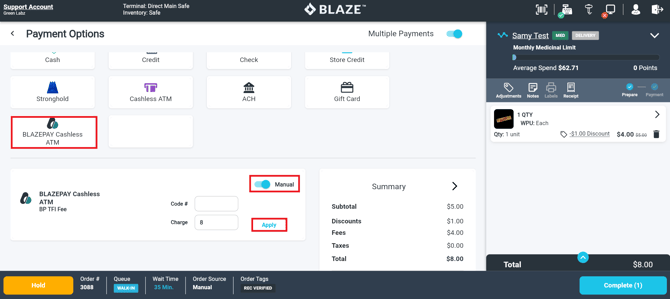
6. After APPLY has been selected, the BLAZE Retail app will begin processing the manual transaction.
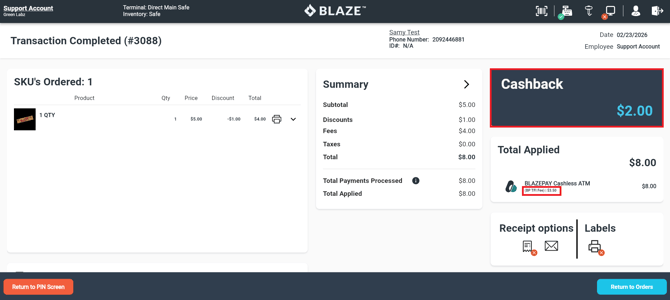
7. When the transaction is finalized, you will be taken to the CASH BACK and payment summary screen. Here, it will prompt the amount of CASH BACK owed to the customer from the rounded dollar amount, and the sale is complete.