.png?width=140&height=37&name=BLAZE-Logo-Blue%20(2).png)
A merge run scans every member in your company and groups profiles that may belong to the same person. This article covers how to review those groups: reading the evidence, choosing the main record, deciding what information to copy over, and confirming or rejecting each group.
NOTE: Confirming a group does not merge it immediately. It only records your decision. Nothing changes on any member profile until you click Merge [X] confirmed at the top of the screen (the number represents how many groups you have confirmed). That button also ends the review for the run, so ensure you have decided on every intended group before clicking it.
The Duplicates Tab
The Duplicates tab shows the potential duplicates your current merge run found.
NOTE: Member Merge does not automatically watch for new duplicates as members are created. To find new ones, you must start a new run. If no run is in progress, the tab displays zeros and its Review buttons are greyed out. Click New merge run to begin.
- Navigate to TOOLS > Member Merge in the left sidebar. The Duplicates tab will open by default.
- The header displays three statuses: Arriving (groups waiting for a person to decide), Decided (groups someone has already decided), and Waiting (groups still to decide).
- Under "Waiting for review", groups are sorted by what matched:
| Row | What it means | Buttons |
| ID or recommendation number matches | The profiles share a license or a medical recommendation number. This is the strongest evidence, but a shared or placeholder number can pull unrelated people into one large group. Check each group's record count before confirming. | Review these |
| Email and phone both match | Usually one person. In a group of three or more, the email may link two of the profiles and the phone a third, so open those groups before confirming. | Review all and Confirm all |
| Email matches, nothing else agrees | Shared family and business inboxes end up here. Worth reading. | Review these |
| Phone matches | Household and business lines are shared, and some of these agree on nothing else. Read before confirming. | Review these |
Confirm All (Email and Phone Matches)
The Confirm all button confirms every undecided "Email and phone both match" group in one single step, without needing to open them manually. Each group applies the following default choices:
- The secondary profile's license, rec number, phones, and emails are copied onto the main record.
- The main record's birthdate and address are left as they are (Confirm all never uses the "Use this" override).
- Points follow the run's setting (Combine or Main record only).
WARNING: Before you use Confirm all, review the "Email + phone" filter manually and open any group with three or more records. If the "Why these records are grouped" section says "Links 2 of 3", it means no single email or phone links all of them together. Always read these larger groups before confirming.
The Review Screen
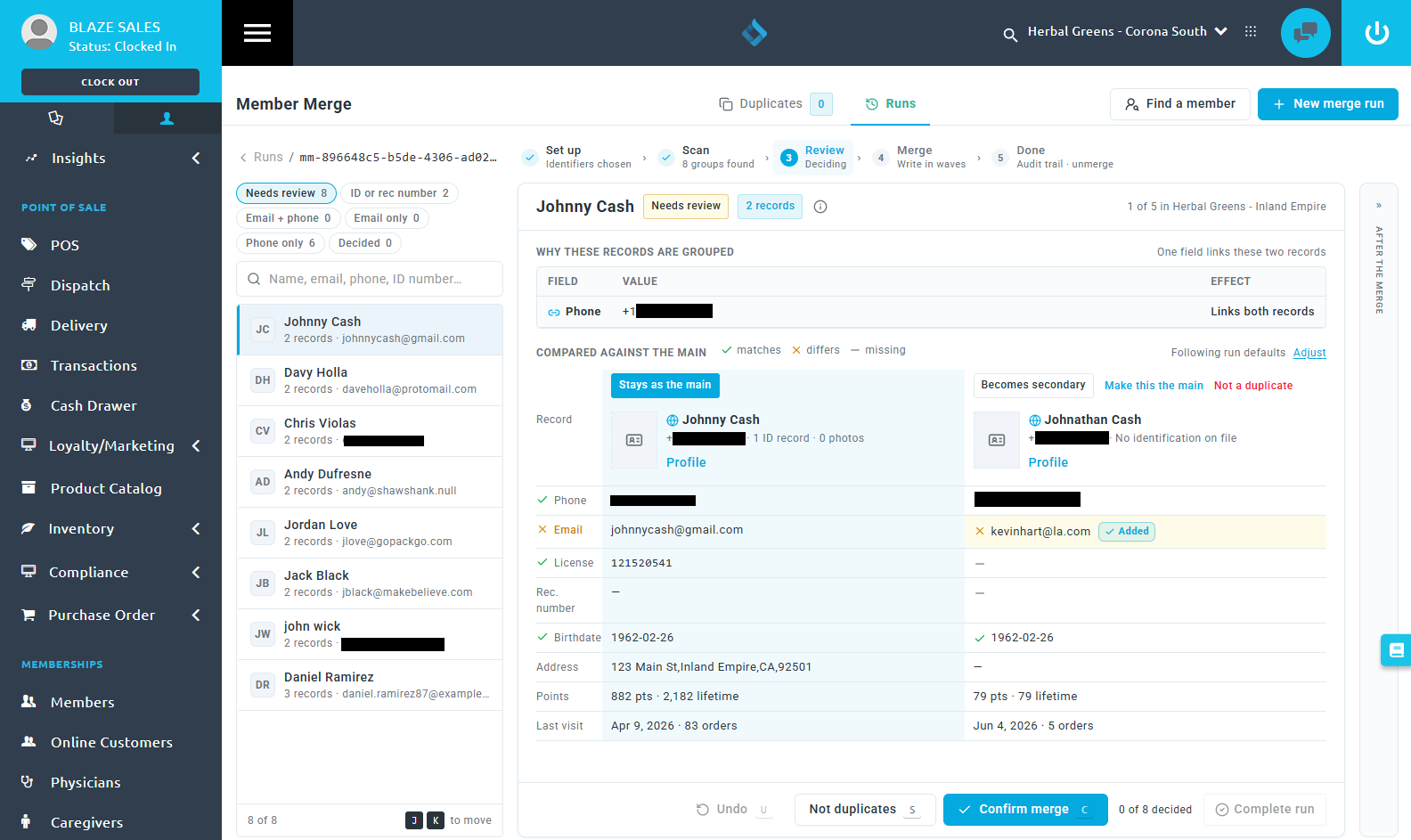
The review screen consists of three columns: the list of groups on the left, the group you're currently reading in the middle, and the After the merge preview on the right. Across the top, the run's progress steps are displayed (Set up, Scan, Review, Merge, Done), followed by the decided count and the Merge [X] confirmed button.
1. Pick a Group
- Filter the list using the buttons at the top: Needs review, ID or rec number, Email + phone, Email only, Phone only, and Decided.
- Search the list by name, email, phone, or ID number.
- Click a group directly, or press J (next) and K (previous) on your keyboard.
- The list displays 25 groups at a time. On the Needs review filter, decided groups stay in the list greyed out. On the match-type filters (like Email only), a decided group leaves the list and the next one takes its place.
2. Read the Evidence
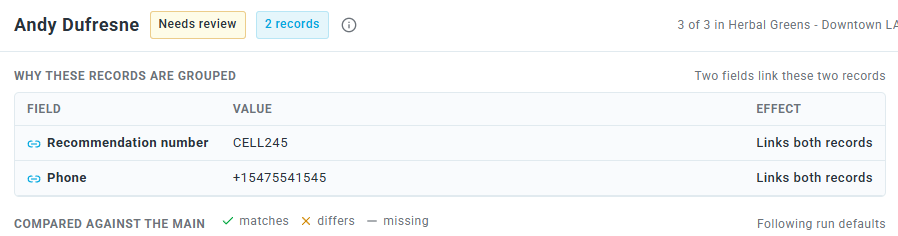
- The group heading shows the main record's name and the total number of records in the group. Click (i) to view "Why this group is here", "What confirming does", and "What changes on the main".
- Why these records are grouped details the field that linked the profiles and how many profiles it connects (e.g., "Links all 3 records" or "Links 2 of 3").
- Compared against the main places every profile side-by-side to show whether values match, differ, or are missing.
- To view a complete profile, click Profile under the name, then View full profile to open it in a new tab.
3. Choose the Main Record
By default, the profile with the most lifetime points is kept as the main record. Its column says Stays as the main, and the others say Becomes secondary. To keep a different profile instead, click Make this the main in its corresponding column.
WARNING: The review screen does not show whether a profile is medical or adult-use, nor does it show customer bans. Merging does not change the main record's type, and bans are not copied over. Always use View full profile to verify customer types and ensure banned profiles are not inadvertently merged into unbanned main records.
4. Decide What to Copy Onto the Main Record
- Added: Appears next to a secondary's phone numbers, emails, license, and rec number. This is turned ON by default. Click it to turn it off (it will change to Add).
- Use this: Appears next to a secondary's birthdate and address. This is turned OFF by default. Click it to replace the main record's value (it will change to Using this).
- After the merge: Shows a preview of the main record. Click the ✕ on a copied value to drop it.
- Adjust: Click to choose how this group's loyalty points are handled (Combine or Main only). This button only appears when a secondary profile has points to move.
- Reset: Reverts all manual tweaks you have made back to the run defaults.
5. Decide the Group
- Same person: Click Confirm merge (for two profiles) or Confirm all (for three or more profiles), or press C. The group is tagged "Confirmed".
- Not the same person: Click Not duplicates, or press S. The group is tagged "Not a duplicate".
- One profile doesn't belong: Click Not a duplicate directly in that specific profile's column. Its status will change to "Stays separate". Confirm the group as usual. When merged, the others will join the main record, and that specific profile will remain on its own.
- Changed your mind: Click Undo, or press U, to reverse your last decision (only works while you remain on the current screen).
NOTE: Profiles marked as not duplicates are excluded from future runs, though they may be offered again following a BLAZE system update. If this happens, simply mark them as not duplicates again.
Keyboard Shortcuts
Shortcuts can speed up your review process.
| Key | Action |
| J / K | Next group / Previous group |
| C | Confirm the group |
| S | Not duplicates |
| U | Undo |
NOTE: Shortcuts do not work while you are actively typing in a text box or have the Adjust this merge panel open.
Tips
- Start with Email + phone matches: They are usually the safest. Open the larger groups first before using bulk confirmation.
- Review ID-number groups carefully: A placeholder number entered for many customers (e.g., 9999999) can pull hundreds of unrelated people into one massive group. Check the record count in the heading!
- Scrutinize Phone-only matches: Families and businesses frequently share phone lines.
- Nothing to merge? If you marked every single group as Not duplicates, the Merge [X] confirmed button will stay greyed out. Close the run by clicking Cancel on the Runs tab.
Troubleshooting
- "That decision was not saved": Your decision didn't reach the BLAZE server. Click the confirm or reject button again.
- The Duplicates tab shows zeros: No run is in progress. Click New merge run to begin.
- A group won't open: The group holds more than 51 records, which almost always means a shared or placeholder ID number was used. Leave it undecided (only confirmed groups are merged). If it is an "Email + phone" group, do not use the Confirm all button while this massive group is waiting, as that would confirm it along with the rest.