.png?width=140&height=37&name=BLAZE-Logo-Blue%20(2).png)
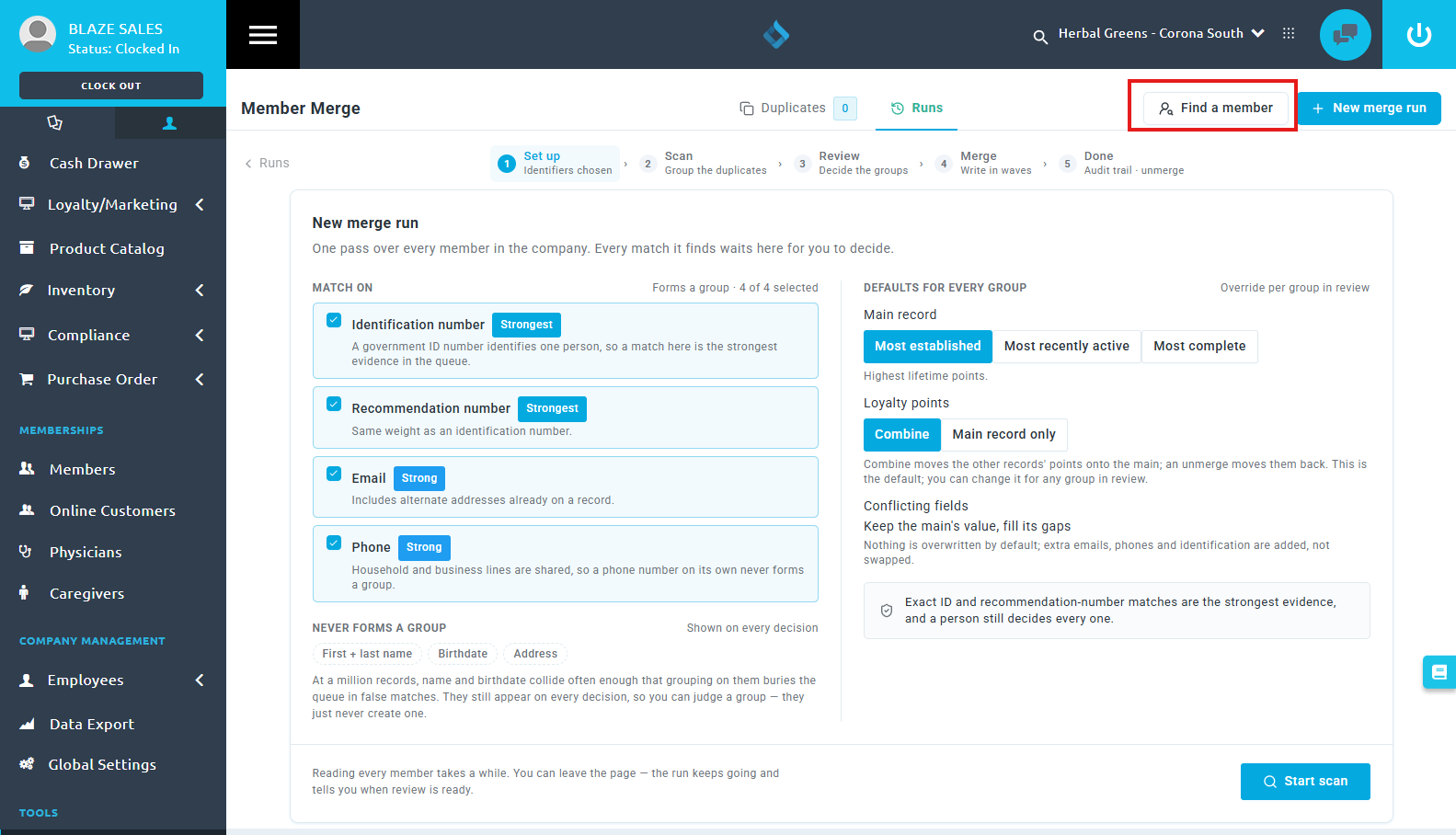
Use the Find a member tool when you already know which profiles belong to the same customer (for example, a regular who has both an in-store profile and an online profile). This feature allows you to manually search for specific profiles, group them, review their data side-by-side, and confirm the merge immediately without needing to run a company-wide scan.
The Find a member tool only displays the profiles you specifically search for and will never automatically suggest or add other profiles to your group.
NOTE: A manual merge using Find a member cannot be performed while a company-wide merge run is in progress (scanning, in review, merging, or paused). Check the Runs tab and finish or cancel any active run before starting a manual merge.
Building the Merge Group
- Navigate to TOOLS > Member Merge in the left sidebar, then click the Find a member tab.
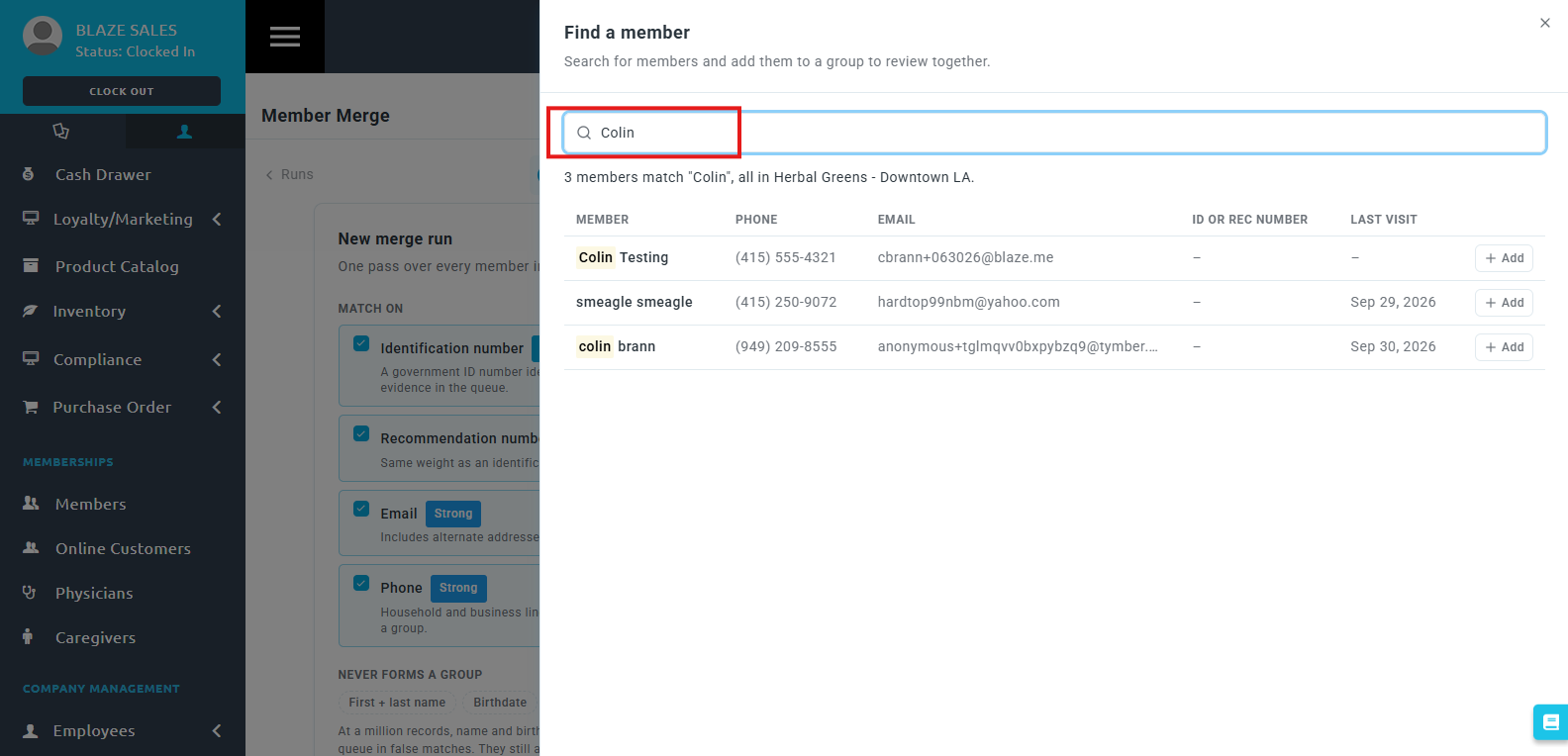
- In the search box, enter at least 3 characters. You can search by Name, email, phone, ID, or rec number.
- Matching members will appear in a list displaying their Member name, Shop, Phone, Email, ID or rec number, and Last visit.
- Click Add next to the first profile. Its status will change to In group, and the Merge group panel will open at the bottom of the screen.
- Search again and click Add on any additional profiles that belong to the same customer. The group panel stays pinned at the bottom while you search.
- The first profile you add defaults to the "Main" record (the profile that is kept). To select a different profile as the main record, click Make main on its row in the group panel.
- To remove a profile from the group, click the × on its row, or click In group in the search results. Clicking Clear will empty the entire group.
- Once the group has at least 2 profiles, click Review as a group.
NOTE: A group can hold up to 50 profiles. Profiles that have already been merged into another record will not appear in the search results. To find a merged customer, search for the main record's details instead.
Checking the Group
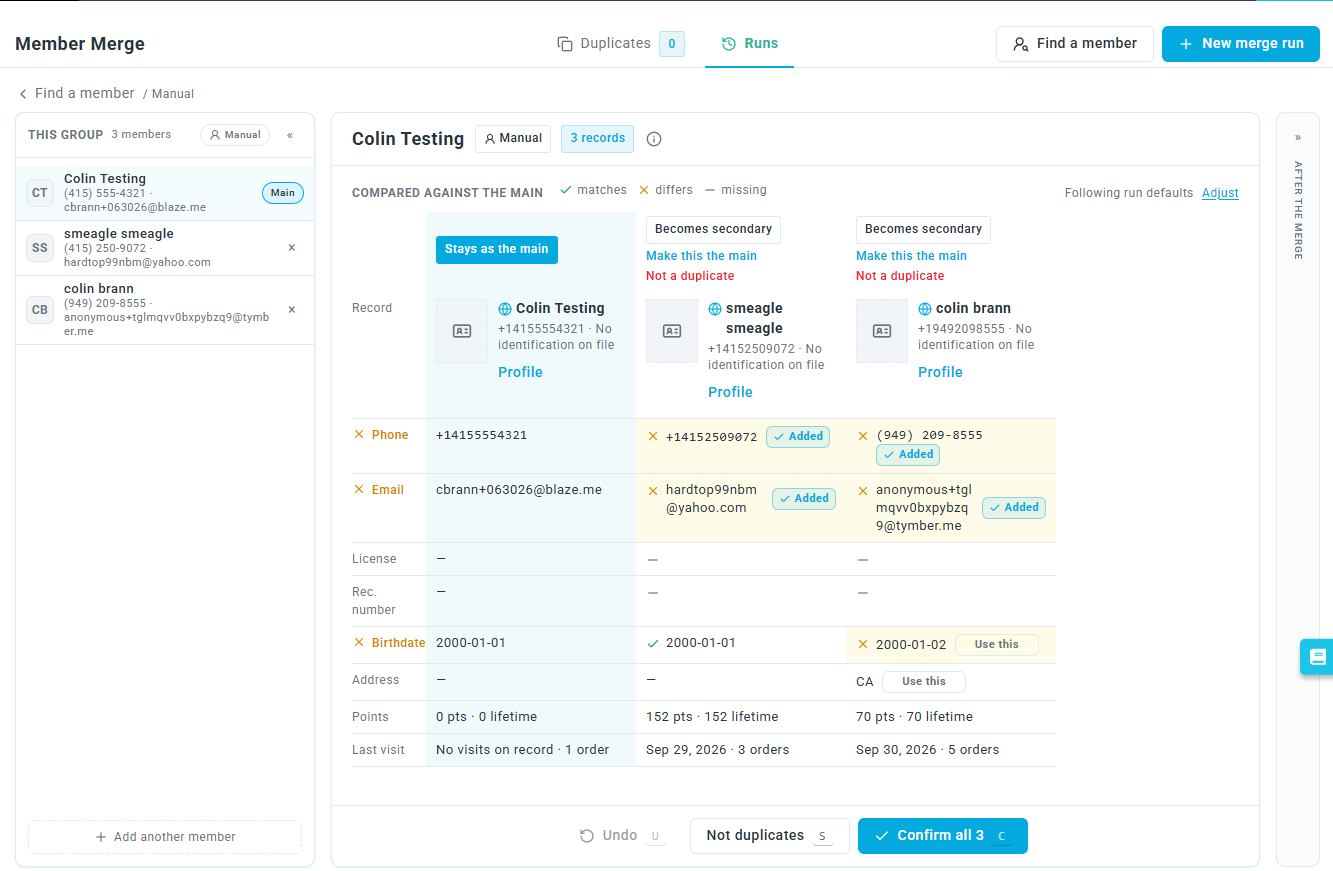
The review screen displays "This group" on the left, the profiles side-by-side in the middle, and a preview of the profile "After the merge" on the right.
- Review the data under the "Compared against the main" section. Each profile is a column. The kept profile is marked Stays as the main, while others are marked Becomes secondary. Indicators next to each value show whether it matches, differs, or is missing compared to the main record.
- Decide what secondary information to copy onto the main record:
- Added: This tag appears next to secondary phone numbers, emails, licenses, and rec numbers. It is turned on by default, meaning these values will be copied to the main record. Click it to turn it off (it will change to Add).
- Use this: This tag appears next to the secondary profile's birthdate and address. It is turned off by default. Click it to replace the main record's birthdate or address with this one (it will change to Using this).
- Review the After the merge column to see exactly how the final main record will look. To drop a copied value, click its ✕.
- To adjust how loyalty points are handled, click Adjust (this option appears if a secondary profile has points). Choose either Combine or Main only, then click Done.
- To change which profile is kept, click Make this the main in the preferred profile's column.
- To view a complete profile, click Profile under the customer's name, then select View full
IMPORTANT: The review screen does not show whether a profile is medical or adult-use, nor does it display banned statuses. Merging does not change the main record's customer type, and bans do not automatically copy over to the main record. If any profile in the group might be banned, or to verify customer types, always use View full profile to check each record before confirming the merge.
Changing the Group
- Add someone: Click Add another member. Search for and add the new profiles, then click Done. Any data choices you already made will remain intact for the existing profiles.
- Remove someone: Click the × next to their name under "This group", or click Not a duplicate in their column. Since a merge requires at least two profiles, you must add another before removing one if only two are left.
- Undo a change: Click Undo (or press U on your keyboard) to reverse your last action on the review screen before confirming.
Confirming the Merge
- Click Confirm merge (or Confirm all followed by the number of profiles if merging three or more). You can also press C on your keyboard.
- The merge happens immediately. A success message will appear, and the merge run's page will open.
- This manual merge is recorded on the Runs tab with the label "built by hand" next to its result.
NOTE: If someone previously marked these profiles as not duplicates, you will see a warning message. Click Leave them separate to cancel the merge, or Merge anyway to proceed. During the beta period, if you need to undo a confirmed merge, please contact your Customer Success Manager or BLAZE Support.
They Aren't the Same Person
If you realize the profiles in your group do not belong to the same customer, click Not duplicates (or press S on your keyboard). Member Merge will record every pair in the group as non-duplicates and return you to the Find a member search screen. Marked pairs will be excluded from future merge runs.
Keyboard Shortcuts
Use these shortcuts on the review screen to speed up your workflow.
| Key | Action |
| C | Confirm merge |
| S | Not duplicates |
| U | Undo |
NOTE: Keyboard shortcuts will not work if you are actively typing in a text box or have a panel open.
Troubleshooting
- "Couldn't search just now. Nothing was checked.
- "Click Try again to refresh the search.
- No search results
- Try searching by phone number, email, license, or rec number instead of a name. If a profile was already merged, it won't appear; search for its new main record instead.
- More than 25 members match
- Search by a specific phone number, email, license, or rec number to narrow down the list.
- "This group is no longer available
- Manually built groups expire after 24 hours. Click Find a member to search and build the group again.
- "Nothing was merged. These records changed since this group was built. a run is already in flight for this company...
- A company-wide merge run is currently in progress. You cannot manually merge profiles while a scan is running. Navigate to the Runs tab, finish or cancel the active run, and then try confirming your manual merge again.
- "Nothing was merged. These records changed since this group was built.
- (With no mention of an active run).Another user edited one of the profiles while you were reviewing it. The screen will reload with the latest details. Review the updated information, then click Confirm merge again.