.png?width=140&height=37&name=BLAZE-Logo-Blue%20(2).png)
Prerequisites
- App: BLAZE Web Dashboard
- Permissions: Compliance Management Access
Navigation
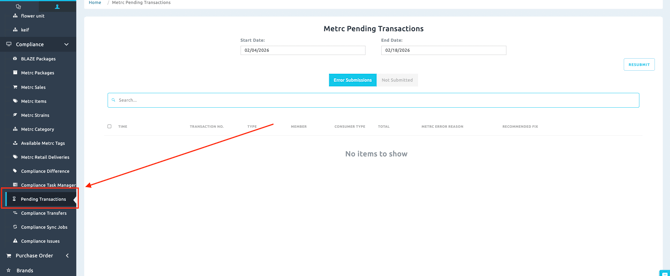
Retail Dashboard > Compliance > Pending Transactions
-
Understanding the Pending Transaction Queues
When you navigate to the Pending Transactions page, you will see two distinct tabs. Understanding the difference between these queues is the first step in diagnosing the issue:
| Queue Tab | Description |
| Error Submissions | Transactions that BLAZE attempted to push, but Metrc explicitly rejected. This is usually due to a data mismatch, such as an invalid unit of measure, negative inventory, or an expired package tag. |
| Not Submitted | Transactions that have not been sent to Metrc. This typically occurs during Metrc API outages, or if the items sold within the transaction are non-cannabis products (which do not require Metrc tracking). |
-
How to Diagnose and Resubmit Transactions
To keep your compliance data up to date, follow these steps to review, diagnose, and resubmit your failed transactions:
- Navigate to Compliance > Pending Transactions.
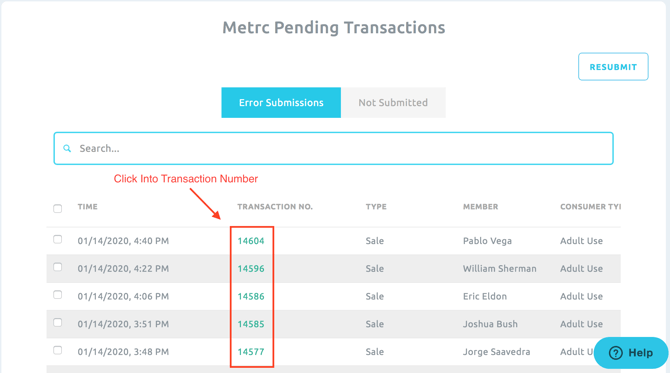
- Select either the Error Submissions or Not Submitted tab depending on which queue you are monitoring. Each line item displayed represents a separate transaction.
- Click on the green Transaction No. link to open the specific transaction details.
- Scroll to view the Metrc ID field.
- If the transaction was rejected, the field will display
SubmissionError, followed by the exact error reading from Metrc and the associated Metrc Tag ID causing the problem.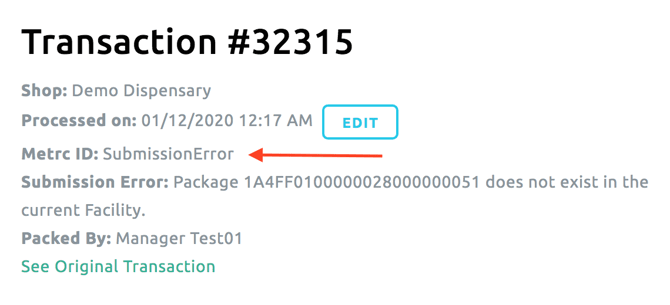
- Diagnose the specific error reading. Refer to our comprehensive guide, for detailed, step-by-step solutions to every specific error code..
- Once the underlying issue is corrected, return to the Pending Transactions list.
- Check the box(es) next to the transaction(s) you wish to retry.
- Click the Resubmit button to push the sales data back to Metrc.
NOTE: To accurately diagnose the specific error code you are seeing and learn how to fix the underlying data, please refer to our dedicated troubleshooting guide.
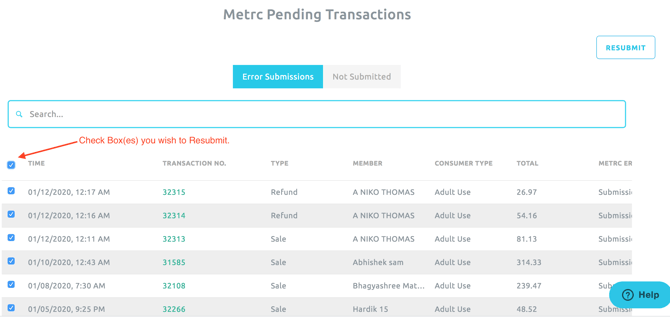
💡 PRO TIP: By correcting a single product profile associated with a specific error, you can check all boxes for transactions that shared that same error and process them in bulk.
-
Troubleshooting
What if "Not Submitted" transactions won't resubmit?
These are usually non-cannabis products (like apparel, accessories, or lighters) that are not tracked in the state system. No action is needed for these items unless the transaction actually contains cannabis products with missing Metrc IDs.
What if the exact same error keeps recurring on new transactions?
If the same error continues to populate for newly completed sales, the underlying product profile likely has an incorrect Metrc category or Weight Per Unit setting. You must fix the mapping issue at the Global Product level, not just on the individual transaction.