.png?width=140&height=37&name=BLAZE-Logo-Blue%20(2).png)
Accessing Payments Settings
To access your BLAZEPAY payments settings:
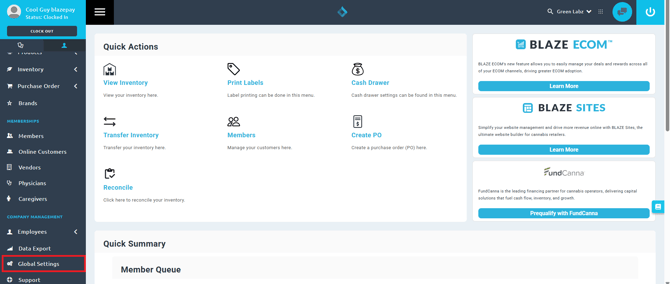
- Navigate to Global Settings on the left menu.
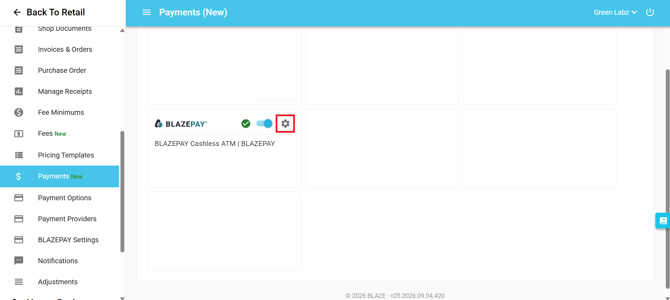
- Under Current Shop Settings, scroll down to the Payments section.
- Click the Gear Icon next to your desired BLAZEPAY integration profile.
BLAZEPAY Cashless ATM (CATM)
About
Identifies the supporting payment processor for your integration.
Configuration
- Client ID: Processor integration key.
- Webhook URL: Endpoint URL used for notification callbacks.
- BLAZE Merchant ID: Unique merchant ID generated by the POS.
Settings
- Terminal-side CATM Rounding: When enabled, CATM terminals handle rounding internally (including the tip). When disabled, the Payment Service pre-rounds the base amount before sending it to the terminal.
- CATM Rounding Increment: Overrides the default increment ($5) for manual BLAZEPAY payments if terminals round to $10.
Terminals
| Field Name | Description |
| Terminal Name | Associated cash drawer name. |
| BLAZE Terminal ID | BLAZE Cash Drawer ID. |
| Card Reader Name | Terminal ID shown on the physical card reader. |
| Card Reader ID | Integration key provided by the processor. |
| External POS Name | Cash Drawer name. |
| External POS ID | Integration key provided by the processor. |
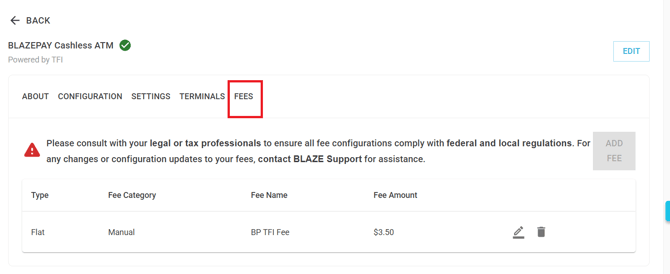
Fees
NOTE: This section applies specifically to manual payments.
- Type: Flat Fee or Percentage Fee.
- Fee Category: Manual payment configuration.
- Fee Name: Customizable fee name that appears on the payment receipt.
- Fee Amount: The service fee passed onto the customer.
BLAZEPAY ACH
Configuration
- Merchant ID / Location ID / Location UUID: Unique integration IDs provided by the processor.
- Client ID (Widget): Configuration UUID for each merchant and payment provider.
- BLAZE Merchant ID: Unique merchant ID generated by the POS.
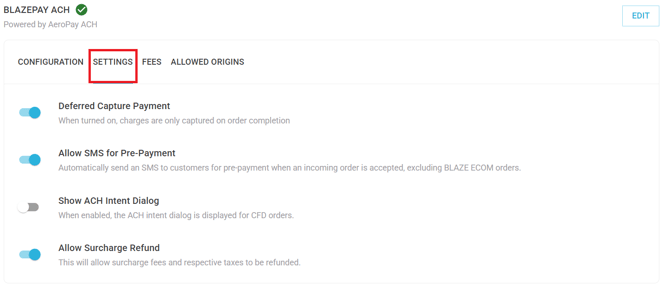
Settings
- Deferred Capture Payment: ACH charges are only captured when payments are completed in the POS.
- Allow SMS for Pre-Payment: Automatically sends an SMS payment request to customers for pre-payment when an incoming order is accepted on third-party online menus (excludes BLAZE ECOM orders).
- Show ACH Intent Dialog: Displays the ACH intent dialog for Customer-Facing Display (CFD) orders. If disabled, no payment option is automatically selected when proceeding to checkout.
- Allow Surcharge Refund: Allows surcharge fees and respective taxes to be refunded.
Fees
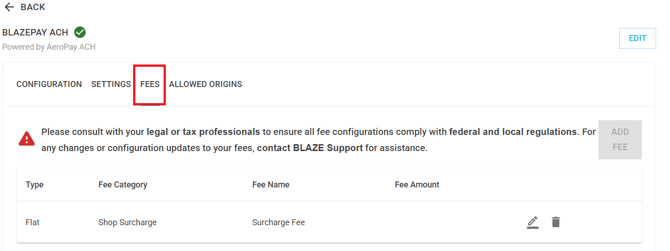
NOTE: Fees in BLAZEPAY settings are entered by the BLAZE team during onboarding. To update ACH fees, please contact support@blaze.me for assistance.
| Field Name | Description |
| Type | Flat Fee or Percentage Fee. |
| Fee Category | The payment processing fee for ACH. |
| Fee Name | The fee name that displays on receipts. |
| Fee Amount | The dollar amount for the processing fee passed onto the customer. |
Allowed Origins
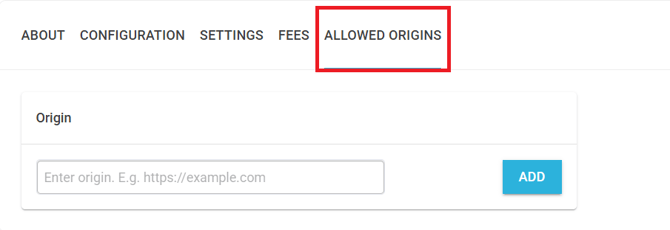
- Origin: Ensures security by matching frontend domains with allowed origins specified in the BLAZE dashboard. Connect third-party ECOM platforms to BLAZE by adding the merchant's menu URL to this field.