.png?width=140&height=37&name=BLAZE-Logo-Blue%20(2).png)
Payments Settings
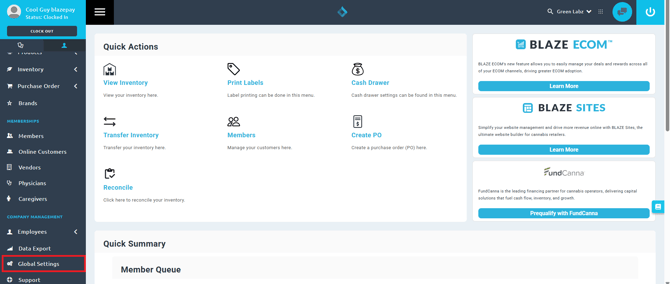
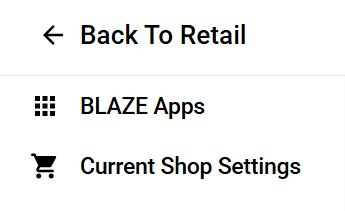
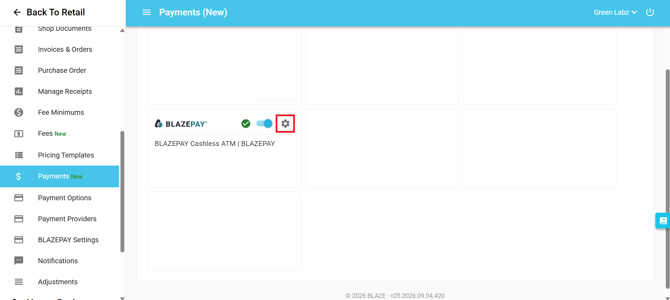
The BLAZEPAY payments settings can be accessed via the Global Settings. From the web dashboard, navigate to the Global Settings tab on the left side of the dashboard menu. Under Company Settings, scroll to the Payments section.
Then, select the gear icon on the desired BLAZEPAY integration profile.
BLAZEPAY Cashless ATM
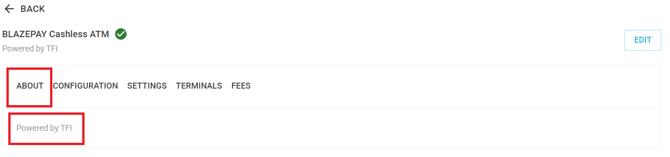
- About
- The supporting payment processor will be identified in this section.
- Configuration
- Client ID
- Processor integration key.
- Webhook URL
- BLAZE Merchant ID
- Unique merchant ID generated by the POS.
- Client ID
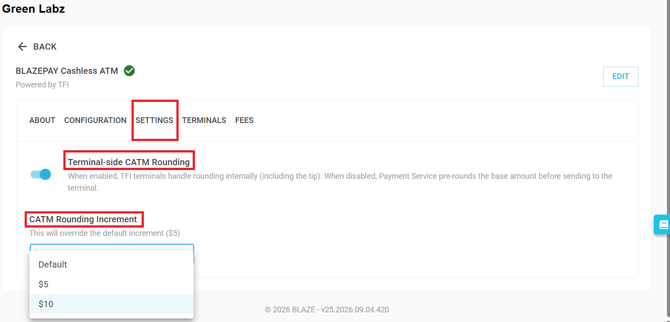
- Settings
- Terminal-side CATM Rounding
- When enabled, CATM terminals handle rounding internally (including the tip). When disabled, Payment Service pre-rounds the base amount before sending to the terminal.
- Terminal-side CATM Rounding
-
- CATM Rounding Increment
- This will override the default increment ($5) for manual BLAZEPAY payments if the terminals round to $10.
- CATM Rounding Increment
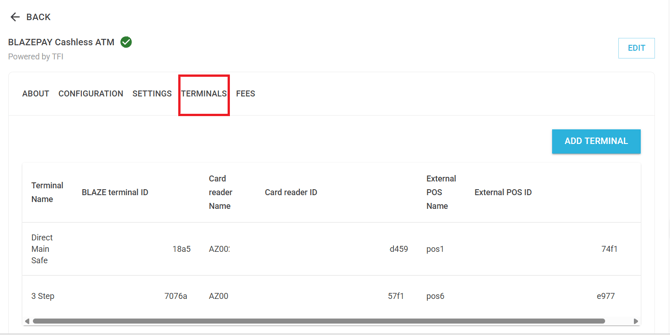
- Terminals
- Terminal Name
- Associated cash drawer.
- BLAZE terminal ID
- BLAZE Cash Drawer ID.
- Card reader Name
- Terminal ID shown on the physical card reader.
- Card reader ID
- Integration key provided by the processor.
- External POS Name
- Cash Drawer name.
- External POS ID
- Integration key provided by the processor.
- Integration key provided by the processor.
- Terminal Name
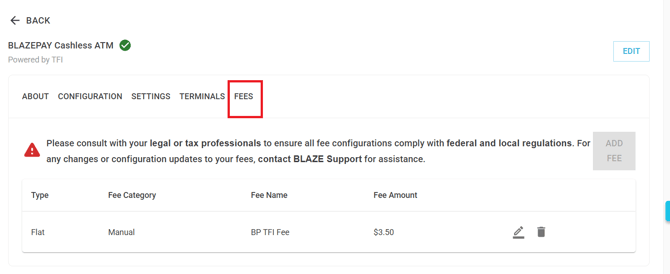
- Fees
- Type
- Flat Fee.
- Percentage Fee.
- Fee Category
- Manual payment configuration.
- Type
-
- Fee Name
- Customizable fee name that will appear on the payment receipt.
- Fee Amount
- The service fee passed onto the customer.
- Fee Name
NOTE: This fee section applies to manual payments.
BLAZEPAY ACH
Configuration- Merchant ID
- Merchant Location ID
- Merchant Location UUID
- These fields are the unique integration ID's provided by the processor.
- Client ID (Widget)
- Configuration UUID for each merchant and payment provider.
- BLAZE Merchant ID
- Unique merchant ID generated by the POS.
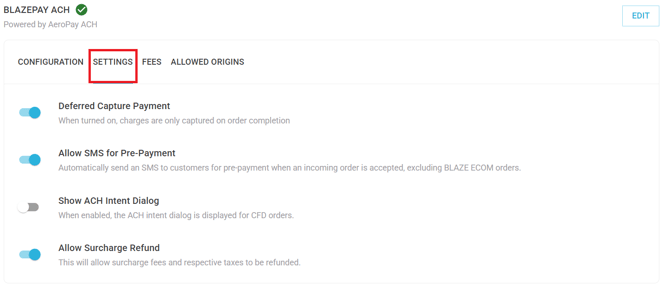
Settings
-
Deferred Capture Payment
- ACH charges are only captured when payments are completed in the POS.
-
Allow SMS for Pre-Payment
- For third party online menus, automatically send an SMS payment request to customers for pre-payment when an incoming order is accepted, excluding BLAZE ECOM orders.
-
Show ACH Intent Dialog
- When enabled, the ACH intent dialog is displayed for CFD (customer facing display) orders.
- This means that no payment option should be automatically selected when the budtender proceeds to the checkout, if the setting is turned off.
- Allow Surcharge Refund
- This will allow surcharge fees and respective taxes to be refunded.
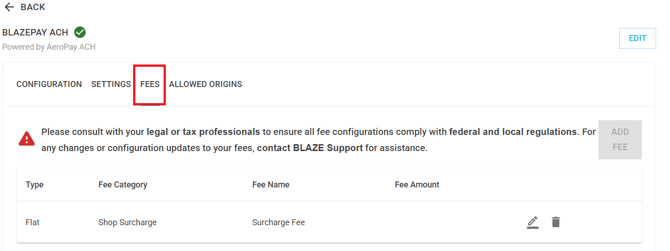
Fees
- Type
- Flat fee.
- Percentage fee.
- Fee Category
- The payment processing fee for ACH.
- Fee Name
- The fee name that will display on the receipts.
- Fee Amount
- The dollar amount for the processing fee passed onto the customer.
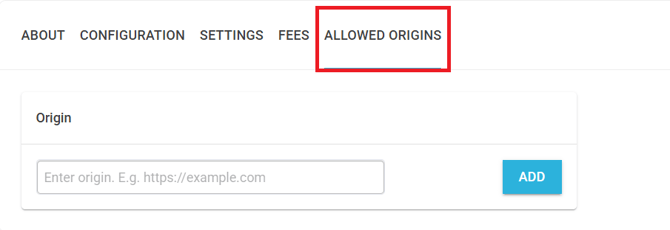
Allowed Origins
-
Origin
- This setting ensures security by matching frontend domains with allowed origins specified in the Blaze dashboard. Third party ECOM platforms will be connected to BLAZE when the merchant's menu is added to this field.