.png?width=140&height=37&name=BLAZE-Logo-Blue%20(2).png)
Prerequisites
- Access to the BLAZE Web Portal.
- Appropriate permissions to manage company Products and catalog settings.
- A CSV-compatible spreadsheet editor (e.g., Microsoft Excel, Google Sheets).
Supported Import & Export Datasets
| Dataset | Contents |
| Product info | Company products — names, categories, brands, prices, and other profile fields |
| Product Detail Overrides | Per-location detail overrides (e.g., store-specific name, SKU, description) |
| Product Price Overrides | Per-location price overrides |
| Vendors | Company vendors catalog |
How to Export Data
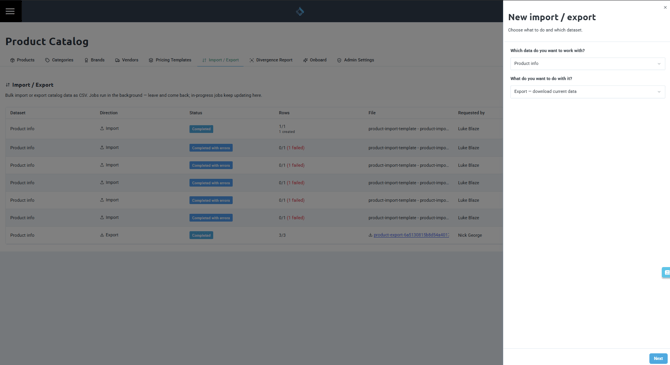
- Navigate to Products > Import / Export in the main menu.
- Click New import / export.
- Under Which data do you want to work with?, select your desired dataset.
- Select Export — download current data, review your selection, and start the export.
- Once the job status shows as completed, click the download link in the File column (or select Download from the actions menu) to save the CSV file.
How to Import Data
TIP: The safest workflow for updating existing records is export → edit → import. Exporting the current dataset ensures each row retains its unique ID column so your edits update the correct records upon re-import.
- Navigate to Products > Import / Export and click New import / export.
- Select the dataset you want to update, then choose Import — upload changes.
- If you are adding brand-new records, click Download template to obtain a blank CSV with required headers and example rows.
- Drag and drop your
.csvfile into the upload zone (or click Click to choose, or drag a CSV here). - Configure the Create new [records] for rows without an ID toggle:
- Off: Rows without an
IDcolumn are skipped and flagged as errors. - On: Rows without an
IDcolumn will create new catalog records.
- Off: Rows without an
- Click Start import.
Understanding Job Results & Import Rules
Every import or export job creates a record on the Import / Export page displaying its current status, row counts, and detailed progress.
Job Status Types
- Queued / Processing: The job is currently in progress.
- Completed: All rows were processed successfully.
- Completed with errors: Valid rows were successfully applied, while invalid rows were skipped.
- Failed / Cancelled: The job could not be completed.
NOTE: If a job finishes as Completed with errors, review the row progress breakdown (e.g., "142/150 (8 failed)"), correct the failed rows in your CSV file, and re-import only the fixed rows.
System Rules
- Imports strictly enforce standard catalog validation rules (e.g., required fields, unique names, valid categories).
- Changes applied via import propagate to individual store locations following standard company-to-location inheritance rules.