.png?width=140&height=37&name=BLAZE-Logo-Blue%20(2).png)
Prerequisites
- Access to the BLAZE Web Portal.
- Appropriate permissions to manage company Products and catalog pricing settings.
How to Create a Pricing Template
- Navigate to Products > Pricing Templates in the main menu and click New Template.
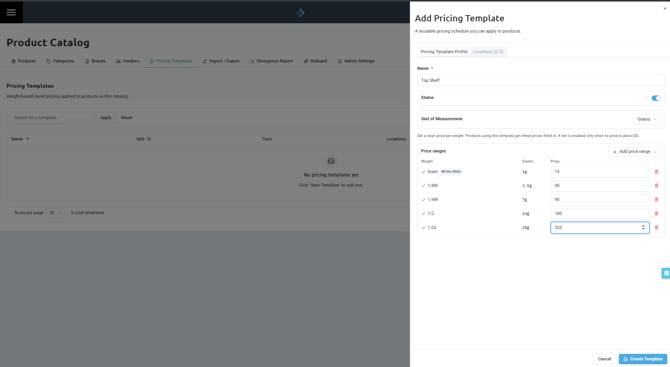
- On the Pricing Template Profile tab, complete the following fields:
- Name: Enter a descriptive template title (Required).
- Status: Set to Active or Inactive.
- Unit of Measurement: Choose Grams or Each. (Note: If Each is selected, pick the Weight Per Unit, such as Each, 0.5g, or 1g).
- Complete the Tier Pricing grid based on your selected unit of measurement:
- For Grams Templates: The grid populates one row per enabled company weight tolerance with Unit Name, Weight, and Price.
- For Each Templates: Click Add to create custom tiers with Display Name, Qty, and Price.
- Select the Locations tab to choose which storefronts can use this template.
- Click Create Template.
WARNING: Grams-based pricing templates rely directly on your company settings. If the grid is empty, you must first enable weight tolerances under Company Settings → Weight Tolerances.
How to Apply a Template to Products
- Open a product record and navigate to the Pricing section.
- Select your desired template from the Pricing template dropdown menu.
- Review the populated prices and save the product.
NOTE: Applying a pricing template overrides any standard value entered in the Retail Price field. For deli-style products, selecting a template automatically fills in the weight-pricing rows, which can still be fine-tuned individually per product if needed.
How to Manage Templates
The Pricing Templates page displays a list of all existing templates along with their unit type, tier count, weight span, total location count, and current status.
| Action | Description |
| Duplicate | Create an exact copy of an existing template to use as a starting point for price variants. |
| Delete | Removes the template from your catalog. Products currently using a deleted template will automatically fall back to their standard retail price so nothing is left unpriced. |