.png?width=140&height=37&name=BLAZE-Logo-Blue%20(2).png)
Overview
- Limits
- Current Shop Settings
- Manage Categories
- Verifying Weight Per Unit Items are set up correctly
- Troubleshooting & FAQ
Maryland State Limits
To view the cannabis purchase limits for the state of Maryland, navigate to Global Settings > Current Shop Settings > Limits. This section displays the state-mandated daily limits for Adult Use .
Clicking the eye icon next to each cannabis type (e.g., Flowers, Concentrates, Edibles) expands a tooltip showing exactly which product cannabis types roll up under that specific limit.
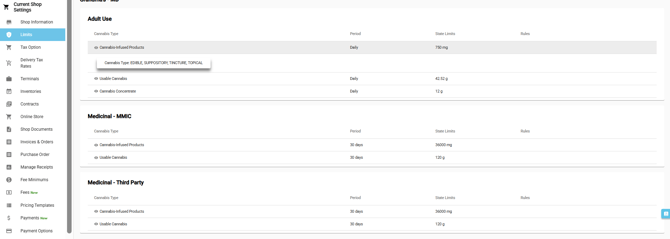
The state-mandated purchase limits are structured as follows:
| Cannabis Type | Adult Use | Medical Use | Tracking Method |
|
Useable Cannabis (CBD Cannabis, CBD Cannabis Flower, Dry Flower, Dry Leaf, Preroll) |
Daily: 24.52 | 30 Days: 120g | Weight Per Unit on product profile |
|
Cannabis Concentrate (Concentrate, Extract, Kief, Oil) |
Daily: 12g |
30 Days: 3600mg | Weight Per Unit on product profile |
|
Cannabis-Infused Products |
Daily: 750mg | 30 Days: 3600mg | Weight Per Unit on product profile |
Verify Current Shop Settings
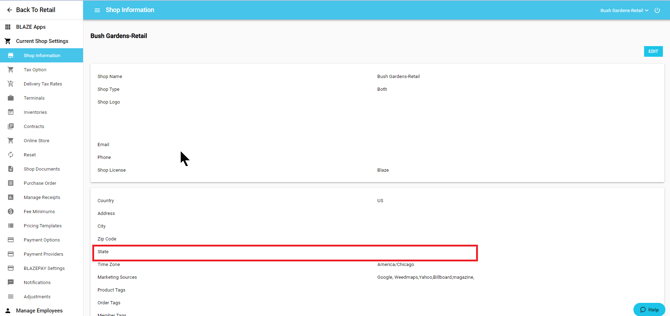
Before managing categories or products, confirm your retail location is accurately set to Maryland.
- Log in to BLAZE and select your retail location.
- Click the Go to Location button.
- Navigate to Global Settings > Current Shop Settings.
- Verify that your State dropdown is set to Maryland.
Manage Categories
Proper category assignment is required to trigger proper limit rules at the point of sale.
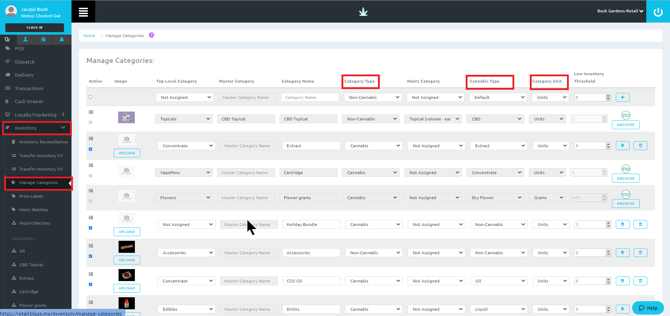
- Navigate to Retail > Inventory > Manage Categories.
- When creating or editing a category, configure the following fields:
- Category Type: Select Cannabis (Select Non-Cannabis only for hardware, apparel, etc.).
- Cannabis Type: Select based on the product cannabis type that rolls up under the specific state limit.
- Category Unit: Select Units.
Verifying Weight Per Unit & Product Setup
WARNING: EACH is only to be used for Non-Cannabis products. Setting Cannabis products to "EACH" will NOT track limits correctly.
WARNING: Non-concentrate does not trigger cannabis limits. Please do not use this type.
Product profiles must reflect correct weight per units and cannabis types to ensure limit calculations function properly and accurately.
Navigate to Inventory > All > Select Product (or click Add Product).
See the support article How to Create a Product for more information
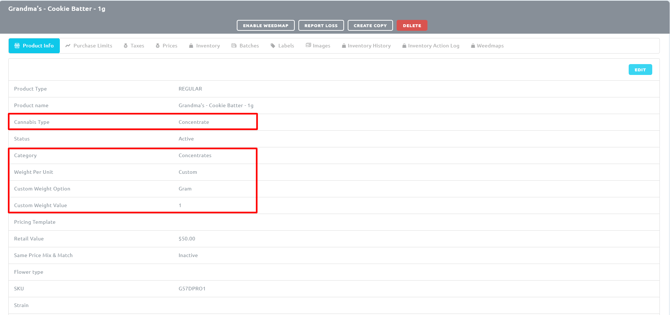
Cannabis Concentrate Products Configuration
- Cannabis Type: Concentrate, Extract, Kief, Oil
- Weight Per Unit: Custom
- Custom Weight Option: Grams
- Custom Weight Value: Enter the exact number of grams.
Useable Cannabis Products Configuration
NOTE: Weighable items will be calculated dynamically as they are added to the cart. Ensure Flower is set to Units inside Manage Categories.
- Cannabis Type: CBD Cannabis, CBD Cannabis Flower, Dry Flower, Dry Leaf, Preroll
- Weight Per Unit: Eighth or Custom
- Custom Weight Option: Grams
- Custom Weight Value: Enter the exact number of grams.
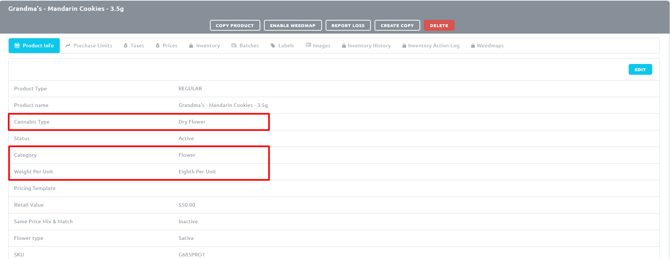
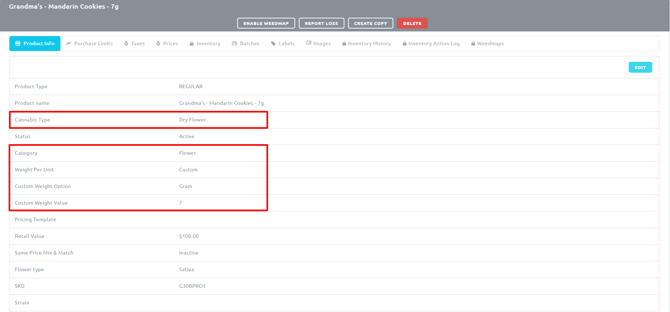
Cannabis Infused Products Configuration
- Cannabis Type: Edible, Suppository, Tincture, Topical
- Weight Per Unit: Custom
- Custom Weight Option: Milligrams
- Custom Weight Value: Enter the total amount of THC in milligrams.
- Potency: Enter the total number of THC in milligrams.
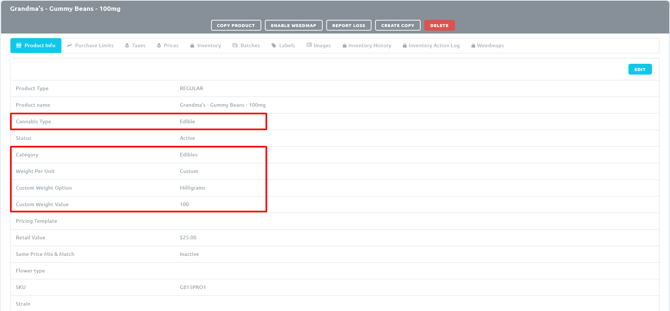
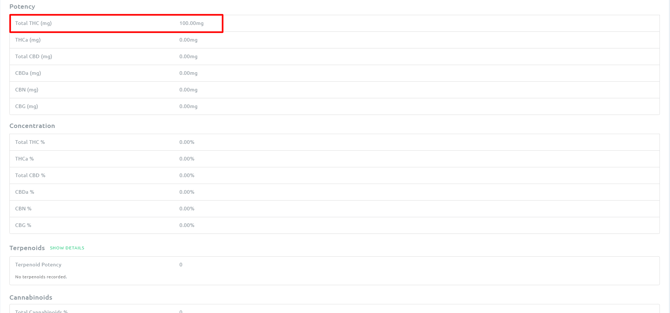
Troubleshooting & FAQ
Q: A customer is at checkout and the purchase limit warning isn't triggering — why?
A: The most common cause is a misconfigured Cannabis Type and/or Weight Per Unit on the product profile. Check the following:
- Navigate to Inventory > All > Product and confirm the Cannabis Type matches the Maryland mapping shown in Global Settings > Limits and referenced in the screenshot above.
- Navigate to Inventory > All > Product and confirm the Weight Per Unit is set correctly based on cannabis type using the examples above.
- Confirm the product's Category is assigned a Category Type of Cannabis (not Non-Cannabis) in Retail > Inventory > Manage Categories.
- Confirm Non-Concentrate is not selected as the Cannabis Type, as this type bypasses purchase limits.
Q: Limits seem off for a flower product — the system isn't counting the weight correctly.
A: Limit calculations prioritize product-level Weight Per Unit. If a product's Weight Per Unit is 0, EACH or left blank, Blaze will not track purchase limits correctly for this product.
- Navigate to the product profile and ensure the product's Weight Per Unit is correctly configured (e.g., 3.5g for an eighth, Custom, Whole Gram Unit, Half Gram Unit) so the purchase limit calculation remains accurate.
Q: A medical patient's individual limits aren't showing — the system is applying adult-use limits instead.
A: Maryland medical limits are pulled from METRC via the patient's ID. Verify:
- The customer profile contains a valid, active METRC Patient ID.
- The customer profile is set to "Consumer Type": Medicinal-MMIC or Medicinal-Third Party
- The ID matches exactly what is registered in METRC with no trailing spaces or typo characters.
- The shop's METRC integration is active and syncing via Global Settings > Current Shop Settings > Integrations.
Q: We sell a hybrid product that contributes to both a flower and an concentrate limit — only one type is being tracked.
A: BLAZE supports multi-limit tracking for individual products that cross categories.
- Navigate to Inventory > All > Product.
- Locate the Product Purchase Limits section to add multiple limit entries.
- Assign each required entry its own distinct Cannabis Type, Value, and Unit of Measure (e.g., grams, mg).
Q: We've double-checked the Cannabis Type and Category setup — limits still aren't working.
A: If basic settings are correct, look into these variables:
- Confirm the shop's location State is accurately saved as Maryland in Global Settings > Current Shop Settings.
- Confirm Global Settings > Shop Information Settings pertaining to purchase limits for medical and adult use patients are configured correctly:
- User Cannabis Limit
- Override Member Levels
- Enable Recreational Age Limit
- Recreational Use Age Limit
- Enable Medicinal Age Limit
- Medicinal Use Age Limit
- If your store recently migrated configurations, some products may hold legacy values. Run a bulk update using the Mass Edit utility in Inventory > All to realign products simultaneously.
Looking for another state's purchase limits? View our guide here - Retail Purchase Limits for Medical and Recreational Cannabis by State
If you have further questions or require technical assistance with your limits setup, , please reach out to us at support@blaze.me!