.png?width=140&height=37&name=BLAZE-Logo-Blue%20(2).png)
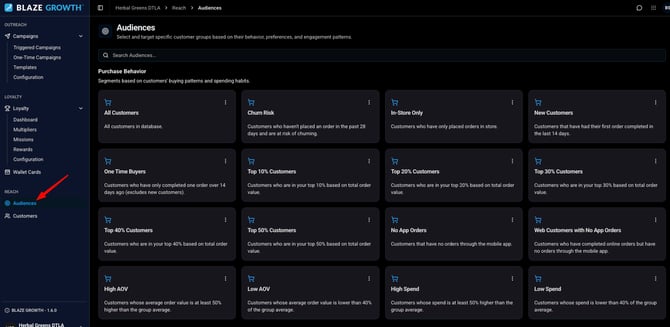
There are many audience groups to choose from when building out One-Time Campaigns. Using the right audience can ensure you are targeting the most relevant customers.
Learn about the different options below:
1) All Customers: This is the default option and will target all eligible customers within your store.
2) In-Store Only: Target your customers who only shop in-store. Excludes customers who place online orders.
3) Top 10%-50% Customers: Target your top 10 to 50 percent of customers based on online order volume.
4) Birthday-2 days before: Proactively wish your customers a happy early birthday by sending them a notification 2 days before. Based on the DOB entered on their member profile.
The Audience section shows you the different audience groups you can select, but you will assign an audience to your campaigns in the One-Time Campaigns section.
Click here to learn how to send One-Time Campaigns.
Viewing Audience Details
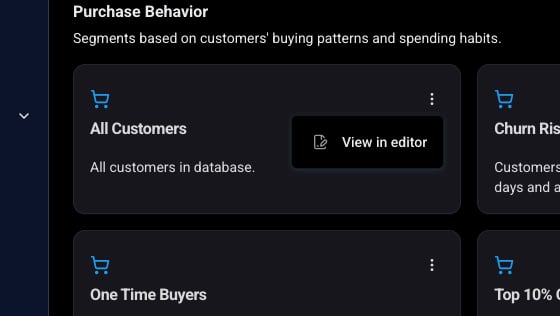
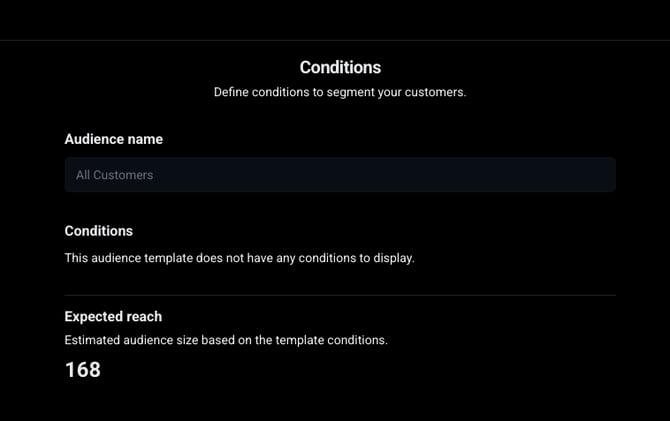
Each audience card includes a three-dot menu (⋮) with a **View in editor** option. Selecting this opens a read-only Conditions panel showing:
- Audience name – the name of the audience template
- Conditions – the criteria defining the audience (template audiences like "All Customers" won't have conditions to display)
- Expected reach – the estimated audience size based on the template's conditions
Note: This view is for reference only — conditions cannot be edited from this panel.
The Audience section shows you the different audience groups you can select, but you will assign an audience to your campaigns in the Campaigns section.