.png?width=140&height=37&name=BLAZE-Logo-Blue%20(2).png)
Enabling Growth
To first enable Growth work with your BLAZE Optimization Manager to get your new Growth Dashboard enabled.
Please configure all your loyalty settings prior to activation. Once this toggle is set to active it will disable any other legacy loyalty reward programs in use.
We cannot export your old settings and everything has to be configured manually.
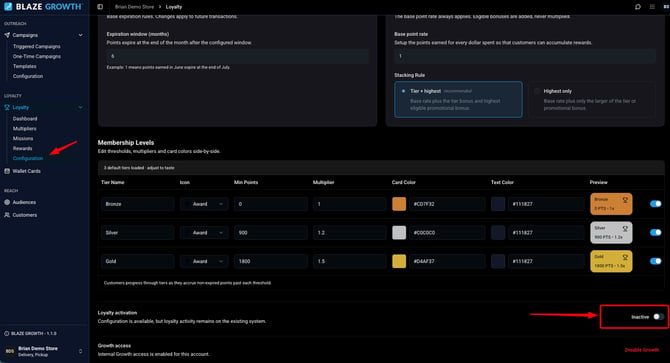
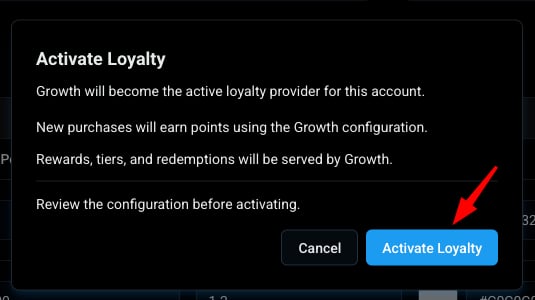
For those that have migrated their BLAZE Legacy Loyalty:
Migrated points will start with a start date for expiration of the date that Growth Loyalty is enabled.
e.g. Growth loyalty is enabled July 1st and expiration is set to 1 month, all migrated points will expire on July 31st at midnight
If you need to disable your new Growth Loyalty and need to revert back to the BLAZE Legacy Loyalty this can be done by contacting your BLAZE Optimization Manager or Support.
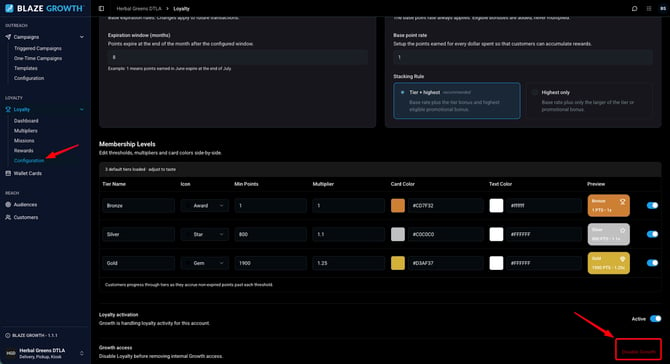
Configuration - General Settings
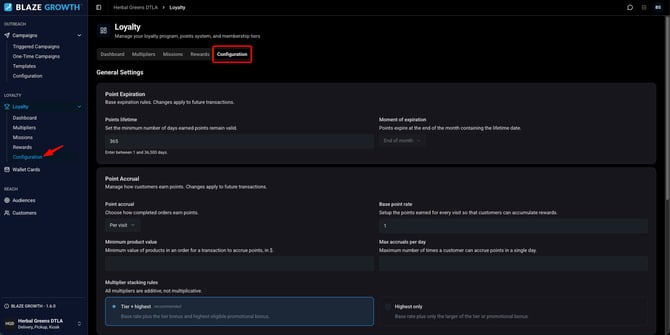
- Expiration Window - Sets how many months customers have to use their points before they expire.
- Base Point Rate - Sets the number of points customers earn for every dollar spent
- Stacking Rule - Determines how bonus points combine with the base rate.
- Tier + highest(recommended): Base rate plus the tier bonus, plus the highest eligible promotional bonus.
- Highest only: Base rate plus whichever is larger — the tier bonus or the promotional bonus.
For the tier + highest setting: Points earned per dollar = Base Point Rate + (Tier Multiplier - 1)
e.g.
Base Point Rate 1 + (Silver Tier Multiplier 1.1 - 1) = 1.1 Point earned per dollar
Base Point Rate 1 + (Gold Tier Multiplier 1.25 - 1) = 1.25 Point earned per dollar
Point Accrual
Point Accrual - Choose how completed orders earn points:
- Per $ Spent - Points are earned based on order subtotal.
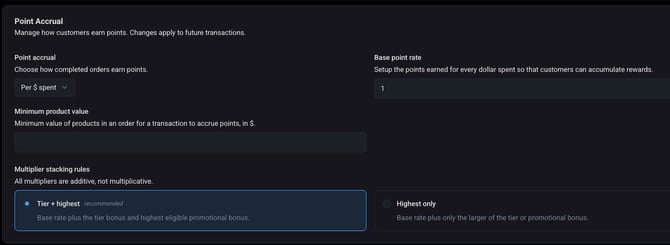
- Per Visit - Points are earned per completed order rather than per dollar. Selecting this option reveals two additional settings:
- Minimum Product Value - The order must meet this dollar threshold in product value before it earns any points.
- Max Accruals Per Day - Limits how many times a customer can accrue points in a single day.
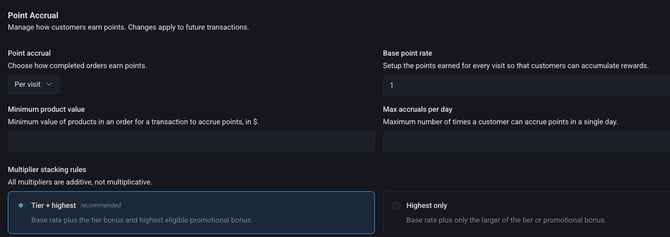
For more detail on how accrual is calculated, see Multipliers and Point Accrual.
Membership Levels
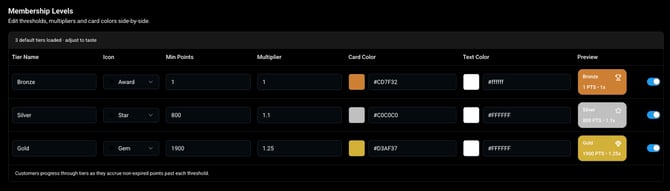
3 default tiers are available to customize.
- Tier Name - Name your tiers/levels
- Icon - select an icon to go with this tier
- Min Points - points needed to enter this tier
- Multiplier - points earned while at this tier level
- Card Color - color you want your card to be
- Card Colors are set on the ECOM Customer's Profile and Wallet Cards
- Text Color - text color on loyalty card
- Text Colors are set on the ECOM Customer's Profile and Wallet Cards
- Preview - preview of your loyalty card for each tier
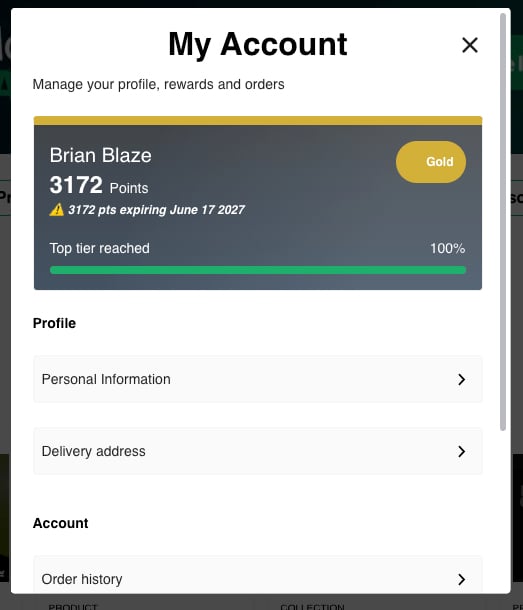
Learn more about Wallet Cards
Rewards
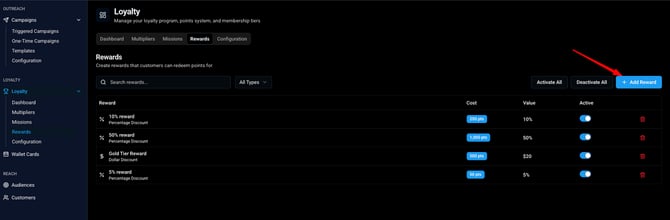
Create rewards that customers can redeem points for.
Click Add Reward to get started and select the Reward Type; Dollar Discount or Percentage Discount.
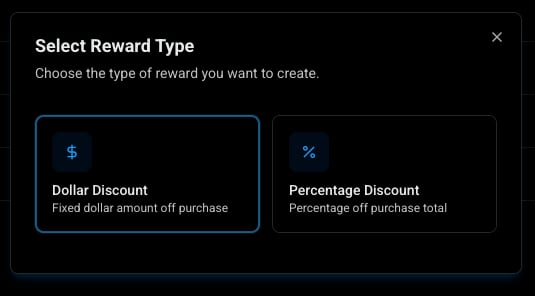
The following fields will need to be filled in:
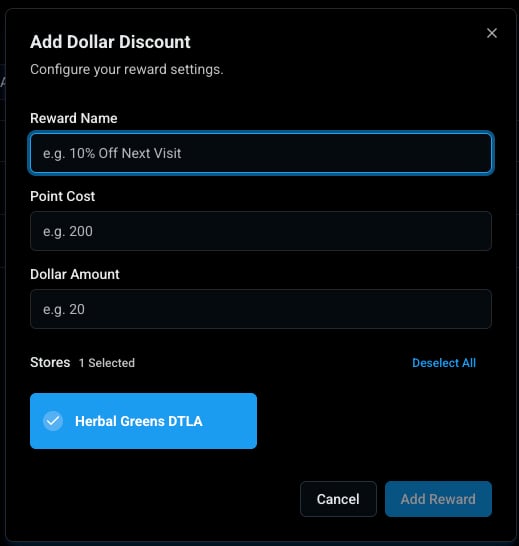
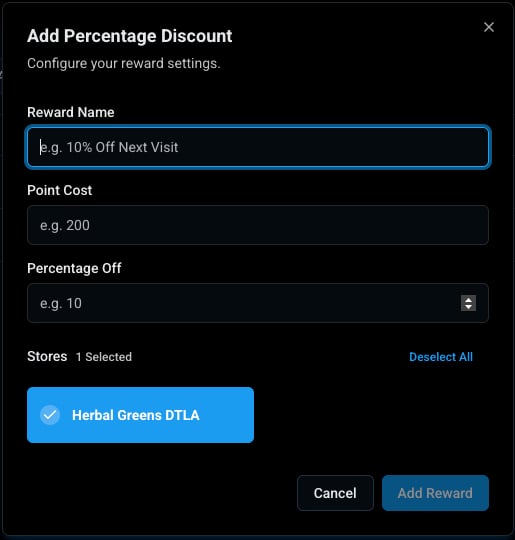
- Reward Name - Give the reward a clear, customer-friendly name. E.g. "$5 Off Your Order" or "10% Discount"
- Reward Type - Choose how the reward discount is applied
- Dollar Amount - A fixed dollar value is deducted from the order total.
- Percentage Off - A percentage is taken off the order total.
- Points Cost - Enter how many points a customer must spend to redeem this reward.
- Available Stores - Select which stores this reward can be redeemed at. If you operate at multiple locations, you can limit a reward to specific stores or make it available across all of them.
Dollar Amount Screen
Percentage Off Screen
Learn more about Loyalty Rewards
How Rewards Work at Checkout
Rewards are managed entirely through Growth — you no longer need to set thee up or process them in your Point of Sale system. When a customer redeems a reward, it is applied automatically to their order.
Important: Rewards and Stacking
Loyalty rewards are treated as company promotions within the system. Whether a loyalty reward can be combined with another active promotion (for example, a site-wide sale discount) depends on how your promotions are configured.
- If the other promotion is set to "stackable", it will combine with the loyalty reward.
- If the other promotion is set to "not stackable", the two cannot be applied together.
If you have questions about how a specific promotion interacts with loyalty rewards, contact your account team.
Missions - Coming Soon
Create missions for customers to earn bonus points.
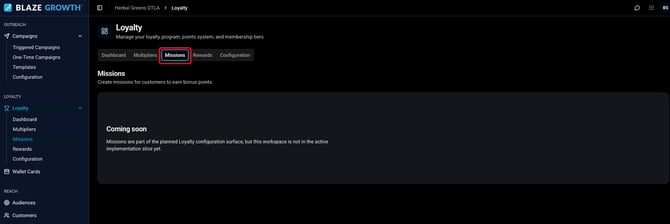
Learn more about Missions
Multipliers
Create complex point multiplier rules.
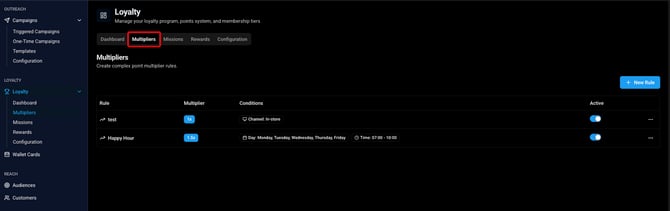
What Are Multipliers?
Multipliers let you boost the points customers earn under specific conditions. Instead of everyone always earning at the base rate, you can create time-limited or condition-based bonuses that incentives customers to shop at particular times, through particular channels, or during specific promotions.
How Multipliers Will Work
You will define a multiplier with a name, a boost value (for example, `2x`), and one or more conditions that must be met for it to apply.
Condition Types (Planned)
Multipliers can be triggered by any combination of the following:
Condition | Example
- By Channel - Online only, In-store only
- By Location - Specific store locations
- By Day - Mondays only
- By Time - Between 4 PM and 6 PM (happy hour)
- By Member Group - Specific customer segments
- By Brand - Specific product brands
You can stack multiple conditions together. For example: earn 3x points when shopping in-store on Mondays between 4–6 PM.
How Multipliers Stack
When a customer qualifies for more than one multiplier at the same time, the Stacking Rules setting in your Loyalty Configuration determines what happens:
- Stack all: All applicable multipliers combine for the maximum total.
- Best only: Only the single most advantageous multiplier applies, added to the customer's tier rate.
Learn more about Multipliers
Dashboard
Account-level Loyalty Performance
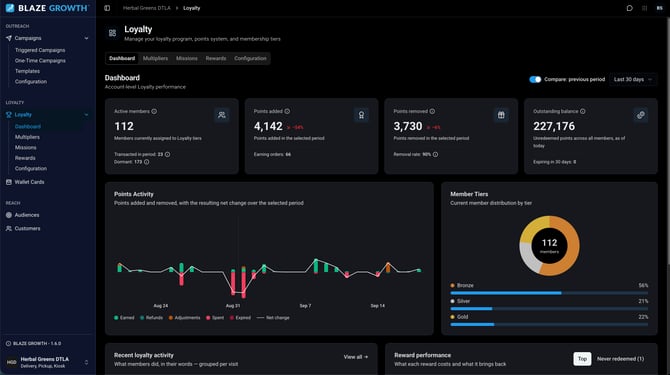
- Active Members, Points Added, Points Removed, Outstanding Balance - Four KPI cards scoped to the date range you select. Each shows a change indicator against the prior period of equal length — use the Compare: previous period toggle next to the date range to turn indicators on or off.
- Under each headline you'll also see the detail behind it: transacted vs. dormant members, earning orders, removal rate (points removed ÷ points added for that window), and points expiring in the next 30 days.
- If a card shows a dash (—) instead of a number, hover for a tooltip — it means that metric can't be calculated yet, not that the value is zero.
- Points Activity - Points added and removed, with the resulting net change over the selected period
- Member Tiers - Current member distribution by tier
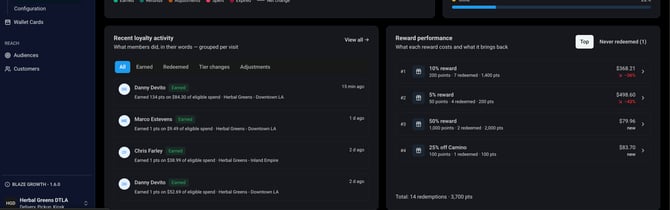
- Recent Loyalty Activity - Shows loyalty activity in plain-language sentences, one row per customer visit rather than one row per individual point event (e.g. "Earned 134 pts on $84.30 of eligible spend"), with a status badge, relative timestamp, and store location.
- Filter by All / Earned / Redeemed / Tier changes / Adjustments using the chips above the feed.
- Click View all for the full activity page, with search, type filter, date range, and paging.
- Tier changes filter: currently empty for all merchants — this data isn't captured yet.
- Redeemed rewards show the points cost but not the dollar amount discounted.
- Reward performance - What each reward costs and what it brings back. Toggle between Top and Never redeemed to see rewards ranked by dollar value returned, each showing points cost, times redeemed, and total points spent on it.
Once BLAZE Growth and Loyalty is enabled everything will be configured in the Growth dashboard no longer in the POS. 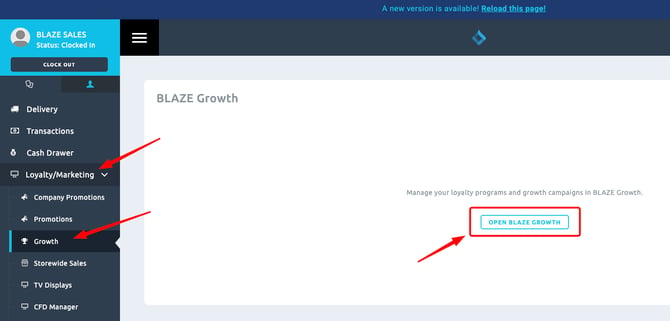
Growth Onboarding & Setup FAQs
Learn more about Growth