.png?width=140&height=37&name=BLAZE-Logo-Blue%20(2).png)
Prerequisites
- BLAZE POS App or Web Dashboard
- Permission to process order refunds in BLAZE POS
Overview
All BLAZEPAY Cashless ATM transactions must be refunded as CASH. The CATM integration does not support direct refunds back to a customer's debit card.
NOTE: If a payment was successfully completed on the card reader but did not send the completion signal back to BLAZE POS, please refer to the Manual BLAZEPAY (BPAY) Cashless ATM help article to reconcile the transaction prior to initiating a refund.
Step-by-Step Refund Instructions
- Navigate to the Transactions tab on the BLAZE POS App or Web Dashboard.
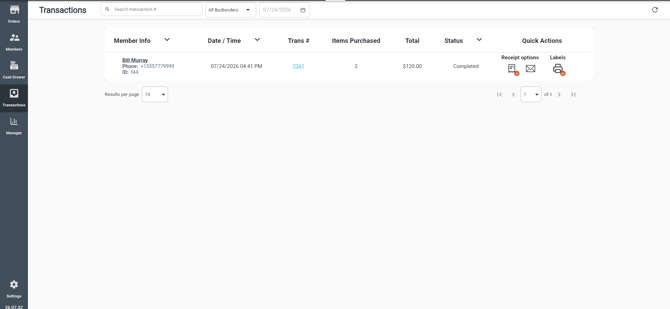
- Search for and click on the specific transaction to highlight it.
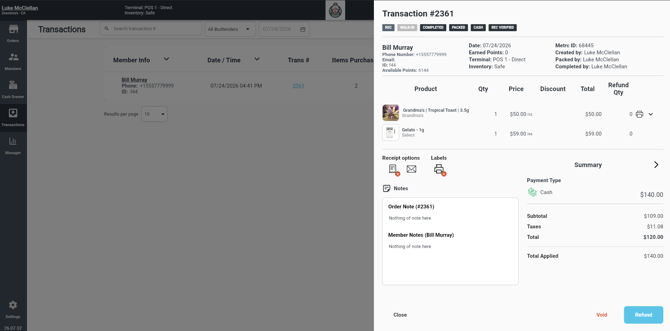
- Select Refund.
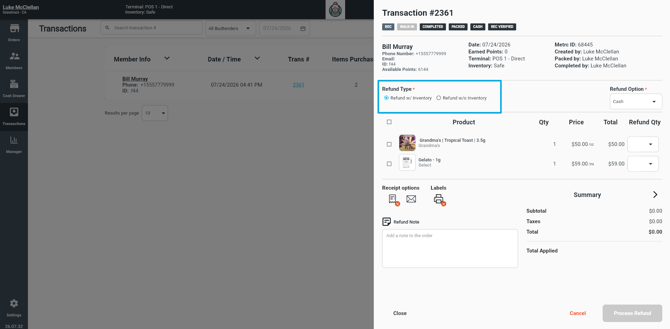
- Choose the inventory status:
- With Inventory: Select this if the item is in resalable condition and should be returned to active stock.
- Without Inventory: Select this if the item is damaged, opened, or cannot be resold.
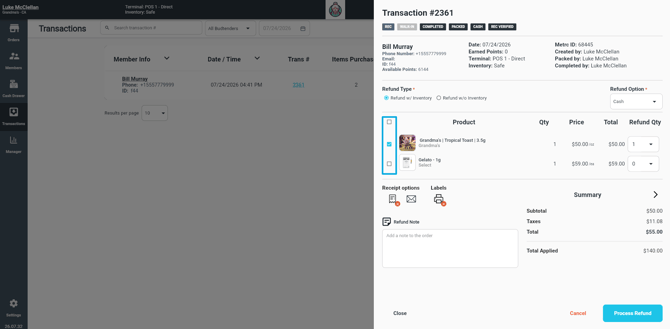
- Select the specific product(s) to be refunded.
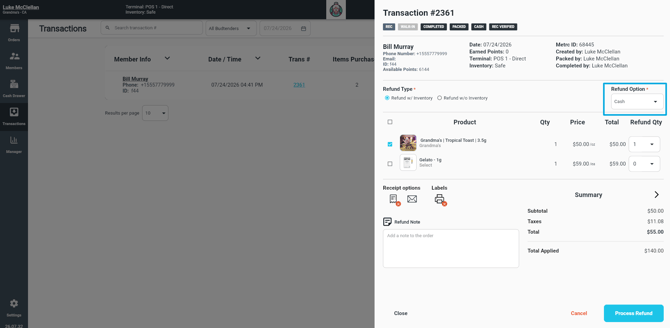
- From the Refund Type drop-down menu, select CASH.
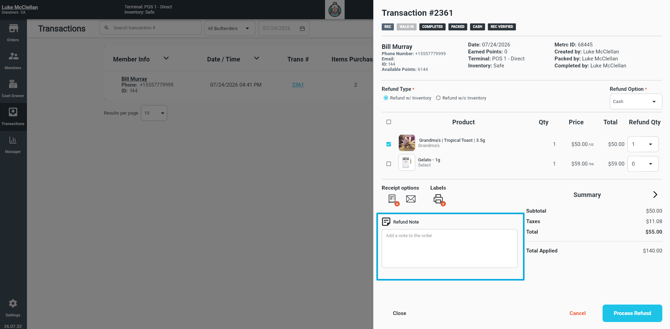
- Enter a brief explanation in the refund note field.
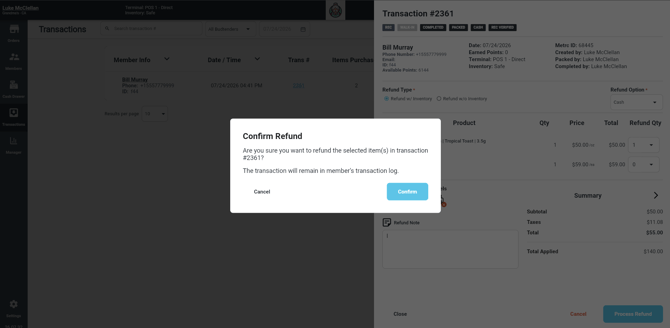
- Select Process Refund.
- Confirm the action by clicking Confirm.
- A confirmation notification will display on screen indicating that the transaction has been refunded. Provide the cash funds directly to the customer.
Related Articles:
Retail | BLAZEPAY Cashless ATM Deposit and Sales Reconciliation
Retail | BLAZEPAY Cashless ATM In-store Workflow