.png?width=140&height=37&name=BLAZE-Logo-Blue%20(2).png)
Prerequisites
- BLAZE POS App or Web Dashboard
- Integrated BLAZEPAY CATM Terminal / Card Reader
- Terminal Receipt (for Authorization Code and Tip verification)
Overview
If a payment is successfully completed on the BLAZEPAY card reader but fails to communicate the sale completion back to BLAZE POS due to network or connection delays, follow the steps below to manually close the order on the POS.
IMPORTANT: Only proceed with the manual process after confirming that the terminal has accepted the debit payment and printed a terminal receipt.
Processing a Manual BLAZEPAY CATM Transaction in BLAZE POS
- Navigate to the Payment Options screen in the BLAZE POS app.
- Select BLAZEPAY Cashless ATM.
- Toggle ON the Manual option.
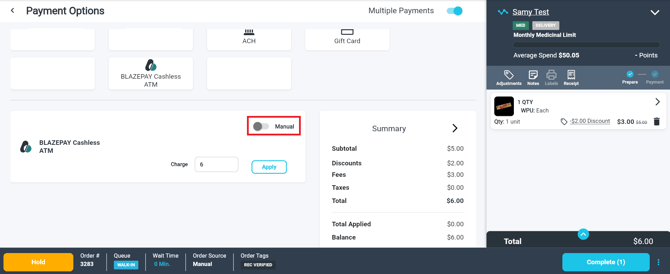
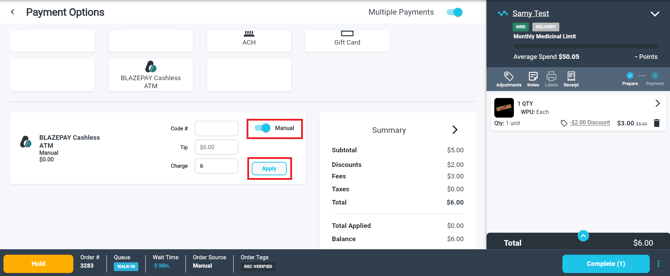
- Fill in the following required fields using the printed terminal receipt:
- Code #: Enter the Authorization number printed on the terminal receipt.
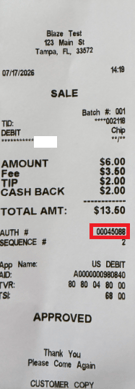
- Tip: Enter the tip amount left on the card reader (as shown on the receipt details).
- Charge: Auto-populated with the BLAZE total.
- Code #: Enter the Authorization number printed on the terminal receipt.
WARNING: The Manual BLAZEPAY CATM option automatically rounds the total and applies the required processing fee. Do NOT edit the pre-populated dollar amount in the Charge field.
5. Select Apply to submit the payment.
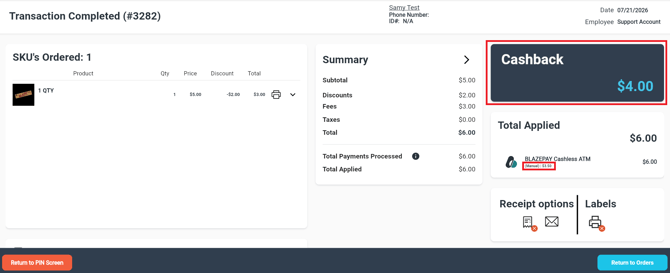
6. The transaction will automatically complete, and the payment summary screen will display any change (cashback) due to the customer.
Processing an Unintegrated Transaction on the Ingenico Terminal
WARNING: This workflow should only be used if the payment terminal is operating in Stand Alone mode.
- From the main screen or the screen displaying the B logo, press 1 on the keypad to enter an amount.
- Enter the non-rounded Total amount.
- Select the tip preference:
- Select Tip Amount (1) and enter the customer's tip amount.
- Select No Tip (3) if no tip is being added.
- Press the green button on the terminal to proceed.
- Instruct the customer to insert their debit card into the terminal.
- When prompted for Account Type, select Checking by pressing the green button.
- Prompt the customer to enter their PIN, then press the green button to verify the transaction.
- Wait for the terminal receipt to print.
- Press YES if the customer requires a copy of the receipt, or press NO (1) if a customer copy is not needed to finalize the terminal process.
Related Articles:
Retail | BLAZEPAY Cashless ATM In-store Workflow
Retail | BLAZEPAY Cashless ATM Refunds
Retail | BLAZEPAY CATM Reporting
Retail | BLAZEPAY Cashless ATM Deposit and Sales Reconciliation