.png?width=140&height=37&name=BLAZE-Logo-Blue%20(2).png)
The One Rule to Remember
Inherited fields update everywhere; overridden fields are never touched.
The edit form notes: "Inherited fields overwrite per-location values on save; overridden fields keep their own."
For example, if your Downtown store has an active price override for a specific product, changing the company-level price will update every other store, but the Downtown store will keep its custom price.
Editing a Product
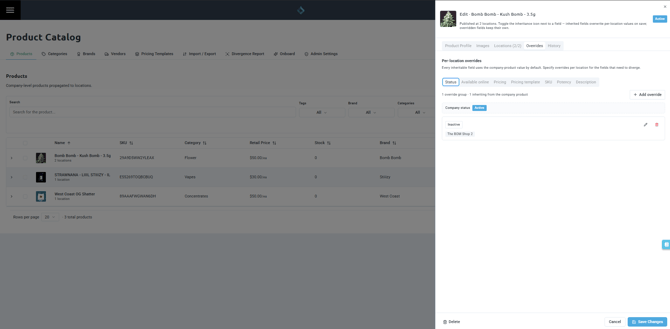
- Navigate to Products and click on the product you wish to edit. The form opens as Edit · [Product Name], displaying how many locations it is currently published at.
- Make your desired changes on any tab.
- Click Save Changes.
NOTE: On save, a confirmation toast will appear: "Product saved — Updated across N locations (existing per-shop overrides preserved)".
Timing: Changes land at your locations immediately. Shop menus and product search will reflect the updates within a few moments.
Enabling and Disabling a Product
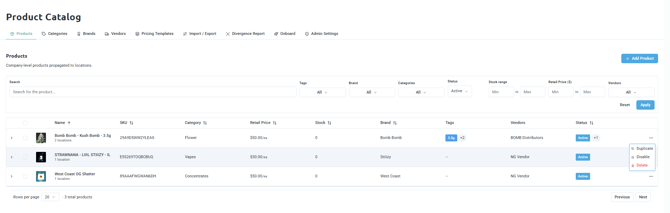
To change a product's visibility across all stores, use the row menu on the Products list:
- Disable: The product will be hidden from customers at every location it is currently assigned to.
- Enable: Customers at all locations carrying this product will see it again.
TIP: To change availability at a single location only, use a per-location override instead. See the Customize a Product for a Single Location article for details.
Adding or Removing Locations
- Navigate to the product's Locations tab.
- Add locations to publish the product to those shops, or remove a location to withdraw the product from that shop.
TIP: The main list page's expandable per-location detail view shows exactly which shops currently carry the product.
Duplicating a Product
- Locate the product on the Products list.
- Choose Duplicate from the product's row menu.
NOTE: A confirmation message will appear: 'Duplicated as "[Name]"'. This is useful for quickly creating product variants that share the majority of their fields.
Deleting a Product
- Choose Delete from the product's row menu, or click Delete inside the product's edit form.
WARNING: Deleting a product removes it and all of its per-shop location copies from the company catalog simultaneously. Per-shop copies are deleted with it and are not left behind to manage individually.
As a safeguard, a product cannot be deleted while any location still holds inventory. The deletion request will be blocked until the remaining stock is sold off or transferred.