.png?width=140&height=37&name=BLAZE-Logo-Blue%20(2).png)
NOTE: The App Switcher works seamlessly with Single Sign-On (SSO). For seamless cross-app navigation without re-authentication, sign in using Social Login or Enterprise SSO.
Prerequisites
- An active BLAZE account.
- You must be signed in to a BLAZE app (Retail Admin, POS, ECOM, etc.).
- Recommended: Signed in via SSO for one-click switching without re-authentication.
How to Use the App Switcher
- Sign in to any BLAZE product (Retail Admin, POS, ECOM, etc.).
- Locate the App Switcher icon in the top-right corner of the app.
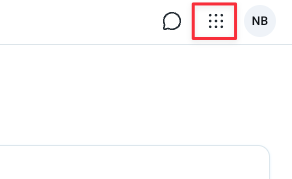
- Click the App Switcher icon to open the menu.
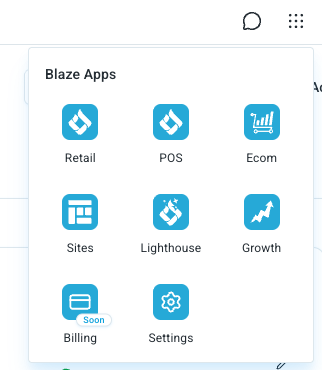
- Select the BLAZE product you want to open.
You'll be taken directly to the selected product. If you signed in with SSO, you won't be asked to log in again — the App Switcher uses your existing session to authenticate you automatically.
What Products Are Available?
The products shown in your App Switcher depend on:
- Your subscription tier — which BLAZE products your organization has purchased
- Your user permissions — which products your administrator has granted you access to
If you can not access a product you expect to have access to, contact your administrator or support team.
Benefits of the App Switcher
- No repeated logins — authenticate once, access everything
- Faster workflow — switch between products with one click
- Consistent experience — same navigation pattern across all BLAZE apps
Troubleshooting
| Issue | Resolution |
| The App Switcher icon doesn't appear | Confirm you are signed in. The App Switcher is only visible to authenticated users. If you're signed in and still don't see it, refresh the page or sign out and back in. |
| I'm being asked to log in again when switching products | This usually means you signed in with email and password rather than SSO. To get seamless switching, sign in using Social Login (Google or Microsoft) or Enterprise SSO. |
| Switching between products is slow or fails | Try refreshing the destination app. If the issue persists, your identity provider may be temporarily unavailable. |
| Redirected to the login page when clicking a product? | Your SSO session may have expired. Log in again, and the App Switcher will work normally. |