.png?width=140&height=37&name=BLAZE-Logo-Blue%20(2).png)
Prerequisites
-
App: BLAZE Web Dashboard
-
Requirement: Metrc Account Access
-
Requirement: State-specific Metrc API Keys
Overview
Setup & Configuration
Package Management & Receiving
Inventory Management
Sales & Transactions
Compliance & Best Practices
-
Setup & Configuration
Q: How do I set up Metrc integration in BLAZE?
Retail | Setting up Metrc in Blaze
A: You will need your Metrc User API Key and Facility License numbers. Follow these steps:
-
Navigate to Global Settings > Integration Settings > Compliance > Metrc Facilities.
-
Enter your Metrc User API Key (found in your Metrc account under Settings > User Profile).
-
Add each facility license number you want to sync.
-
Click Save.
-
Go to Retail > Compliance > Compliance Sync Jobs and click Resync to initiate the first sync.
Q: How do I verify my Metrc integration is working correctly?
Related KB: Retail | How To Address Metrc Submission Errors
A: After completing a test sale, check that the transaction has a Metrc ID:
-
Navigate to Retail > Transactions.
-
Find your test sale and click into the transaction details.
-
Look for the Metrc ID field—it should display a numeric ID (not "SubmissionError").
-
Verify the sale appears in your Metrc account under Sales > Receipts.
NOTE: If you see "SubmissionError," refer to our Metrc Troubleshooting Guides.
Q: How many Metrc package tags should I order?
A: Order 1.3x your estimated monthly package volume to account for splits, transfers, and inventory adjustments. For example, if you receive 100 packages per month and split batches 20% of the time, order approximately 130 tags.
💡 PRO TIP: BLAZE displays your available tag count under Compliance > Available Metrc Tags.
Set a reminder to reorder when you have less than 2 weeks of tags remaining.
Q: Can I use Metrc in multiple states with one BLAZE account?
A: Yes! BLAZE supports multi-state Metrc integration. Add each state's facility license under Global Settings > Integration Settings > Compliance > Metrc Facilities. Each facility will sync independently.
Q: What's the difference between Metrc Employee API and Metrc Vendor API?
A: Most BLAZE Retail customers use the Employee API. If you are a microbusiness handling both retail and production, you may need both.
| API Type | Description |
| Employee API | Used by retailers and dispensaries to sync sales, transfers, and inventory. |
| Vendor API | Used by cultivators and manufacturers to sync production and wholesale transfers. |
-
Package Management & Receiving
Q: How do I receive a Metrc transfer in BLAZE?
Related KB : Retail | How do I Receive a Compliance Transfer
A: Metrc transfers must be received in two distinct steps:
-
Accept in Metrc: Log into Metrc, navigate to Transfers > Incoming, and accept the transfer manifest.
-
Receive in BLAZE: Navigate to Compliance > Compliance Transfers.
Find the transfer under the Incoming tab, click Create PO, map the packages to BLAZE products, and click Receive Purchase Order.
Q: What's the difference between "Metrc Category" and "Weight Per Unit" in my product profile?
Related KB : Retail | How to Set Up a Product Profile to Receive Metrc Packages
A: These two fields must match your Metrc package exactly, or the package will not be received correctly:
| Field | Description | Example |
| Metrc Category | The product category in Metrc. | "Flower", "Edible", "Concentrate" |
| Weight Per Unit | How the package is measured in Metrc. | "Each" (pre-packaged), "Whole_Gram" (weight-based) |
Q: Can I receive Metrc packages without creating a Purchase Order?
A: Yes! You have three methods to receive Metrc packages. All three methods sync the package to Metrc—choose based on your workflow preference:
-
Compliance Transfers (Recommended for vendor transfers): Navigate to Compliance > Compliance Transfers.
-
Purchase Orders: Navigate to Inventory > Purchase Orders > Create PO.
-
Ad Hoc Add Batch: Open a product profile, go to the Batches tab, and click Add Batch.
Q: What is Metrc Retail ID (Individual Unit Tracking)?
Related KB : Retail | Individual Unit Tracking & Metrc Retail ID
A: Metrc Retail ID (also called Individual Unit Identifiers or IUIDs) allows you to track individual units within a batch using unique QR codes. When vendors pre-label products with Retail IDs, you can eliminate manual per-unit labeling, track each unit from receiving through checkout, and automatically record Retail IDs in Metrc when scanned at the POS.
NOTE: The vendor must support Metrc Retail ID. BLAZE will automatically import Retail IDs when you receive the transfer.
-
Inventory Management
Q: How do I split a Metrc batch in BLAZE?
Related KB : Retail | How to split a Metrc batch, Retail | Metrc Package Location Tracking in Blaze
A: Splitting allows you to divide a batch into two separate Metrc packages (useful for moving partial inventory to different locations or separating sellable from damaged product). Ensure you have available Metrc tags (Compliance > Available Metrc Tags) and copy an available CannabisPackage tag before starting.
-
Navigate to Inventory > All and find the product.
-
Click the product name to open it, then click the Batches tab.
-
Click the Split icon on the batch.
-
Enter the quantity to split and paste the Metrc tag.
-
Click Split.
IMPORTANT: If Package Tracking Location is enabled, you must move entire batches. Partial splits are not allowed.
Q: How do I finish a Metrc package with zero quantity?
A: Finishing packages with 0 quantity improves sync performance by reducing the data exchanged between BLAZE and Metrc.
-
Method 1: Navigate to Compliance > Metrc Packages, find the package with quantity 0, click Finish, enter the finish date, and click Finish.
-
Method 2: Navigate to Inventory > All, find the product, click the Batches tab, click Finish/Unfinish on the batch, enter the finish date, and click Finish.
💡 PRO TIP: Finish packages monthly to keep your Metrc sync fast.
Q: What is Package Location Tracking and do I need it?
A: Package Location Tracking syncs BLAZE inventory room movements to Metrc automatically. It is only required in Oregon, Massachusetts, and California (microbusiness licenses only). When enabled, moving inventory between BLAZE inventories automatically updates the package location in Metrc.
IMPORTANT: You must move entire batches. Partial quantity transfers between rooms are not allowed with location tracking enabled.
-
Sales & Transactions
Q: Where can I see Metrc transactions that failed to sync?
Related KB : Retail | Metrc Pending Transactions
A: Navigate to Compliance > Pending Transactions. You will see two queues:
-
Error Submissions: Sales that were sent to Metrc but rejected due to data issues.
-
Not Submitted: Sales that were never sent (usually non-cannabis products).
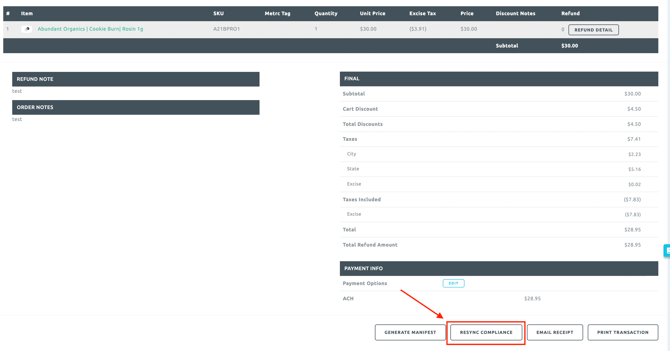
Click on the Transaction No. to view the specific error, fix the underlying issue, and click Resync Compliance.
Q: When do sales sync to Metrc?
A: Sales sync to Metrc in real-time after checkout completion. If the API is available and all product data is correct, the Metrc ID will populate within seconds. If a sale fails to sync immediately, it will appear in Compliance > Pending Transactions with an error code.
Q: Can I void or refund a Metrc sale?
A: Yes! BLAZE automatically handles Metrc adjustments for voids and refunds. For voids, the Metrc transaction is reversed automatically. For refunds, BLAZE adjusts the inventory and unfinishes the package if needed. No manual Metrc adjustment is required.
-
Compliance & Best Practices
Q: How often does BLAZE sync with Metrc?
A: BLAZE syncs with Metrc in real-time for sales (submitted immediately after checkout), transfers (synced when received), and package updates (synced when batches are modified). Background sync jobs run every 15 minutes to pull incoming transfers, package updates from Metrc, and strain/item data.
Q: What happens if Metrc is down?
A: BLAZE will queue transactions locally. When Metrc comes back online:
-
Navigate to Compliance > Pending Transactions.
-
Select all transactions in the Not Submitted tab.
-
Click Resubmit.
The transactions will sync to Metrc in the order they were created.
Q: How do I prepare for Metrc Go-Live?
Related KB's: Retail | Setting Up Metrc in Blaze, Retail | Accepting Transfers in Metrc and Receiving Inventory
A: Follow this checklist:
-
Configure Metrc integration (Global Settings > Integration Settings > Compliance > Metrc Facilities).
-
Complete initial sync (Compliance > Compliance Sync Jobs).
-
Map BLAZE categories to Metrc categories (Inventory > Manage Categories).
-
Create Metrc strains and items.
-
Audit inventory accuracy.
-
Create an external transfer (one-time inventory import to Metrc).
-
Receive the external transfer in Metrc (assign tags in Metrc).
-
Sync packages to batches (Compliance > Compliance Sync Jobs).
-
Complete a test sale and verify the Metrc ID appears in Transactions.
Q: Do I need Metrc Learn training to use BLAZE's Metrc integration?
A: Yes. Most states require a designated system administrator to complete Metrc Learn training, as well as all employees who use Metrc. Check your state's specific requirements in your Metrc account.